

Where workspaces live
Open Manage Workspace › General from the left sidebar to see and edit the active workspace.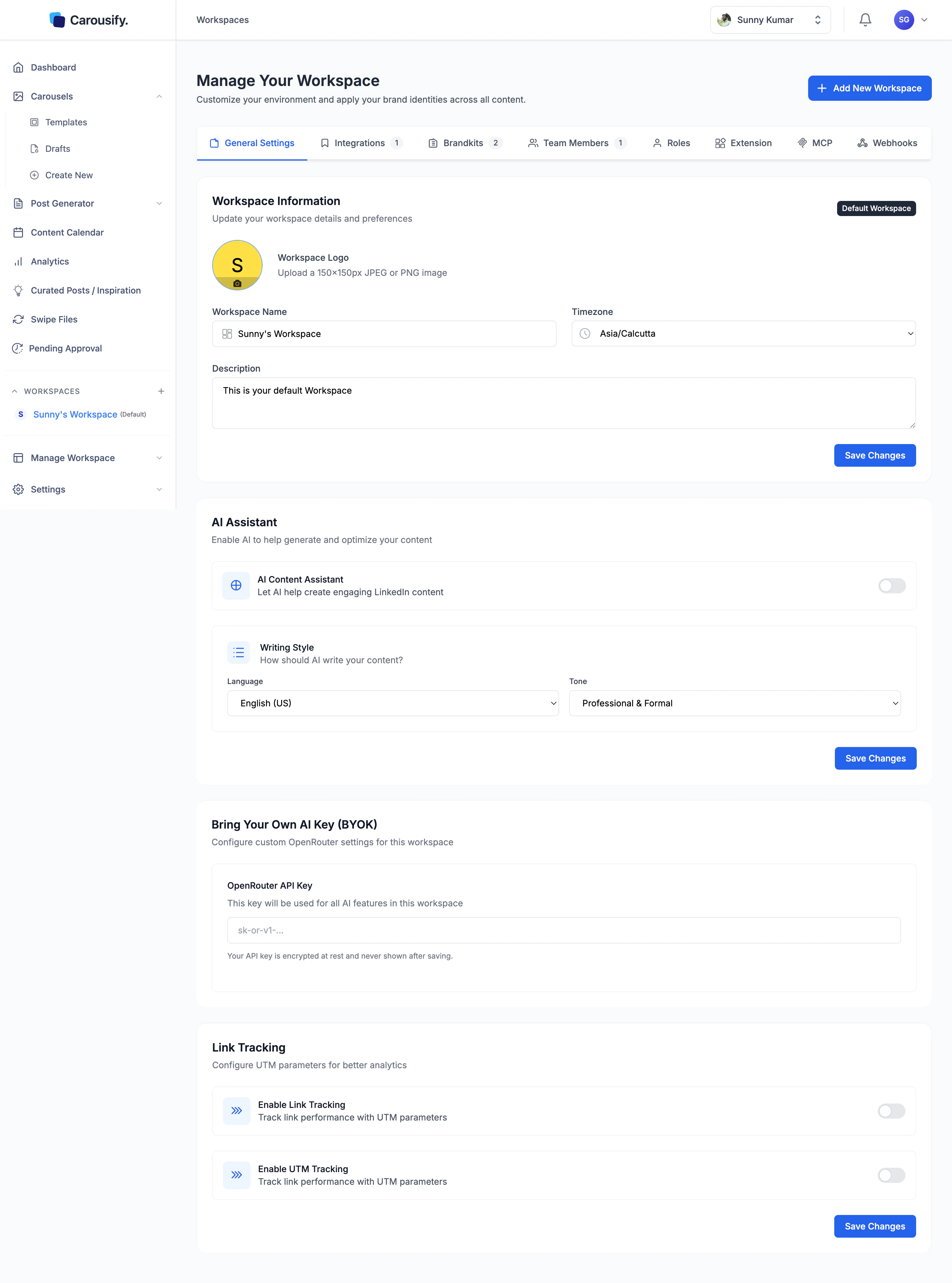
What’s stored per workspace
Each workspace owns:- Workspace info — name, logo, timezone (used for scheduling), description
- Brand kits — fonts, colors, and author identity for carousels
- LinkedIn integrations — personal accounts and pages connected for this workspace only
- Team members and roles — who can do what inside the workspace
- AI defaults — language, tone, optional Bring-Your-Own-Key (OpenRouter)
- Link tracking & UTM — toggle on per workspace if you want shortened, attributable links
- Drafts, scheduled posts, published posts, analytics — fully scoped to the workspace
Switching workspace is a hard context switch. A draft you start in one workspace stays there — it doesn’t follow you into another workspace.
Add a new workspace
Click Add New Workspace at the top of the Manage Your Workspace page (or the + in the sidebar workspace list).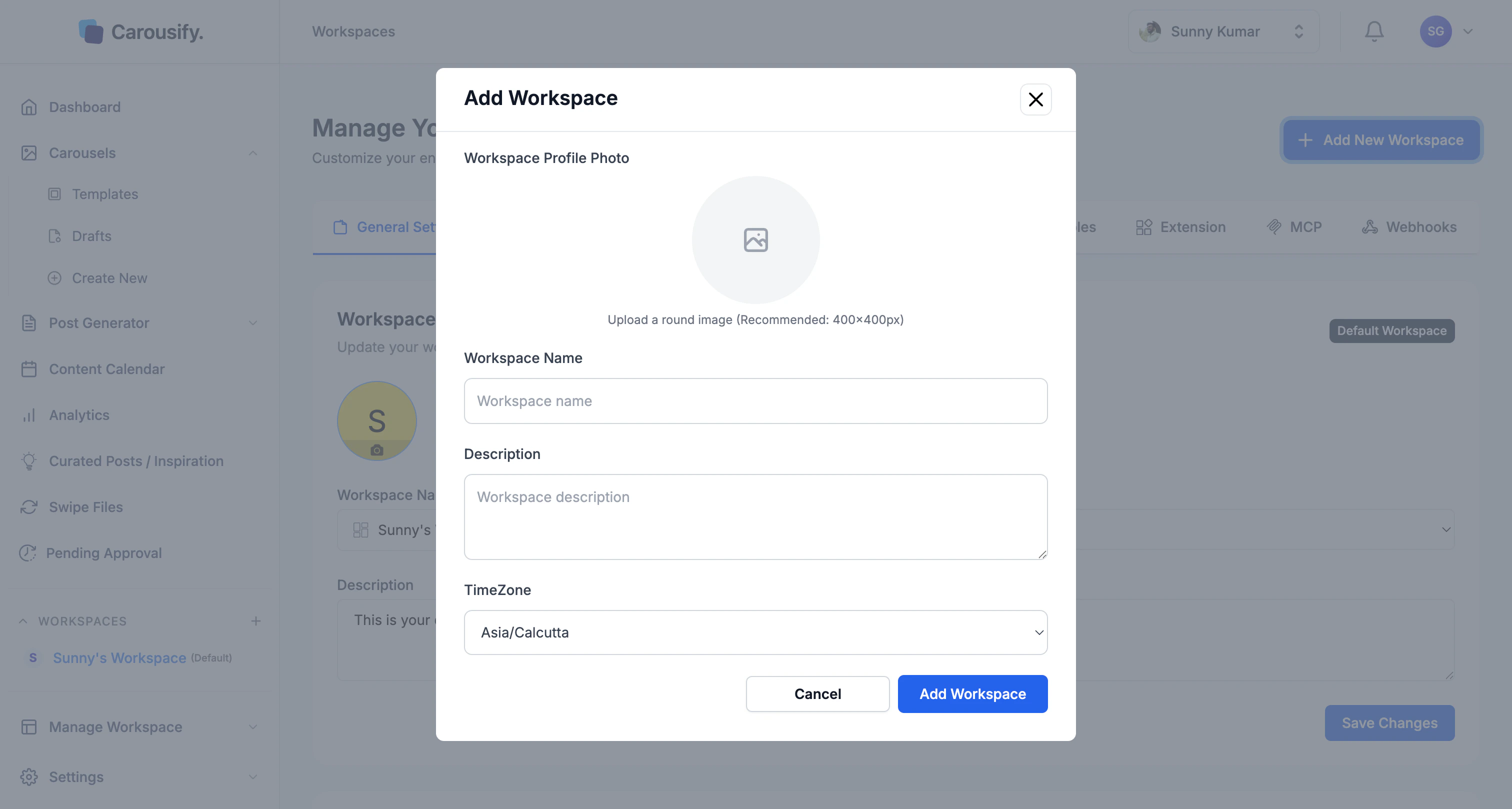
What’s next
Invite your team
Add members to a workspace and assign them roles.
Roles and permissions
Control what each member can see and do.
Connect client LinkedIn accounts
Manage multiple clients without holding their credentials.
Approval workflow
Require manager review before posts go live.