

Open the writer
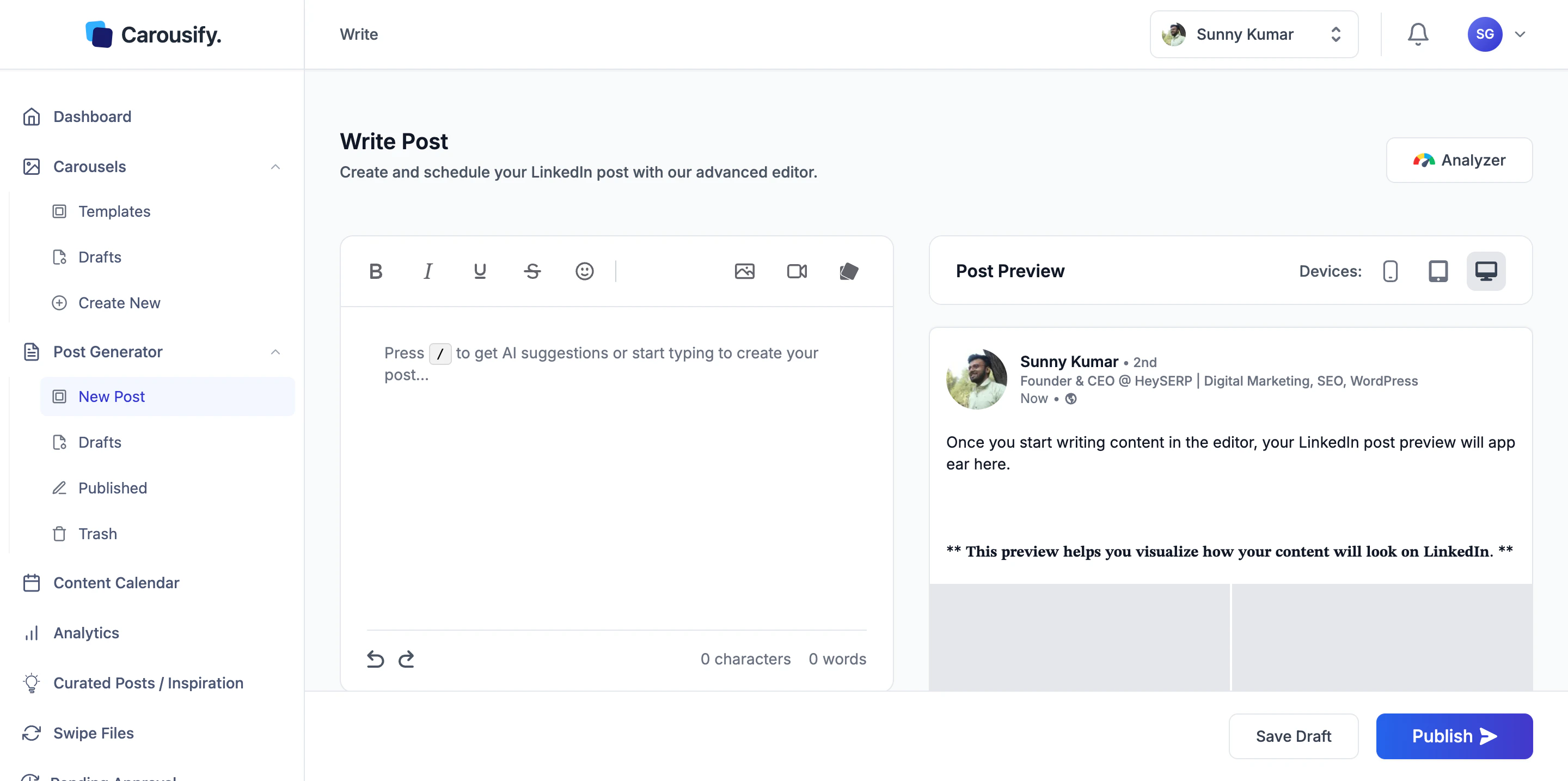
In the left sidebar, go to Post Generator › New Post and click Write New Post on the templates gallery. You land on the Write Post page with an empty editor, an empty preview, and the AI Assistant panel ready below.Generate from a topic with /
The fastest way to a first draft is the slash command.
Click into the empty editor
The placeholder reads Press / to get AI suggestions or start typing to create your post…
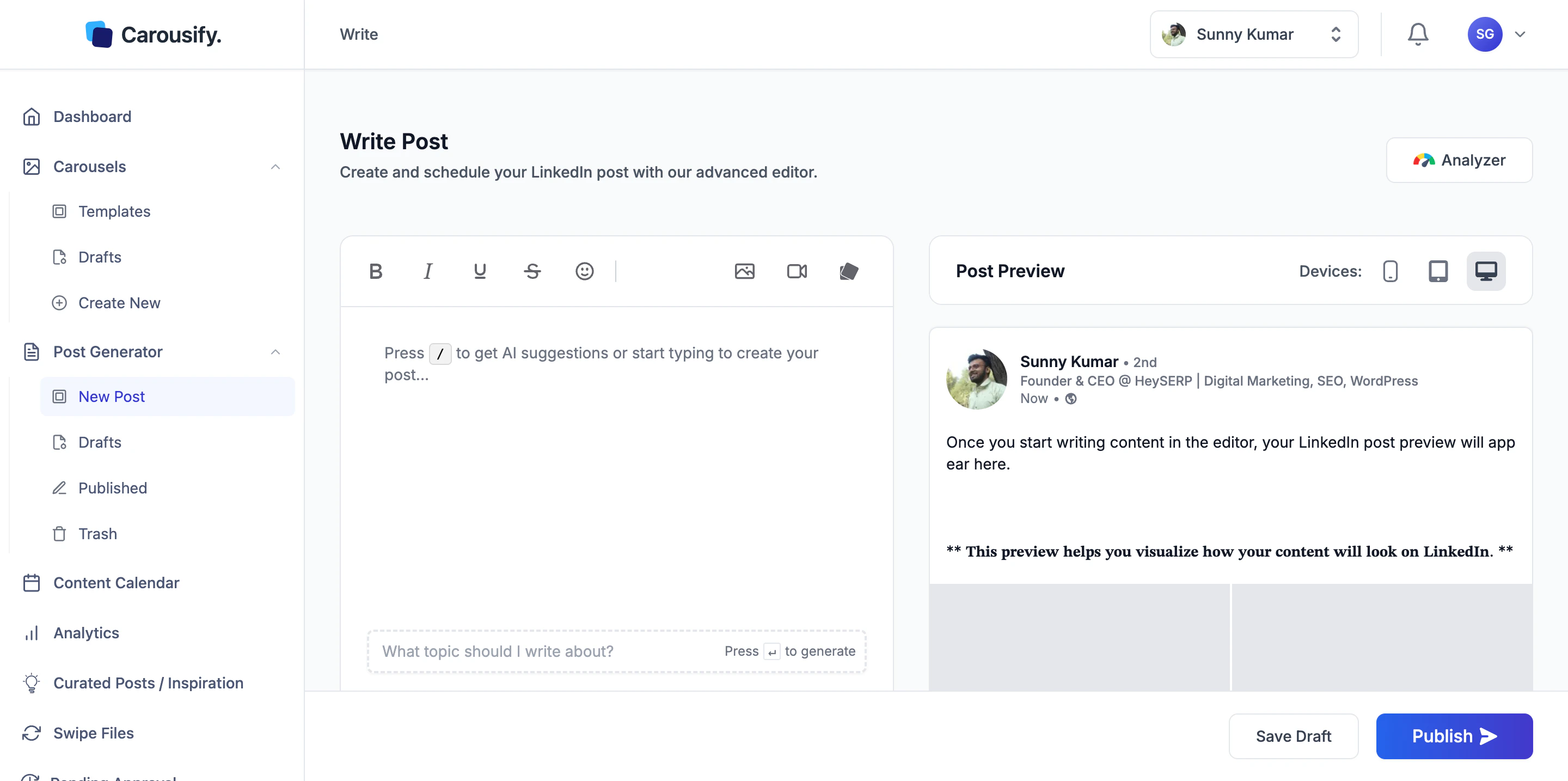
Type a topic, description, or angle
Anything from a one-liner (Local SEO tips for restaurants) to a longer brief (A post about why review velocity matters more than review count for local rankings, with one specific example).
Write manually
If you’d rather draft yourself, just start typing. The formatting toolbar above the editor handles the basics:- Bold, Italic, Underline, Strikethrough
- Insert Emoji
- Add Image, Add Video, Add Carousel — single-image, video, or attach a carousel deck you’ve already built. The image picker also has an AI tab — generate an image from a prompt instead of uploading one. See AI Image Generator.
The AI Assistant panel
The AI Assistant sits under the editor at all times. It runs whether the editor is empty, half-written, or finished — pick a quick action, write a custom instruction, or select text first to scope AI to just that part.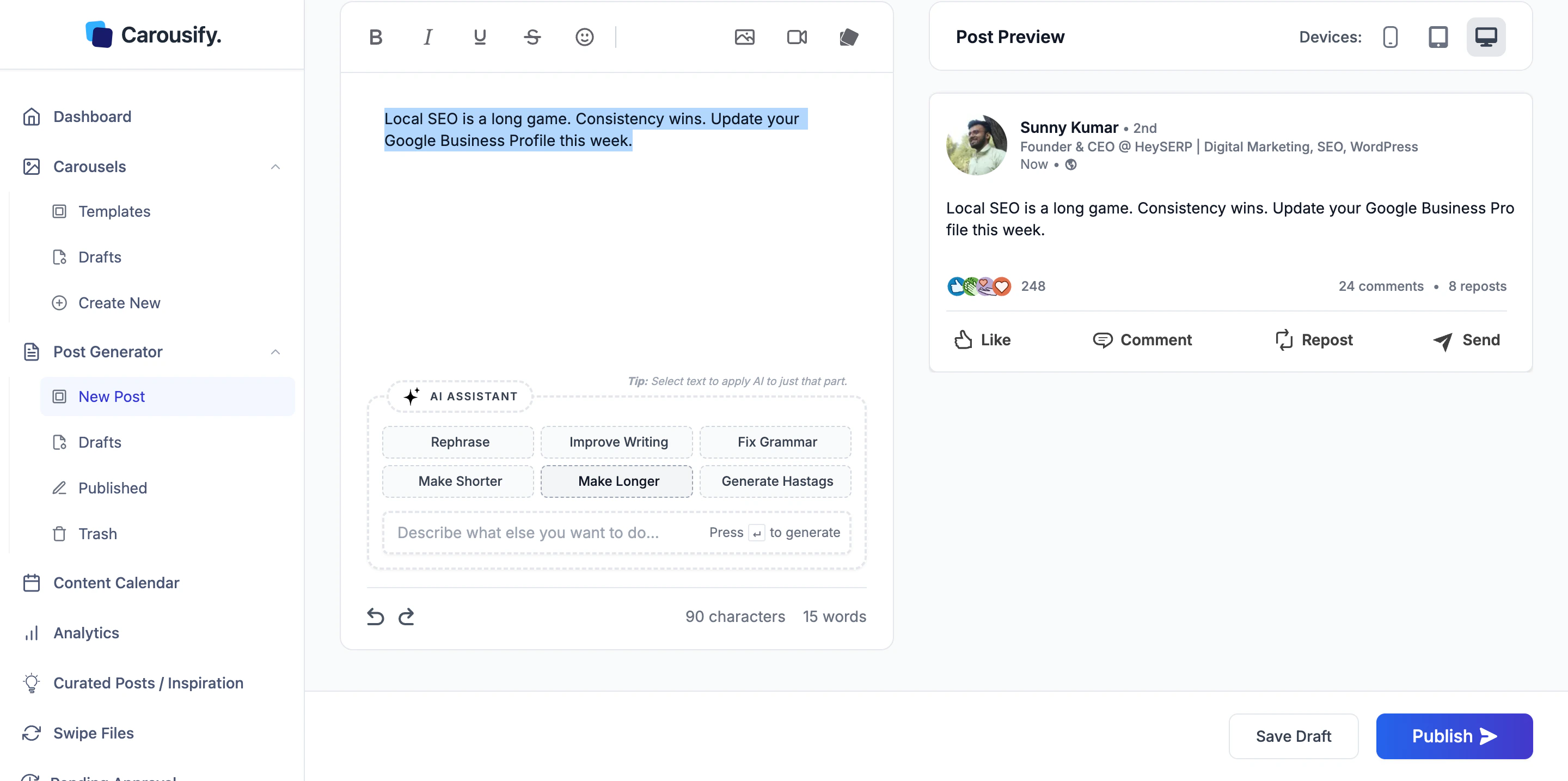
| Action | What it does |
|---|---|
| Rephrase | Rewrites the selection (or full post) keeping the meaning. |
| Improve Writing | Tightens the prose — clarity, flow, word choice. |
| Fix Grammar | Fixes punctuation, tense, and grammar issues only. |
| Make Shorter | Cuts length while keeping the point. |
| Make Longer | Expands with context, examples, or a stronger hook. |
| Generate Hashtags | Suggests hashtags based on the post body and appends them. |
Free-form prompt
Below the buttons, Describe what else you want to do… is a text input for anything outside the six presets. Type the instruction and press ↵:- Rewrite as a personal story instead of an opinion piece
- Turn this into a question to my audience
- Add a one-line hook at the top
- Translate to Hindi and keep the tone
Scope AI to a selection
Select a sentence or paragraph in the editor before clicking an AI button (or running a free-form prompt), and AI acts only on that selection — the rest of the post stays untouched. The panel shows a hint: Tip: Select text to apply AI to just that part. This is the cleanest way to fix one weak line without AI rewriting the whole post.Live LinkedIn preview
The right pane is a Post Preview — exactly how the post will render on LinkedIn, including line breaks, bold styles (LinkedIn renders these as Unicode lookalikes, not real bold), and any media you’ve attached. The Devices toggle at the top of the preview switches between:- Mobile — what most LinkedIn users will see
- Tablet
- Desktop
Analyzer
The Analyzer button in the top-right runs the current draft through an AI scoring pass and returns an Overall Score plus suggestions across nine dimensions.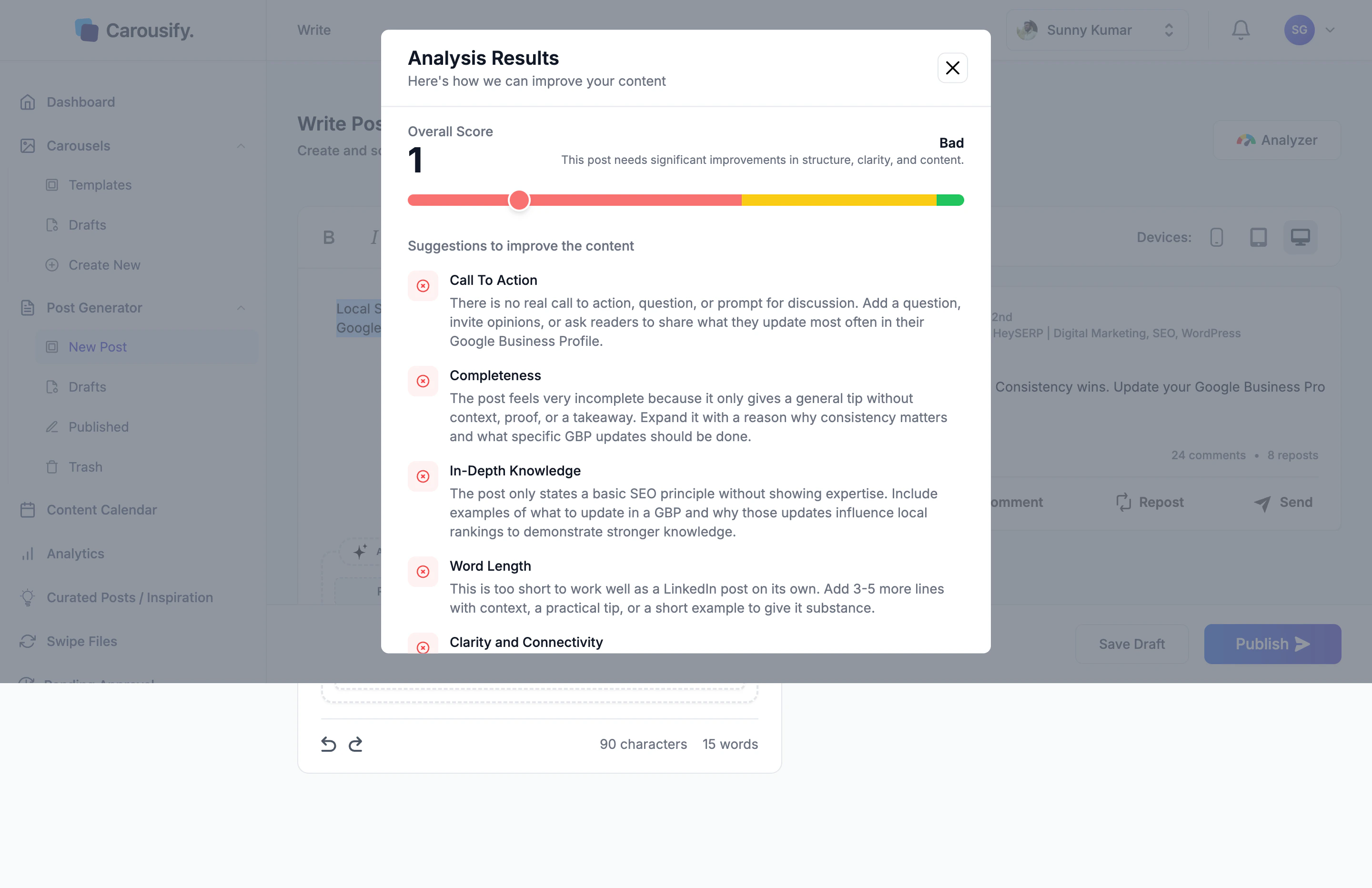
- Call To Action — is there a question, prompt, or ask?
- Completeness — does the post stand on its own, or feel like a fragment?
- In-Depth Knowledge — is there signal beyond a generic statement?
- Word Length — is the post long enough to land, short enough to read?
- Clarity and Connectivity — does it flow from sentence to sentence?
- Grammatical Accuracy — punctuation, tense, sentence structure
- Authenticity — does it sound personal, or could it have been written by anyone?
- Readability — sentence rhythm and pacing
- Media Attached — is there an image, video, or carousel to back it up?
Save Draft and Publish
Bottom-right of the editor:- Save Draft — keeps the post in Post Generator › Drafts for later. You can come back, run AI on it, and publish whenever. Drafts auto-save on every keystroke, so you’ll never lose work to a closed tab.
- Publish — opens the Publish Post dialog where you can post immediately, schedule it for a future date and time, or attach an auto-plug follow-up comment.
What’s next
Generate from source
Skip the blank canvas — start from audio, an article, a YouTube video, or a PDF.
Formatting and preview
Bold, italic, lists, emoji, and how the LinkedIn preview renders each.
Schedule a post
Queue the finished post at a peak time for your timezone.