

Slack’s official Incoming Webhooks app is what we use for this. It’s a one-way pipe from Carousify into your Slack channel — Carousify can post messages, but it can’t read anything from your workspace.
What gets sent
Carousify will post a Slack message for whichever of these three events you tick:| Event | When it fires |
|---|---|
| Post Scheduled | A post is queued for a future date and time. |
| Post Published | A post goes live on LinkedIn (instant or scheduled). |
| Post Publish Failed | LinkedIn rejected the post or auth expired before publishing. |
Before you start
You’ll need:- A Slack workspace where you can install apps (or admin who can do it for you)
- Carousify open in another tab — you’ll be moving between the two
Step 1 — Open the Connect Slack modal in Carousify
In Carousify, go to Manage Workspace › Integrations and click Connect on the Slack card.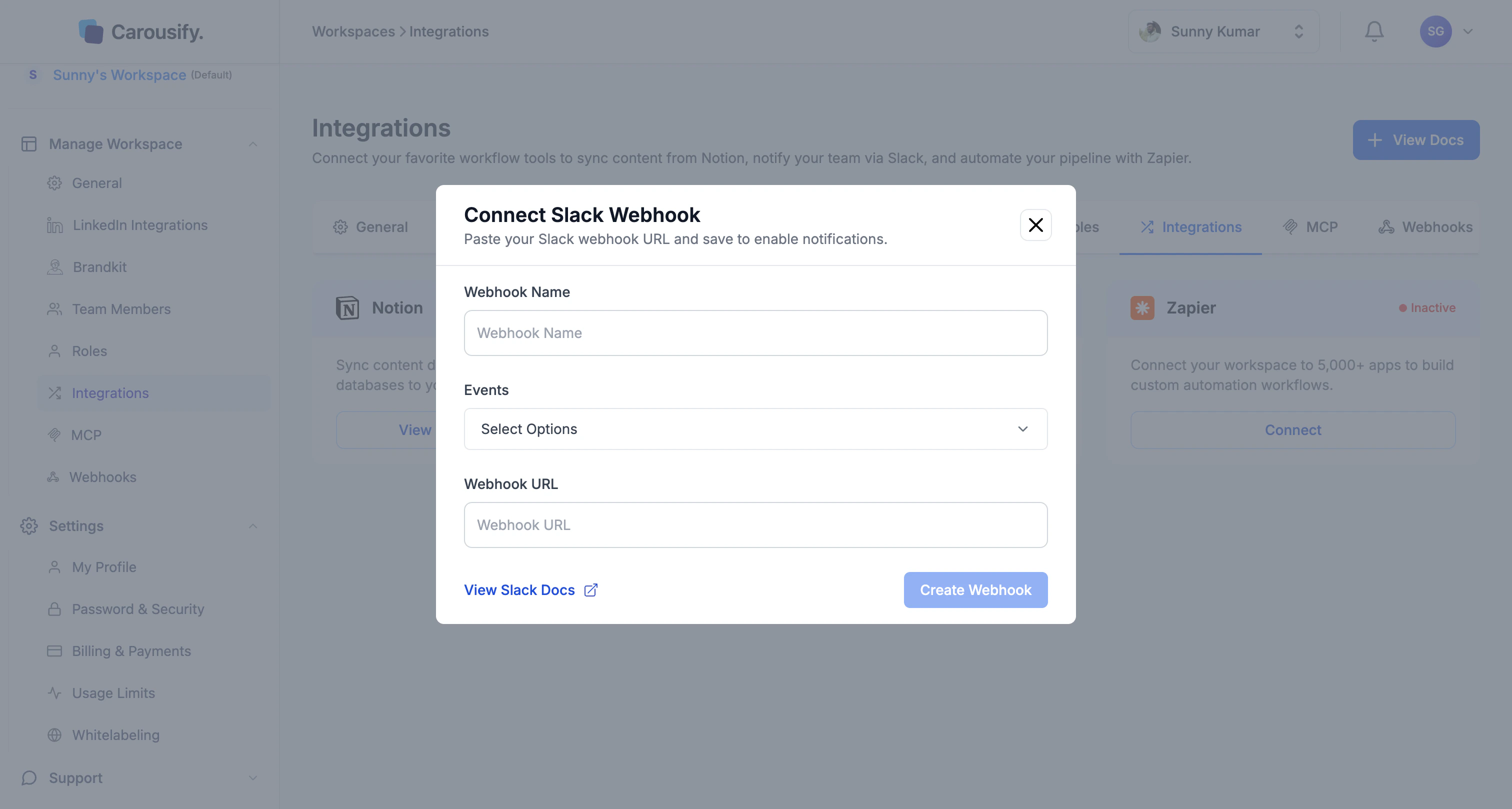
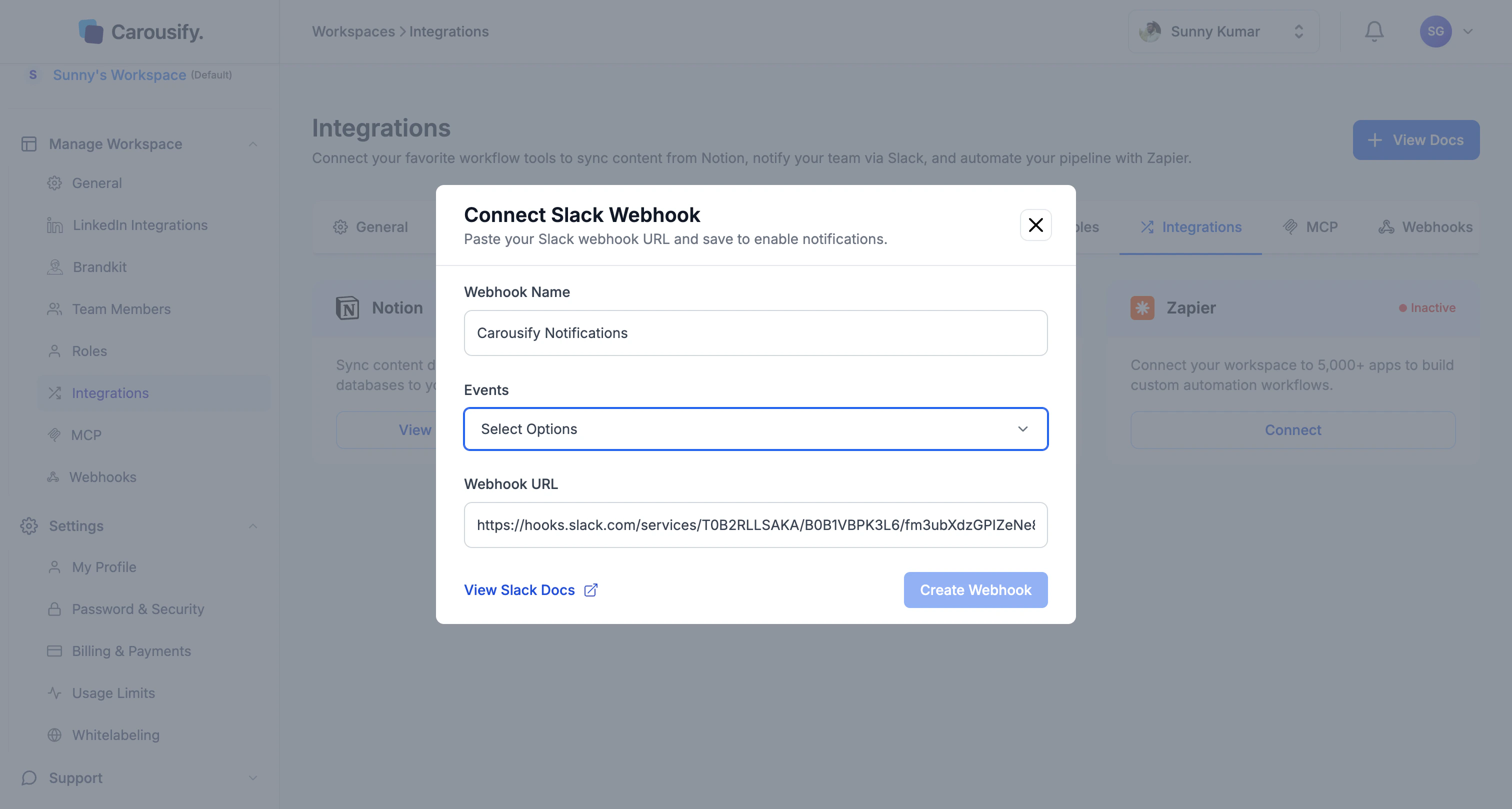
| Field | What it is |
|---|---|
| Webhook Name | A label for this integration inside Carousify (e.g. Carousify Notifications). Doesn’t show up in Slack. |
| Events | Which of the three events should trigger a Slack message. |
| Webhook URL | The URL Slack will give you in Step 3. |
| View Slack Docs | Opens this page. |
Step 2 — Open Slack’s Incoming Webhooks app
Slack’s official Incoming Webhooks app is what gives you the URL to paste back. Open it directly: slack.com/apps/A0F7XDUAZ-incoming-webhooks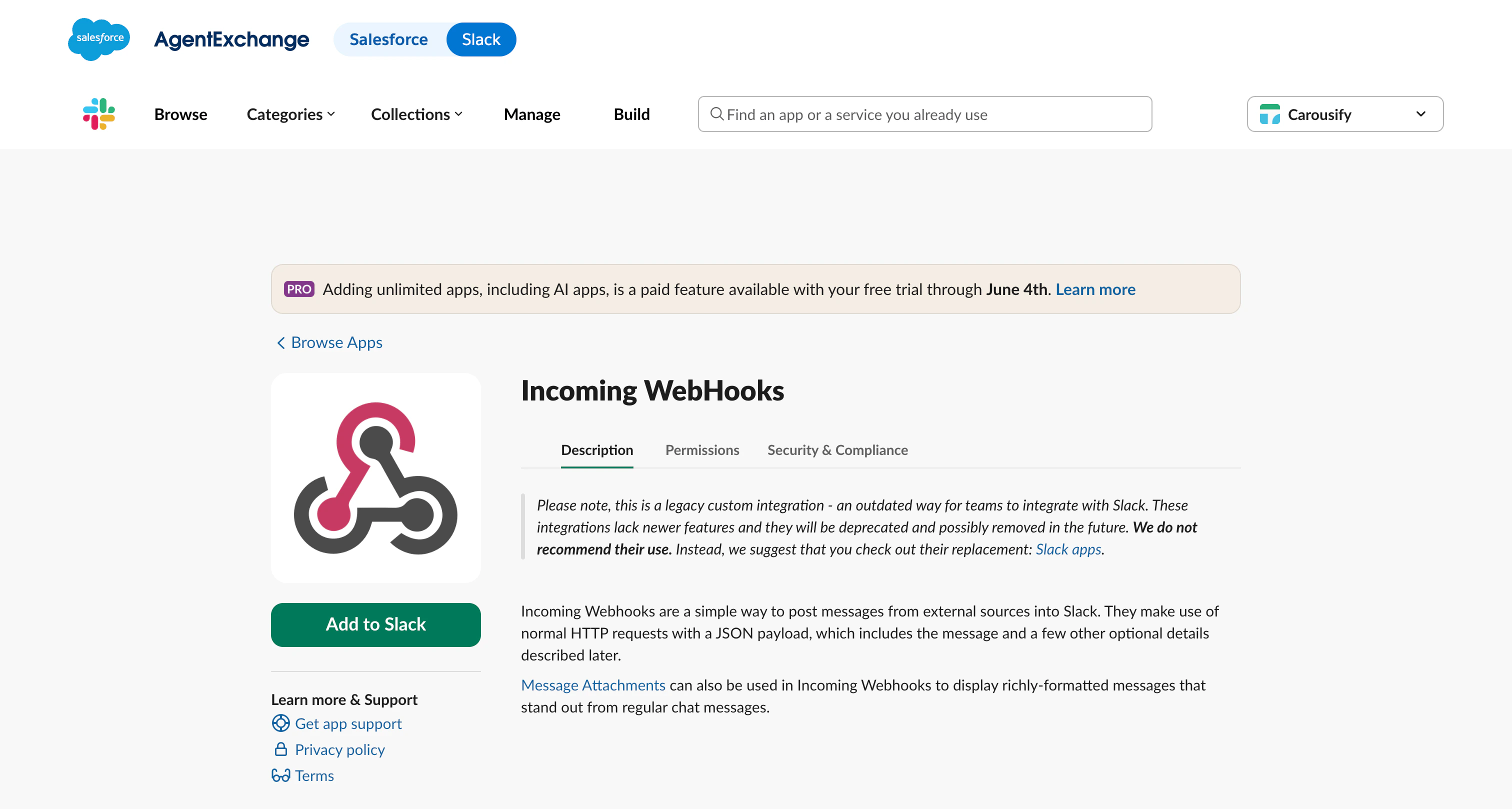
Slack labels Incoming Webhooks as a “legacy custom integration” with a deprecation notice on the page. It’s still fully supported and is the right tool for one-way notifications like ours — but yes, the warning is there.
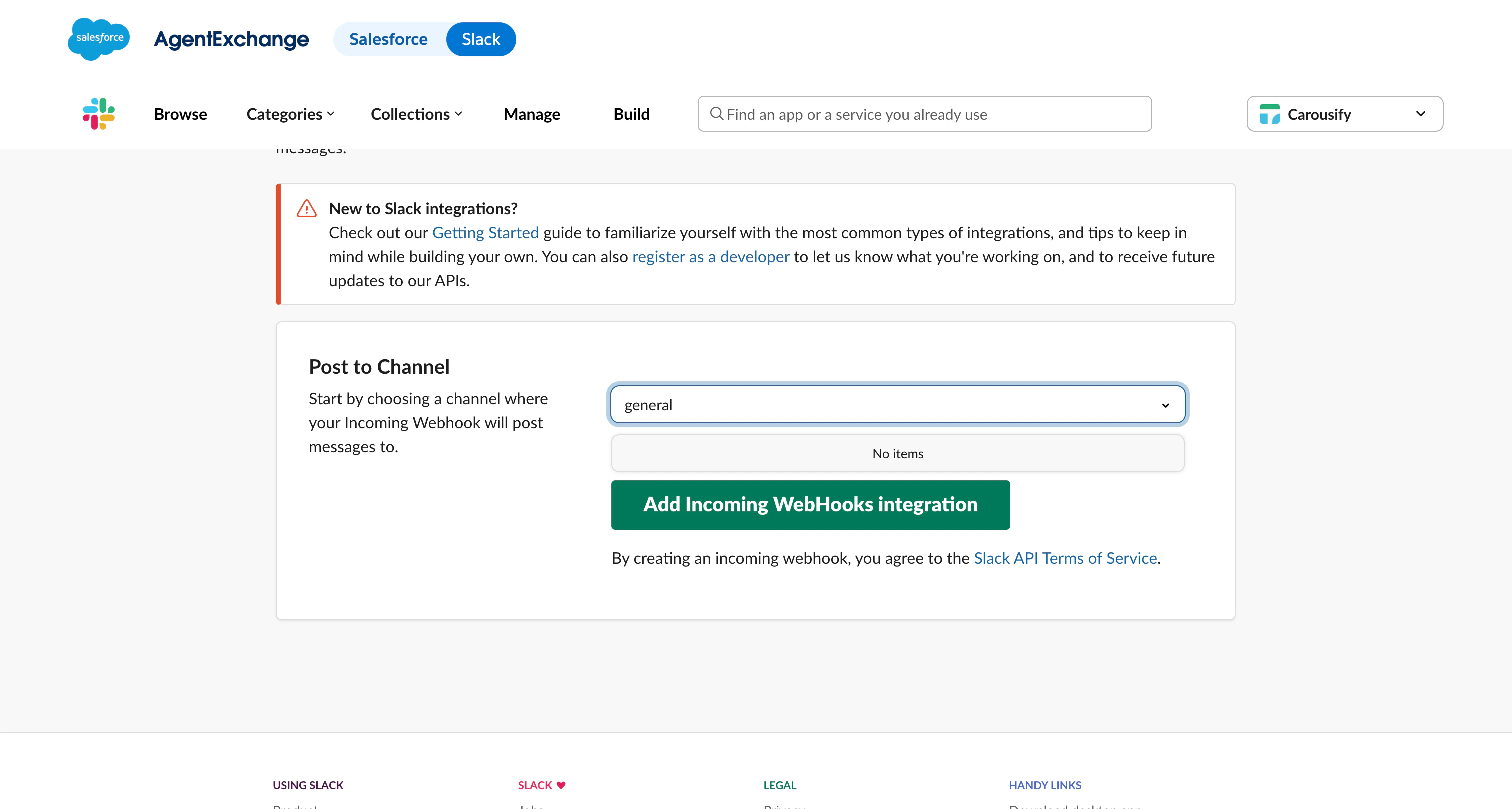
Step 3 — Pick a channel
Slack opens a New configuration page. Under Post to Channel, type or pick the channel you want Carousify alerts to land in (a#social channel works well, or a private dedicated one).
Step 4 — Copy the webhook URL
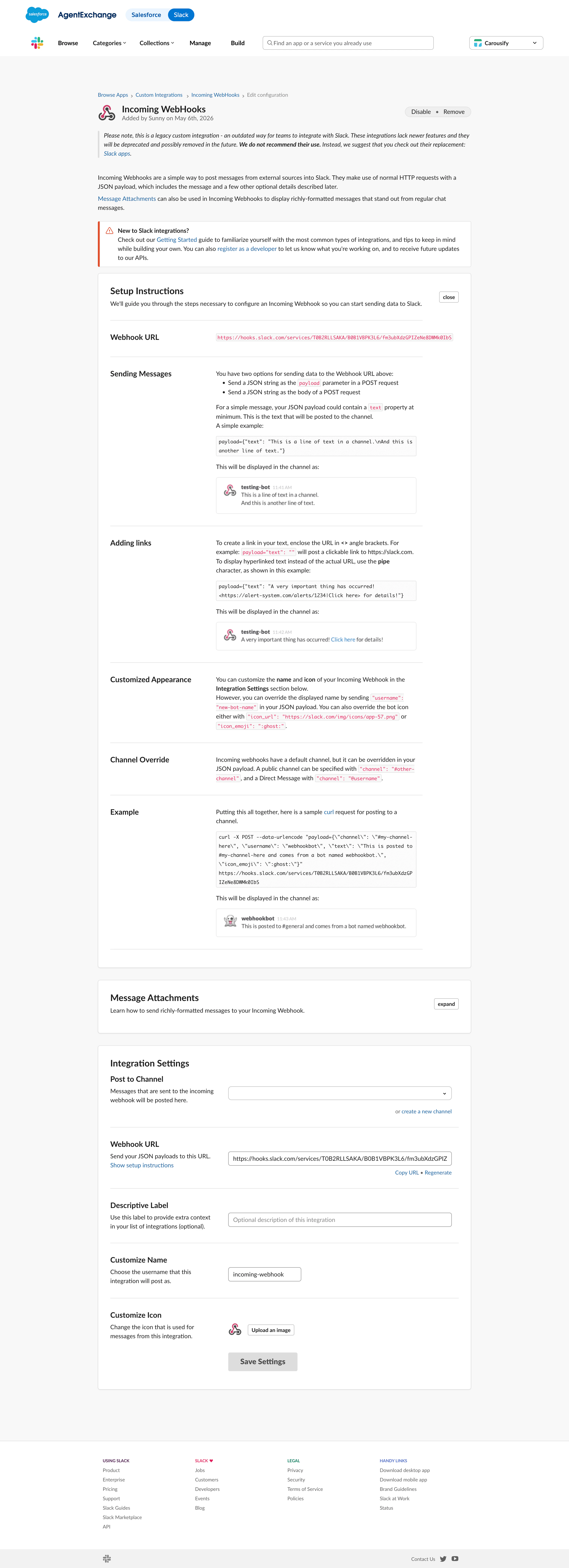
Slack lands you on the configuration page with the Webhook URL at the top. It looks likehttps://hooks.slack.com/services/... followed by a long token unique to your workspace.
Step 5 — Paste it back into Carousify and pick events
Switch back to the Carousify Connect Slack Webhook modal:- Give it a Webhook Name — something you’ll recognize later, like
Carousify Notificationsor#social channel. - Click Events and tick the events you want sent — Post Scheduled, Post Published, Post Publish Failed, or any combination.
- Paste the Slack URL into the Webhook URL field.
Troubleshooting
- Nothing shows up in Slack. Double-check the webhook URL was pasted in full (it ends with a long token), the Slack channel still exists, and you ticked at least one event. Send a test from Slack itself by running
curl -X POST -H 'Content-type: application/json' --data '{"text":"test"}' YOUR_WEBHOOK_URL— if that lands, the problem is on the Carousify side; reconnect the integration. - Messages stopped suddenly. Most likely the webhook was revoked in Slack (someone removed the Incoming WebHooks custom integration, or rotated the URL). Generate a new URL in Slack and update it via View on the Slack card in Carousify.
- Notifications going to the wrong channel. Each Slack webhook URL is locked to one channel. To switch channels, generate a new webhook in Slack against the new channel and replace the URL in Carousify.
What’s next
Set up Zapier
Same three events, but routed through Zapier into anything else.
Schedule a post
Trigger your first Post Scheduled message and confirm Slack is wired up.
Approval workflow
Layer manager review on top of scheduled posts.
MCP server
Drive Carousify from Claude or VS Code when notifications aren’t enough.