

- Carousel Maker › Brand Kit tab — apply, switch between, or create kits while you’re editing a deck. This is where most of the work happens.
- Manage Workspace › Brandkit — full Brand Kit manager for the workspace, useful when you want to set things up before you start designing.
Apply a Brand Kit from the Carousel Maker
Open any carousel in the editor and click the Brand Kit tab.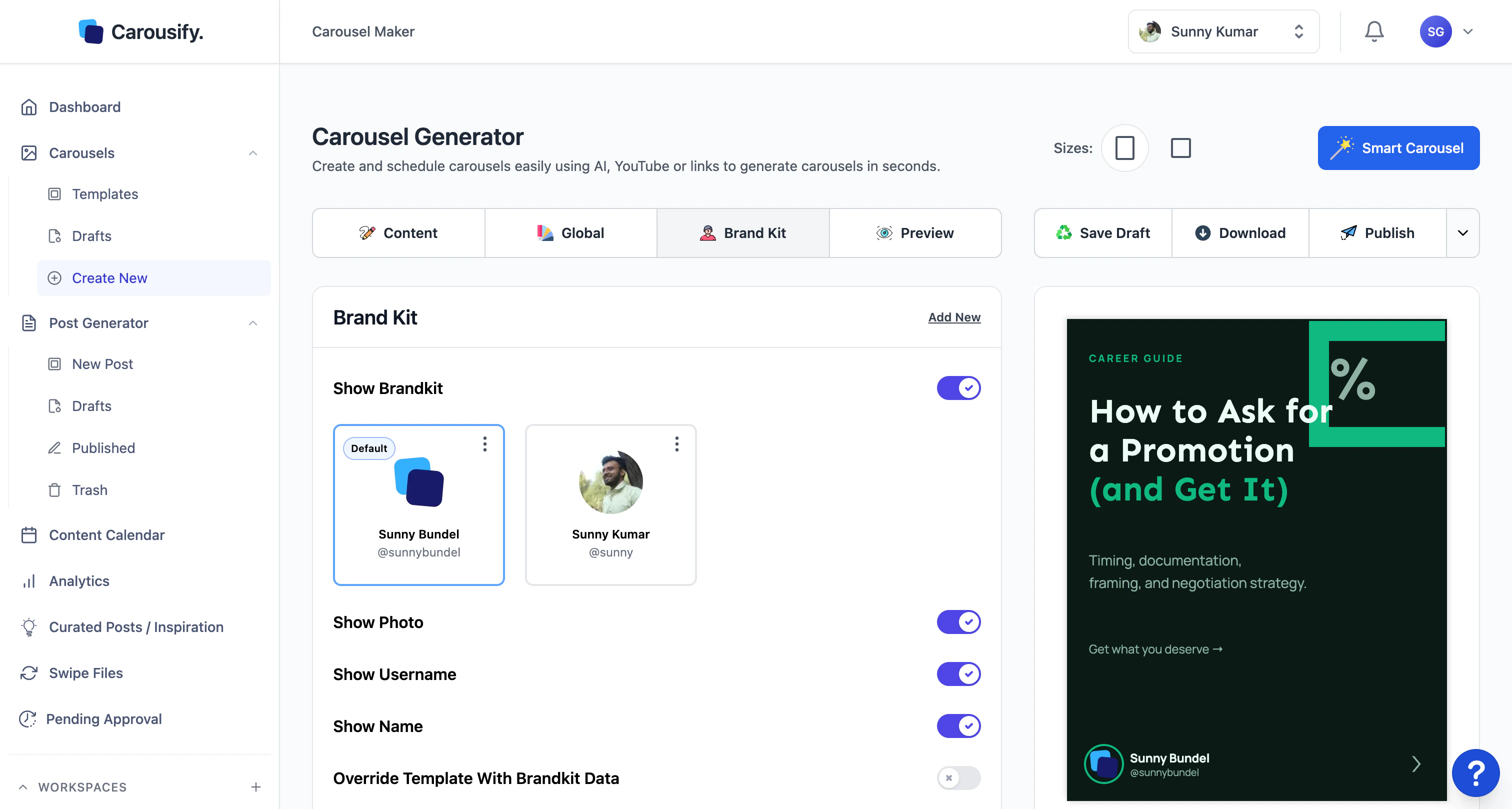
Pick a kit
Click the card for the kit you want. The active kit is highlighted, and the carousel preview updates with the kit’s logo, name, and @username on the footer.
Decide what to display
Use the toggles below the kit cards to control what shows on the slide:
| Toggle | What it does |
|---|---|
| Show Brandkit | Master switch. Off = no logo/name/handle anywhere on the deck. |
| Show Photo | Shows the kit’s logo. |
| Show Username | Shows the @handle. |
| Show Name | Shows the full name. |
| Override Template With Brandkit Data | Forces the deck to use the kit’s fonts, colors, and background — replacing whatever the template originally had. |
Create a new Brand Kit
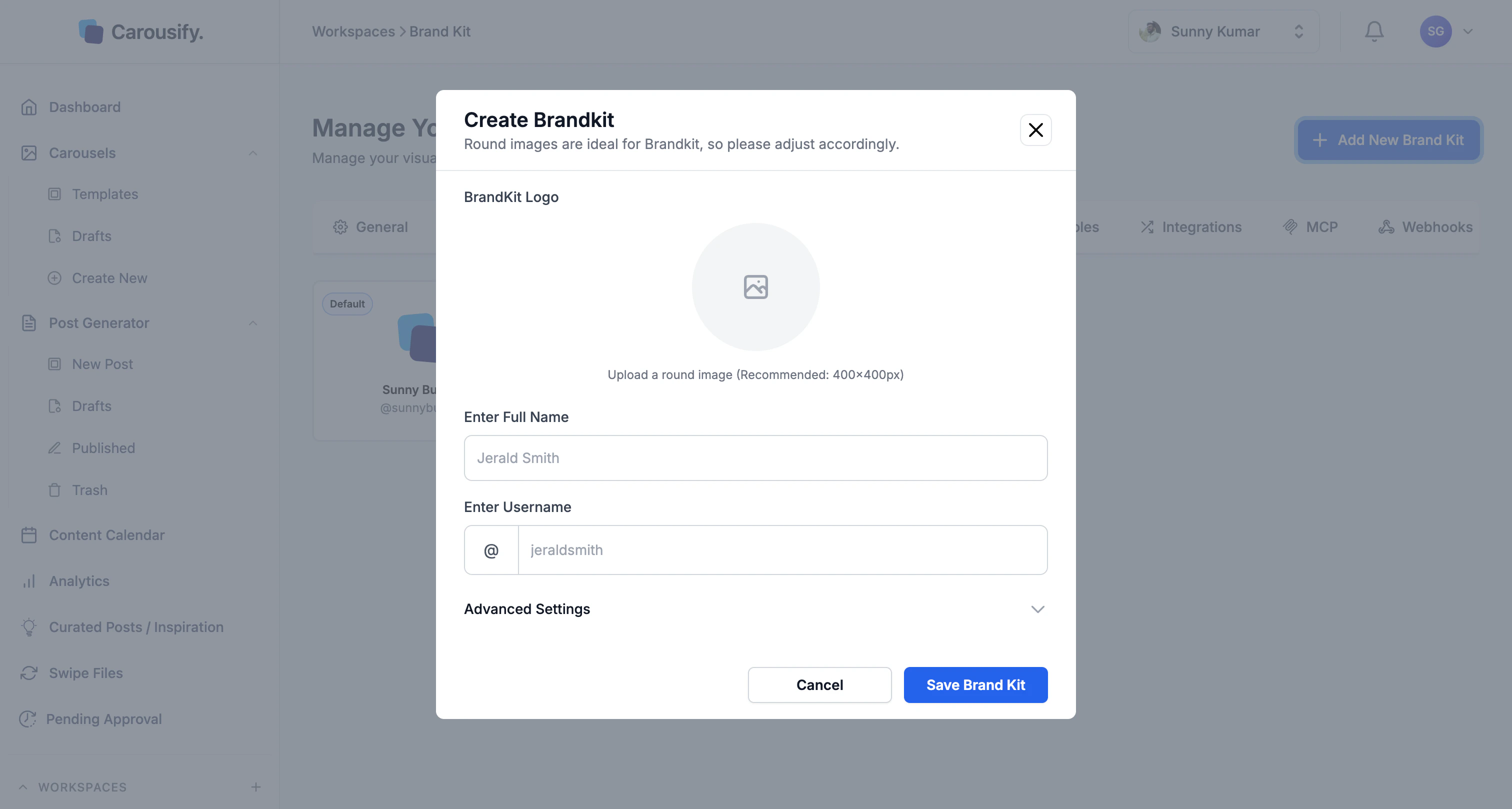
You can create a kit from either surface — same form, same fields.- From the editor — click Add New in the top-right of the Brand Kit tab.
- From the workspace — go to Manage Workspace › Brandkit and click Add New Brand Kit.
Upload your logo
Click Choose File and pick a square image — Carousify recommends 400×400 px and a round-ready design (the logo is masked into a circle on the slide). PNG or JPG works.
Add your name and handle
- Enter Full Name — what shows up next to your logo on each slide.
- Enter Username — your @handle. The
@is added automatically.
Open Advanced Settings (recommended)
Click Advanced Settings to expand the typography and background panel.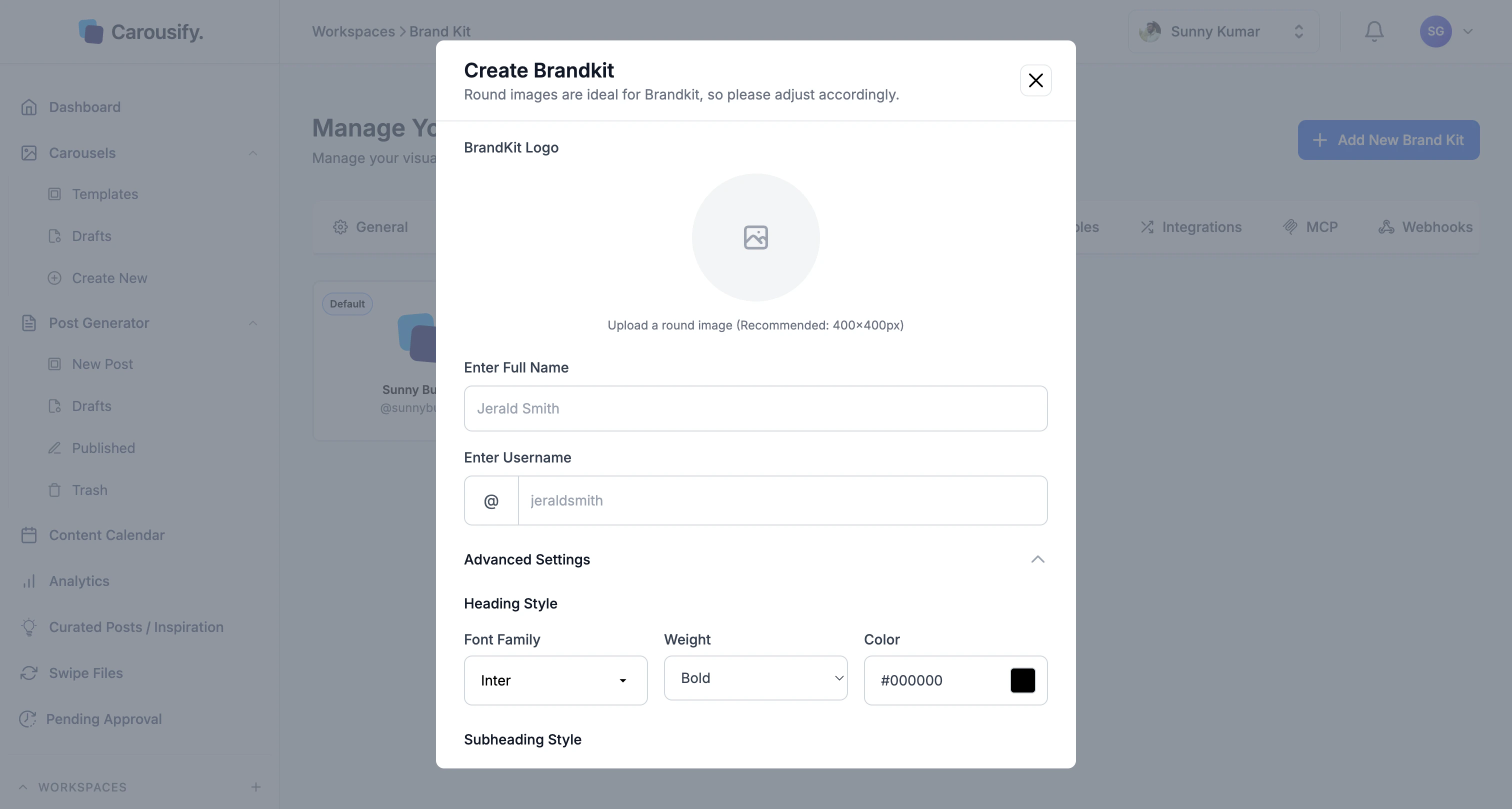
These only apply to the deck when Override Template With Brandkit Data is enabled in the editor — otherwise the template’s own typography wins.
| Field | Sets |
|---|---|
| Heading Style | Font family, weight, and color for slide headings. |
| Subheading Style | Same controls for subheadings. |
| Body Text Style | Same for body copy. |
| Background | Default background color for slides built from this kit. |
Manage kits at the workspace level
Open Manage Workspace › Brandkit to see every kit in the workspace at a glance.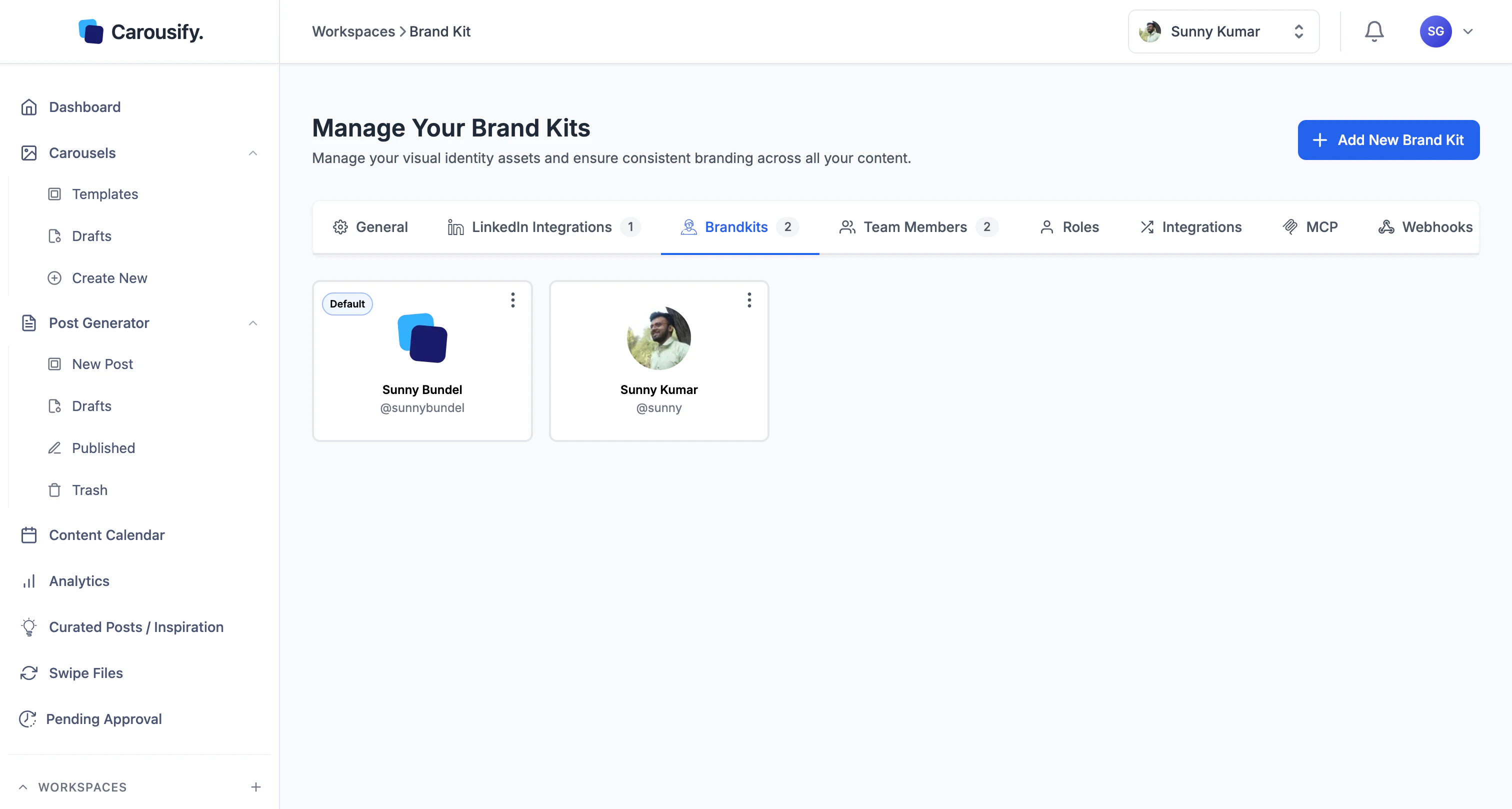
- Add a new kit with Add New Brand Kit.
- Edit or delete an existing kit using the menu on its card.
- See which kit is marked Default — the one Carousify pre-selects when you start a new carousel in this workspace.
Brand Kits are scoped to a single workspace. If you run a workspace per client, set up a kit inside each — they don’t carry across.
What’s next
Templates
Pair a polished template with your Brand Kit for a deck that ships in minutes.
Create from scratch
Start with a blank canvas and have your Brand Kit applied from slide one.
Export and download
Get LinkedIn-ready PDFs and image sets out of the editor.
Schedule a post
Hand the finished deck to the post composer and pick a publish time.