This guide walks you through every screen of the Carousify onboarding so you know exactly what to expect.
You’ll need a LinkedIn account and a credit or debit card. Carousify requires an active subscription to publish, schedule, or generate content — onboarding lets you skip plan selection, but the core features stay locked until you pick one.

Before you start

1

Create your account

Sign up at carousify.com using your email, Google, or LinkedIn.
2

Verify your email

Click the verification link Carousify sends you. You’ll land on the onboarding flow automatically after verifying.

Step 1 — Tell us where you heard about us
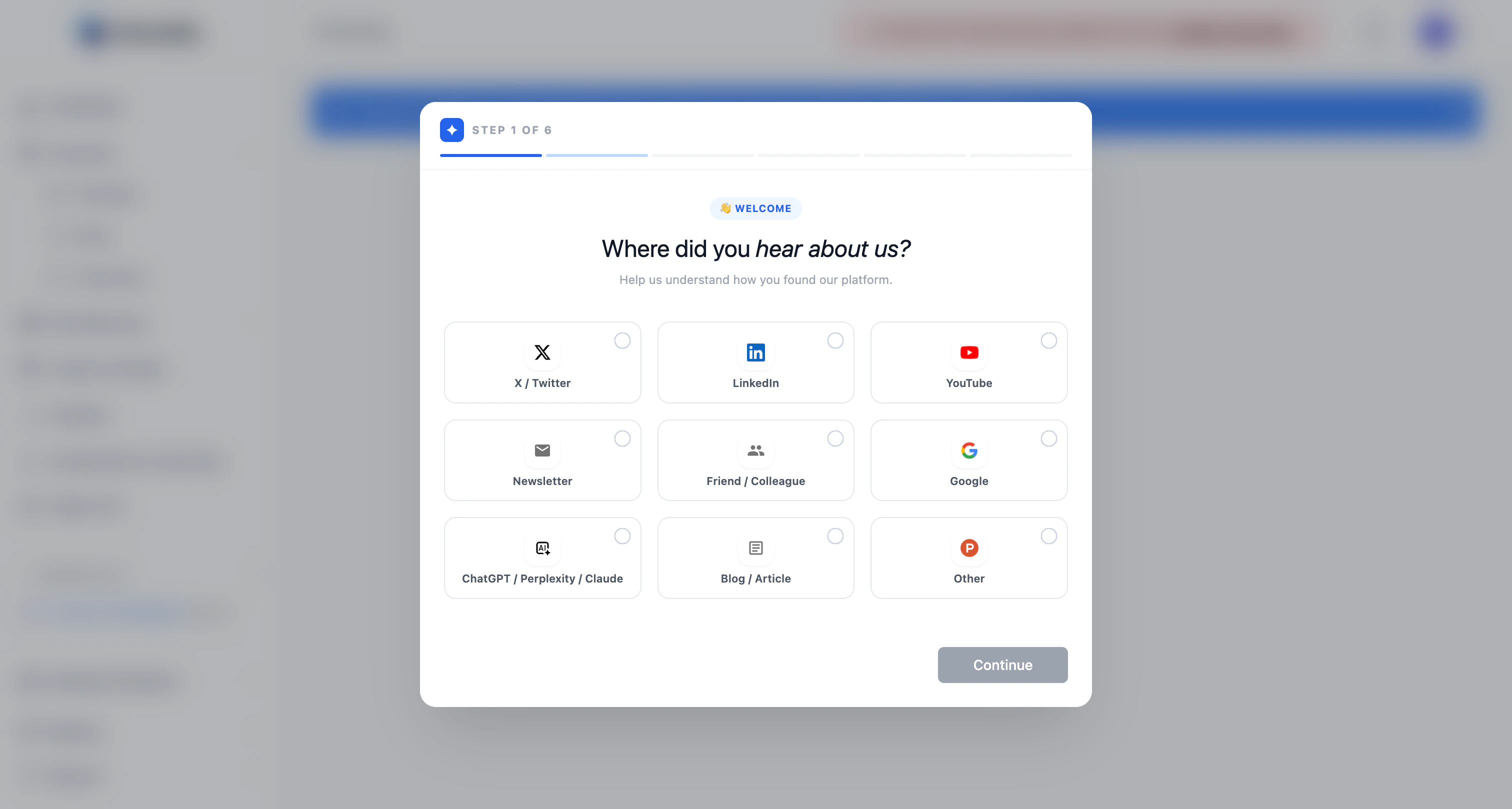
Carousify onboarding step 1 — Where did you hear about us Pick the channel that brought you to Carousify (X, LinkedIn, YouTube, a friend, Google, ChatGPT, a blog, or Other). It’s a single click — this only helps the team understand which channels work, and doesn’t change your account in any way. Click Continue to move on.

Step 2 — Set up your workspace

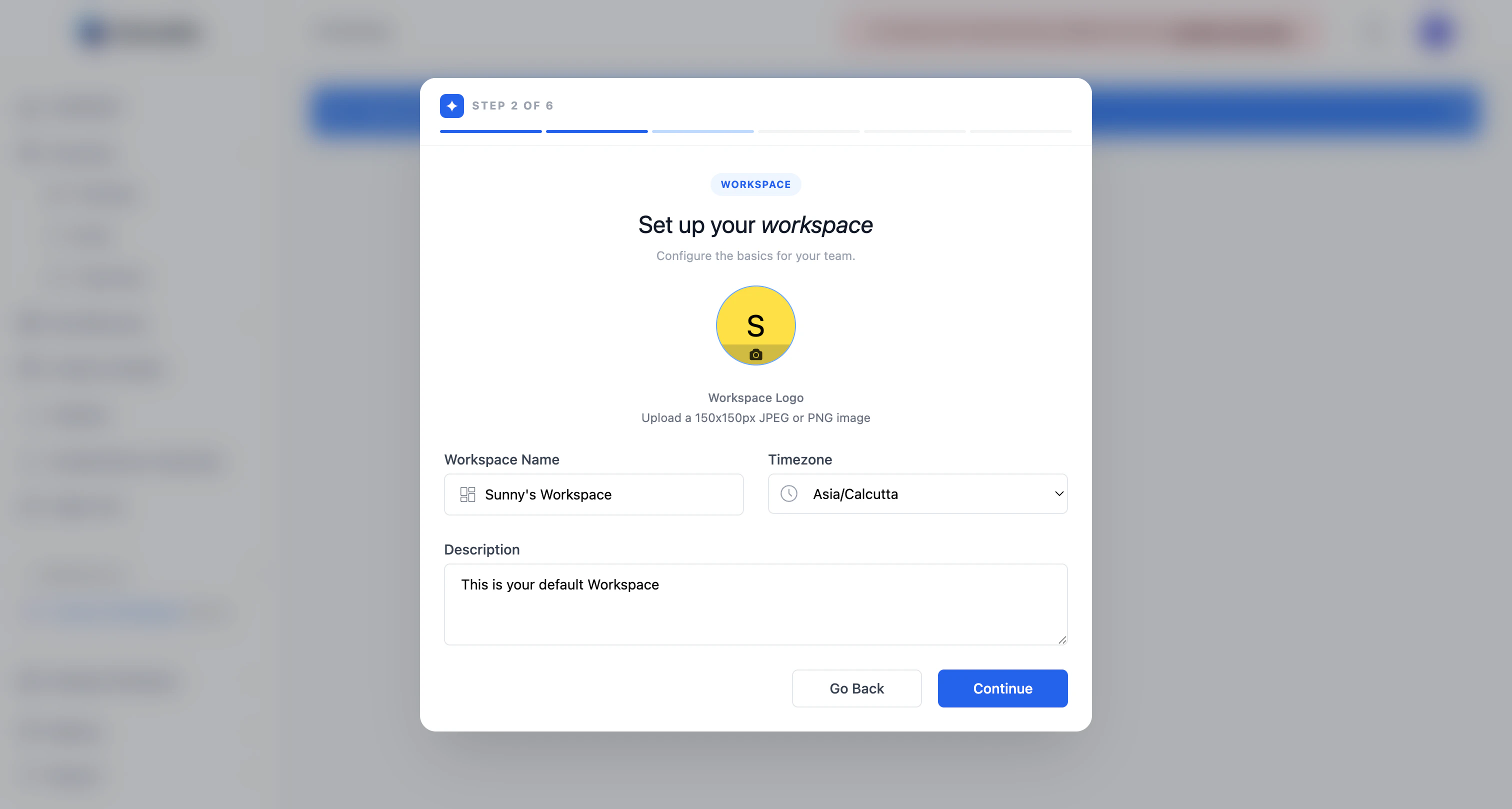
Carousify onboarding step 2 — Set up your workspace Your workspace is where every carousel, post, draft, and team member lives. Carousify pre-fills a default name based on your sign-up.
FieldWhat to enter
Workspace logoOptional. 150×150px JPEG or PNG.
Workspace nameThe name your team will see in the sidebar.
TimezoneUsed for scheduled posts and analytics. Set this to where you (or your audience) actually are.
DescriptionOptional one-liner describing the workspace.
You can rename the workspace later from Workspace › General. Timezone is the one setting worth getting right now — it controls when scheduled posts go live.
Click Continue.

Step 3 — Connect your LinkedIn account
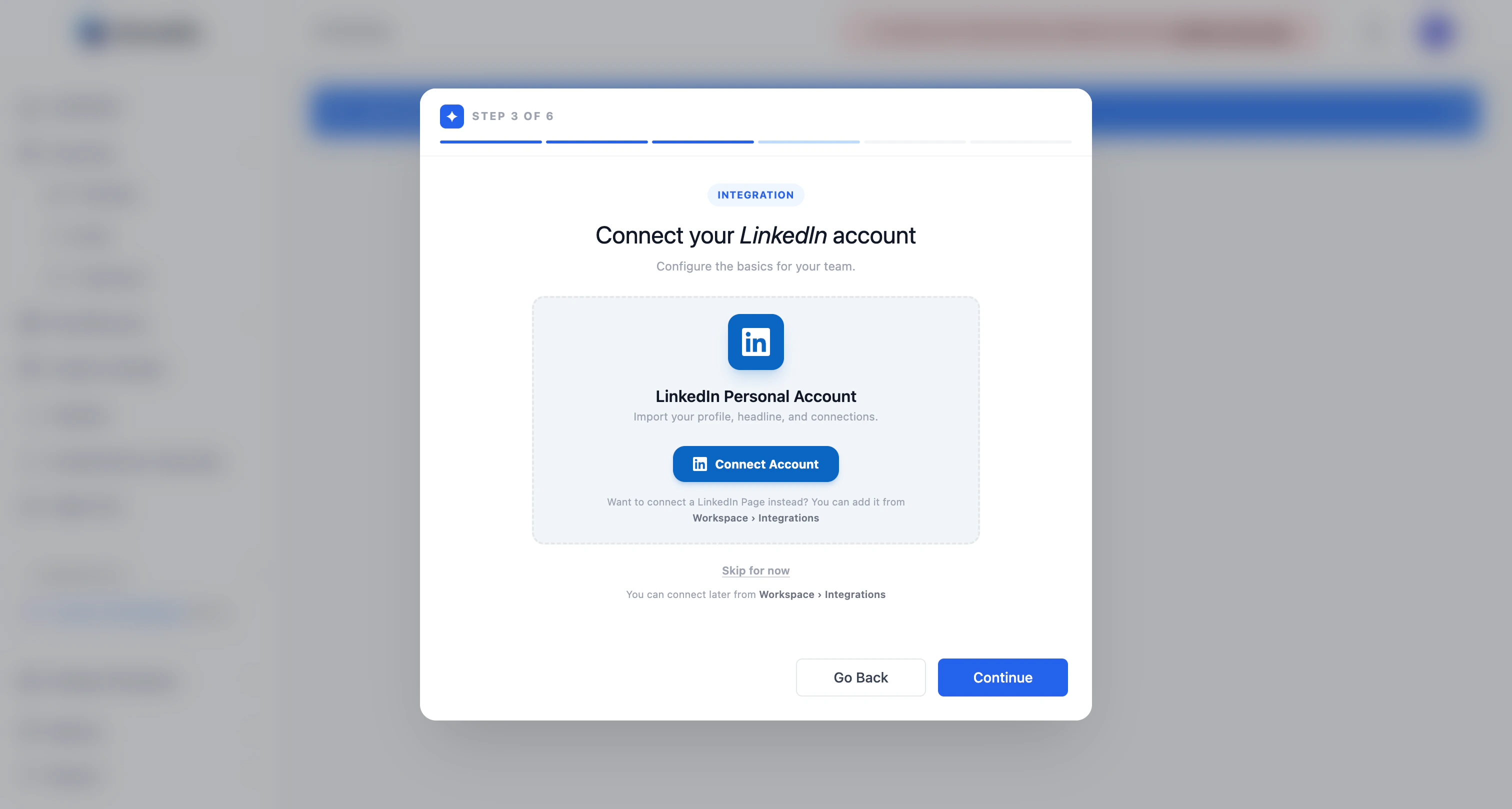
Carousify onboarding step 3 — Connect your LinkedIn account Click Connect Account to authorize Carousify through LinkedIn’s official OAuth flow. You’ll be redirected to LinkedIn, asked to confirm permissions, and sent back to onboarding once it’s done.
Carousify only uses LinkedIn’s official API. We never ask for your password and never automate actions that violate LinkedIn’s terms.
Want to connect a LinkedIn Page instead of a personal profile? Skip this step and add the page later from Workspace › Integrations. For more detail, see Connect your LinkedIn account. You can also click Skip for now and connect later — but you won’t be able to publish until at least one account is linked.

Step 4 — Set up your Brand Kit

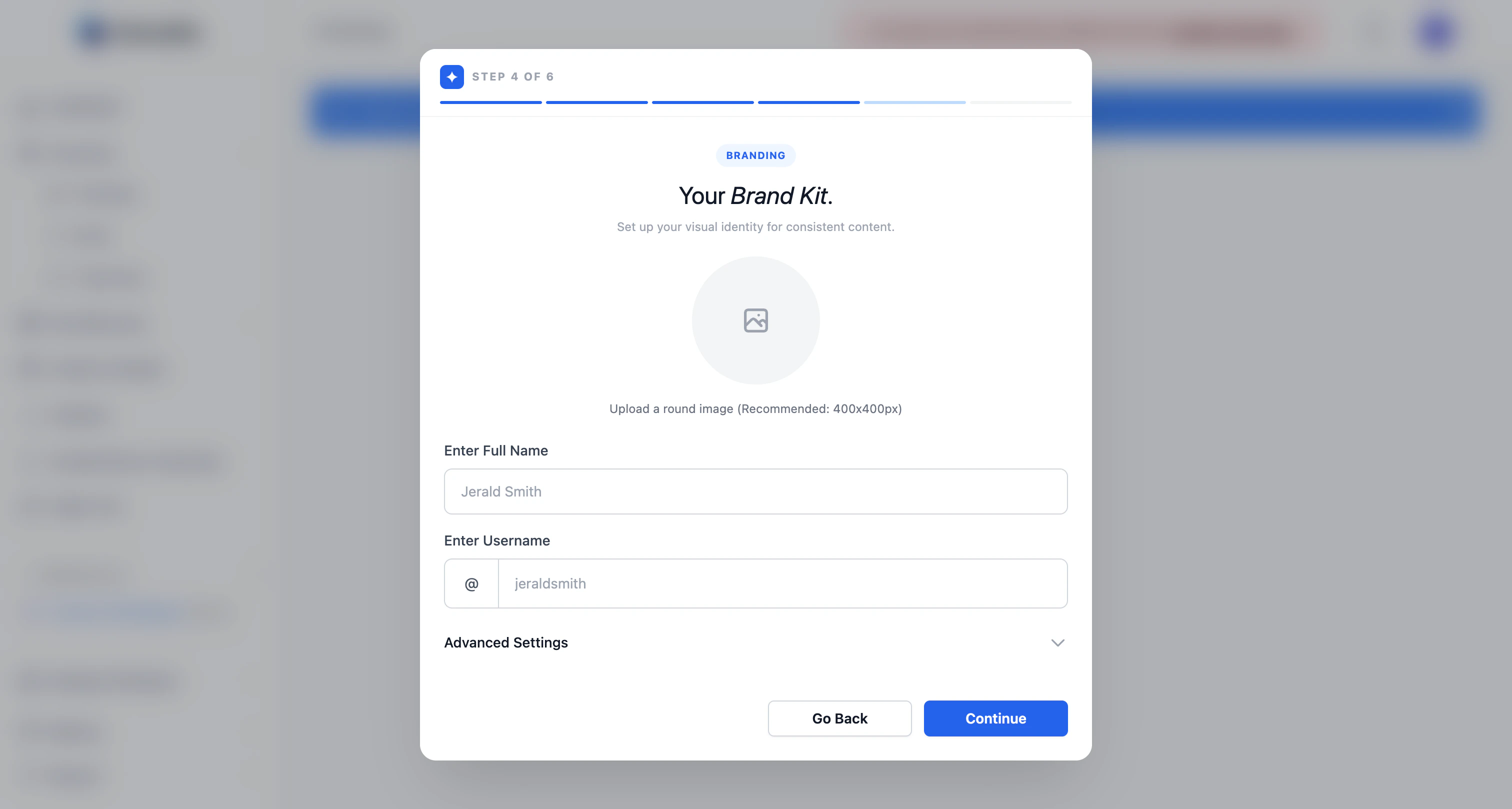
Carousify onboarding step 4 — Brand Kit Your Brand Kit is the identity Carousify uses on every carousel slide — author photo, name, handle, fonts, and colors. Filling it in once means every template you use afterwards already looks like your brand.
FieldWhat to enter
Profile imageRound image, 400×400px recommended. Usually your LinkedIn avatar.
Full nameThe name shown on the carousel as the author.
UsernameYour @handle (no @ needed; Carousify adds it).
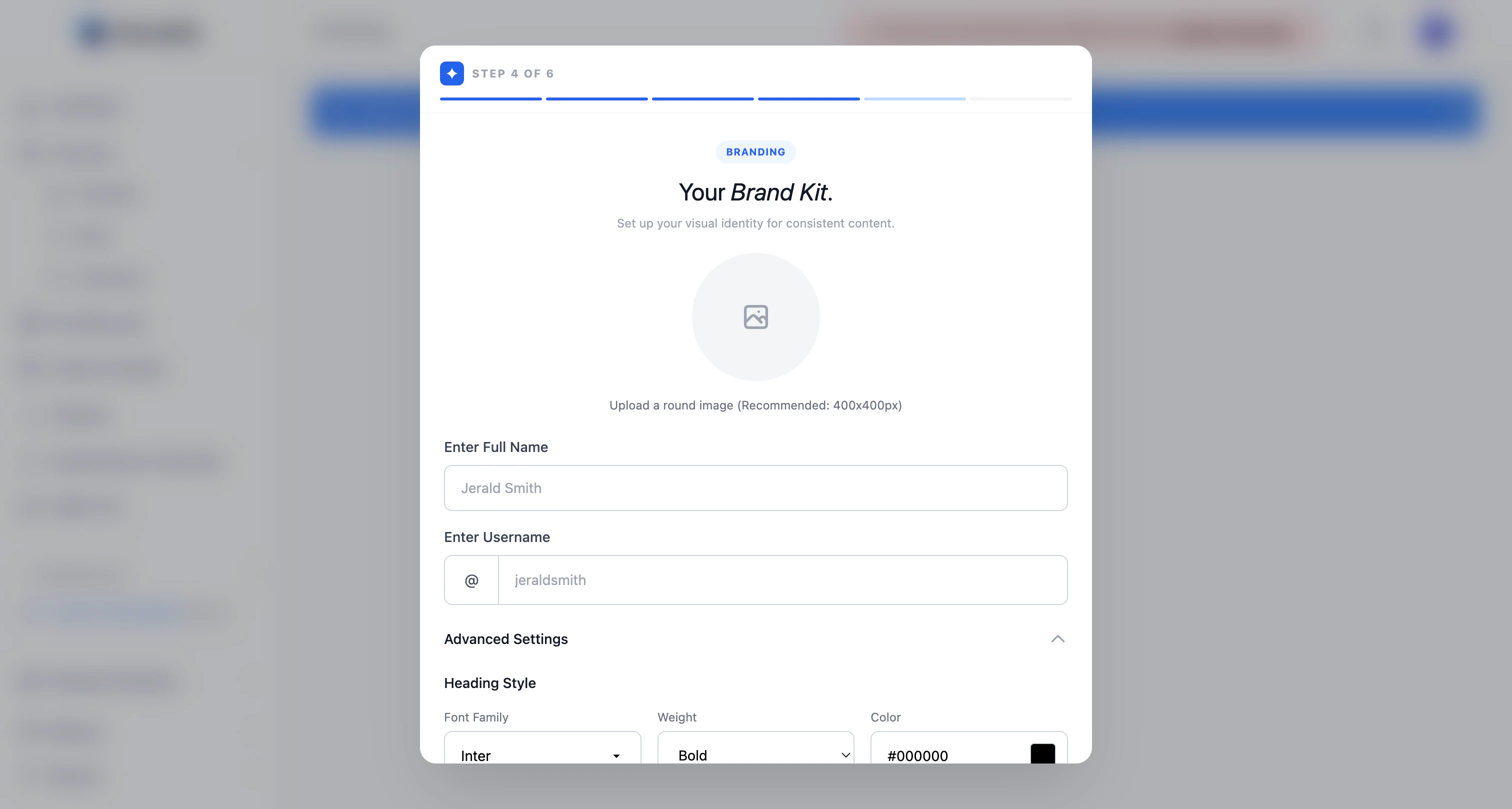
Open Advanced Settings to set the default heading, subheading, body, and background styles for every new carousel: Carousify onboarding step 4 — Brand Kit advanced settings Pick a font family, weight, and color for each text level, plus a default slide background color.
Don’t overthink this — defaults are fine, and you can edit any individual slide later. The point is to have one consistent look so you’re not picking fonts every time.
Click Continue.

Step 5 — Configure the AI assistant

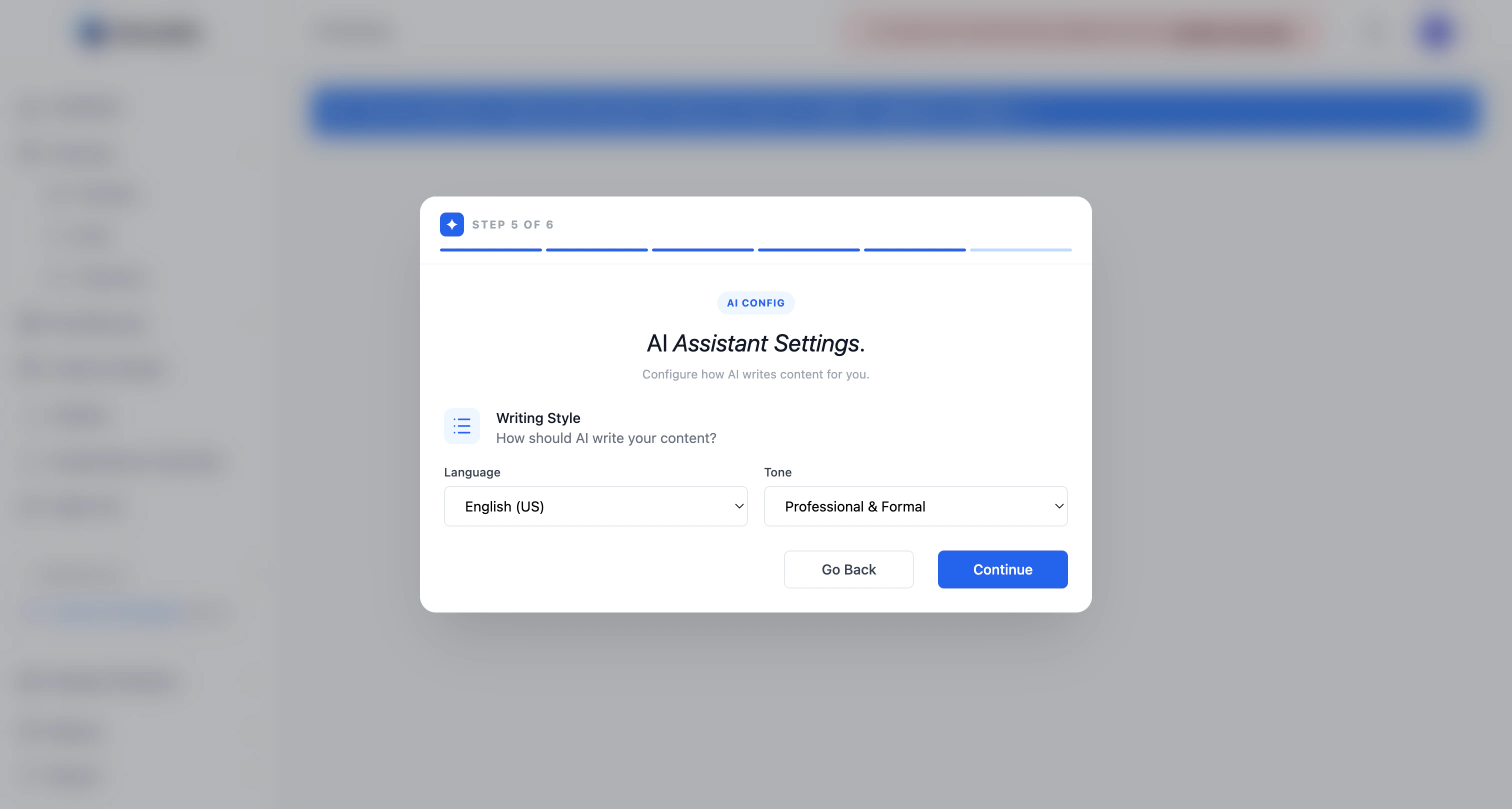
Carousify onboarding step 5 — AI assistant settings Set the defaults for AI-generated copy across the Post Generator, AI carousels, and the AI assistant inside the editor.
FieldOptions
LanguageEnglish (US/UK) plus 90+ other languages.
ToneProfessional & Formal, Conversational & Friendly, Technical & Detailed, or Inspirational & Motivating.
You can override either of these per generation later — this is just the default. Click Continue.

Step 6 — Choose a plan

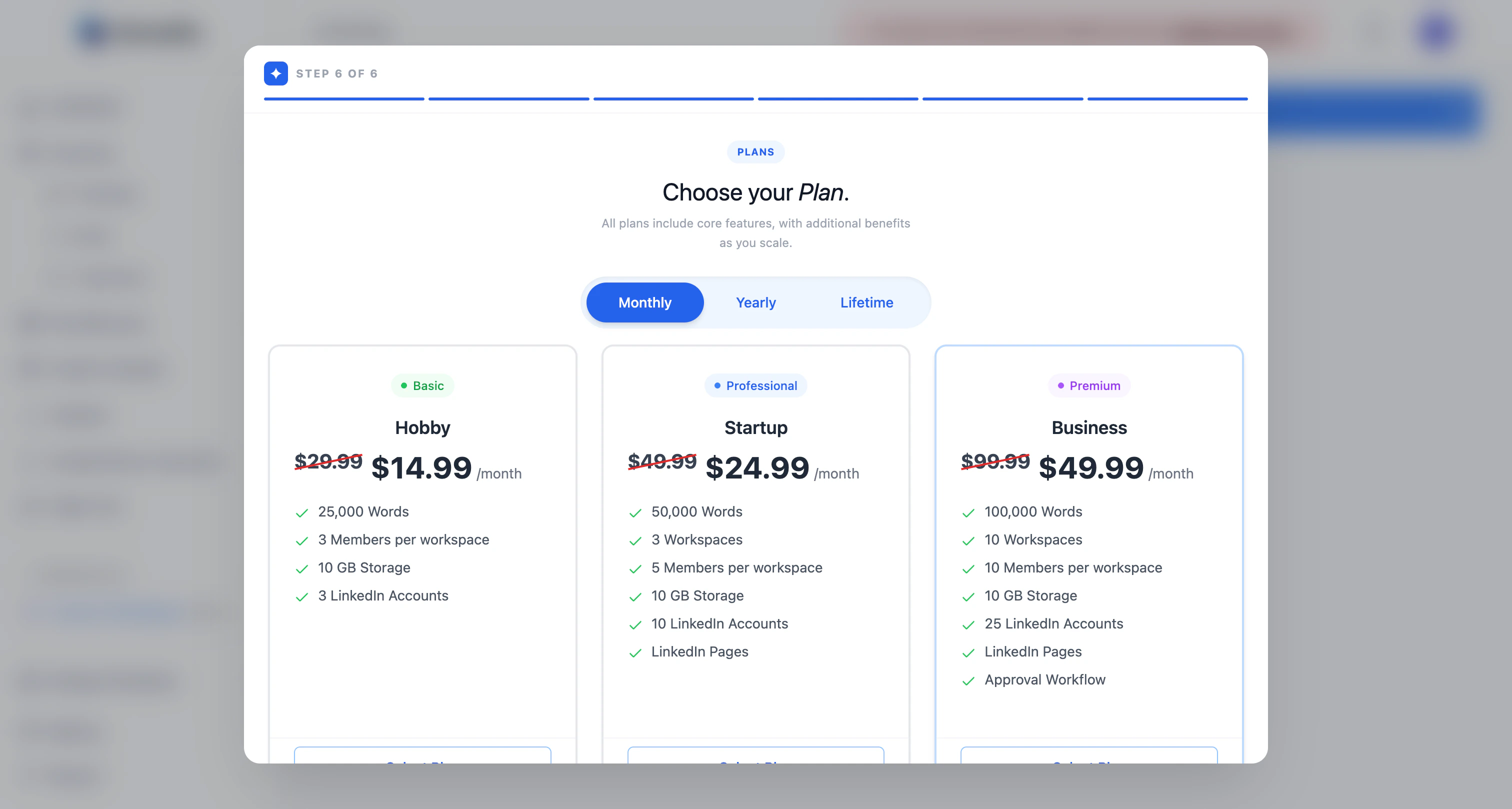
Carousify onboarding step 6 — Choose your plan Pick a billing cycle (Monthly or Yearly) and a plan tier:

Hobby

Solo creators. 25,000 AI words, 3 LinkedIn accounts, 10 GB storage.

Startup

Small teams. 50,000 words, 3 workspaces, 5 members each, LinkedIn Pages.

Business

Growing teams. 100,000 words, 10 workspaces, 25 LinkedIn accounts, approval workflow.

Enterprise

Custom limits, whitelabeling, webhooks, advanced analytics. Contact sales.
Click Select Plan on the tier you want, then Continue to enter payment details.
Onboarding lets you finish without picking a plan, but creating carousels, generating posts, scheduling, and publishing all stay locked until you have an active subscription. See Plans and limits for the full breakdown.

You’re done

You’ll land on the Dashboard. From here:

Make your first carousel

Pick a template or generate one with AI.

Generate a post

Turn an idea, voice note, or article into a ready-to-publish post.

Schedule a post

Queue your first post at a peak time for your timezone.