

Upgrade your plan
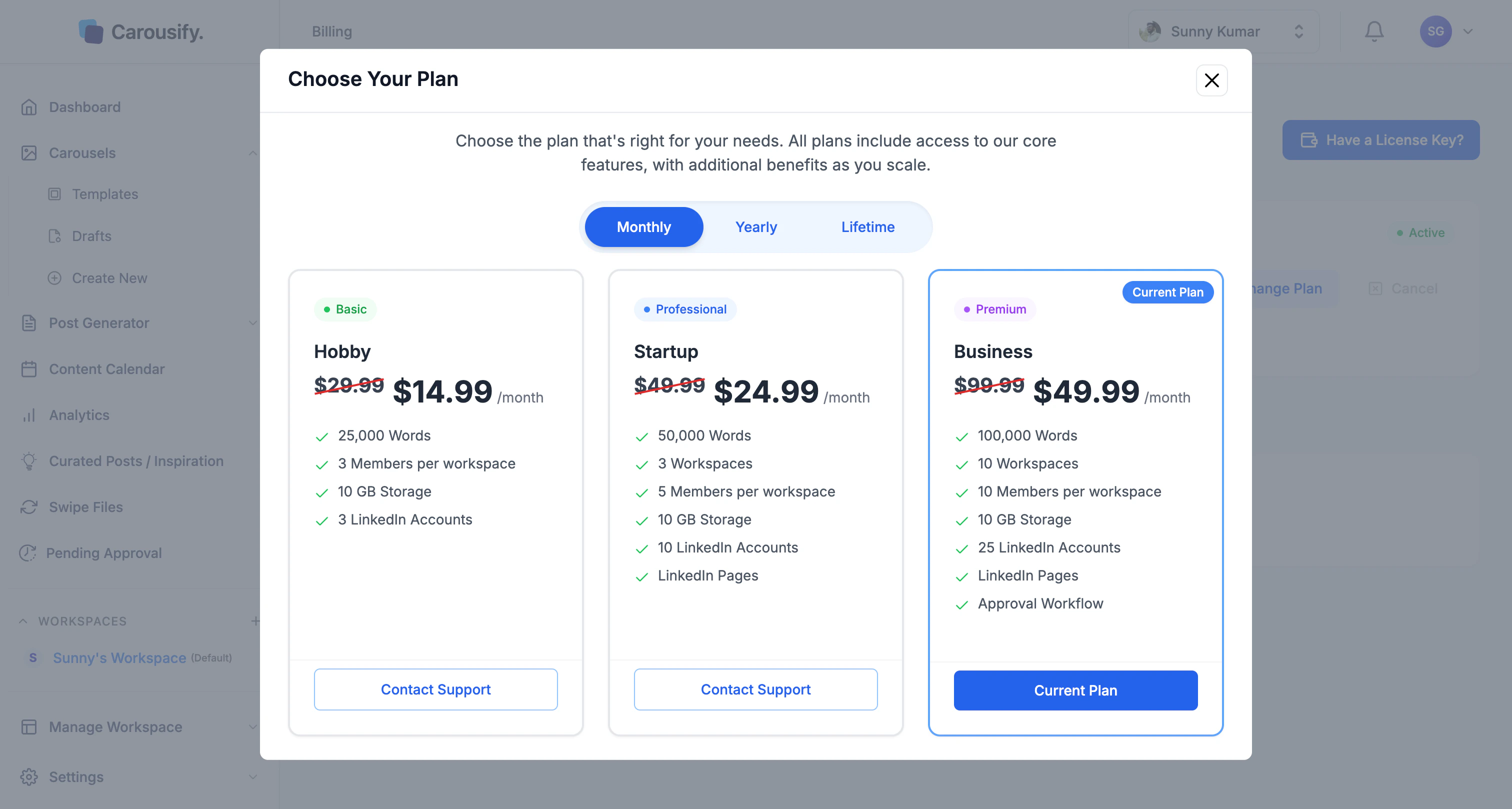
Select the new tier
Click Select Plan on the tier you want. Your current plan is marked with a Current Plan badge — you can’t re-select it.
Switch billing cycle
To move from monthly to yearly (or back), follow the same flow above and toggle the cycle on the Choose Your Plan screen before selecting your tier. Switching to yearly mid-cycle prorates the remaining monthly time against the new annual charge.Downgrade your plan
To move to a lower tier, contact support and tell us which plan you want. We’ll handle the switch.What happens to your data
When you upgrade, everything stays — your new limits just kick in. Downgrades are where you need to be careful, since the lower tier may not have room for everything you’ve built.- Carousels, drafts, scheduled posts, brand kits, and templates in workspaces that fit the new plan are preserved.
- Workspaces above the new limit will be lost when the downgrade applies. If your current plan allows 10 workspaces and you’re moving to one that allows 3, the 7 extras — along with everything inside them (carousels, drafts, scheduled posts, brand kits, members) — are removed at the start of the next cycle.
- Connected LinkedIn accounts above the new account limit are disconnected automatically.
- Team members above the new per-workspace cap lose access to that workspace.
- AI word balance resets each cycle, so the new monthly allowance applies from your next renewal.