

Branding is part of whitelabel, an Enterprise feature, and applies once whitelabel is switched Active (see Whitelabel overview). On other plans, contact Support to enable it at an additional charge.
Where to find it
In the left sidebar, open Settings › Whitelabeling and find the Brand identity section.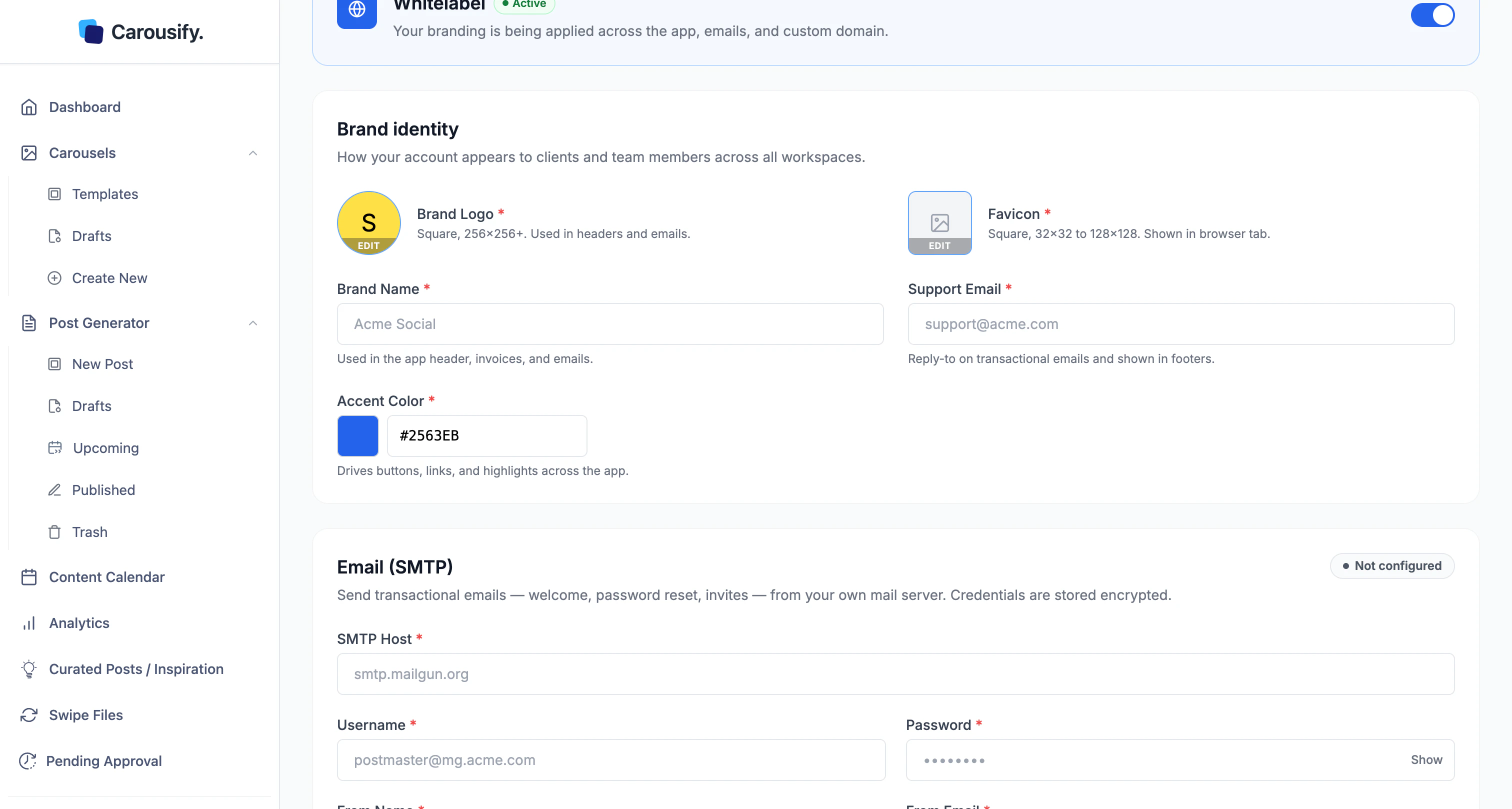
The fields
Every field is required for branding to render cleanly.| Field | What it sets |
|---|---|
| Brand Logo | The logo in app headers and emails. Square image, 256×256 px or larger. |
| Favicon | The icon in the browser tab. Square, 32×32 to 128×128 px. |
| Brand Name | The product name in the app header and emails. |
| Support Email | Where clients and team members reach you for help. Also the reply-to on app emails. |
| Accent Color | The accent on key actions. |
Set it up
Upload your logo and favicon
Click EDIT on Brand Logo and pick a square image. Do the same for Favicon — a simplified mark reads better at tab size than a full logo with text.
Enter your brand name and support email
The name shows in the header and emails. Set the support email to your own inbox — it’s where clients and team members reach you for help.
What your clients see
On the whitelabeled domain, the sign-in screen, app header, and emails all carry your identity. Here’s the sign-in screen with a brand logo, name, and accent color applied: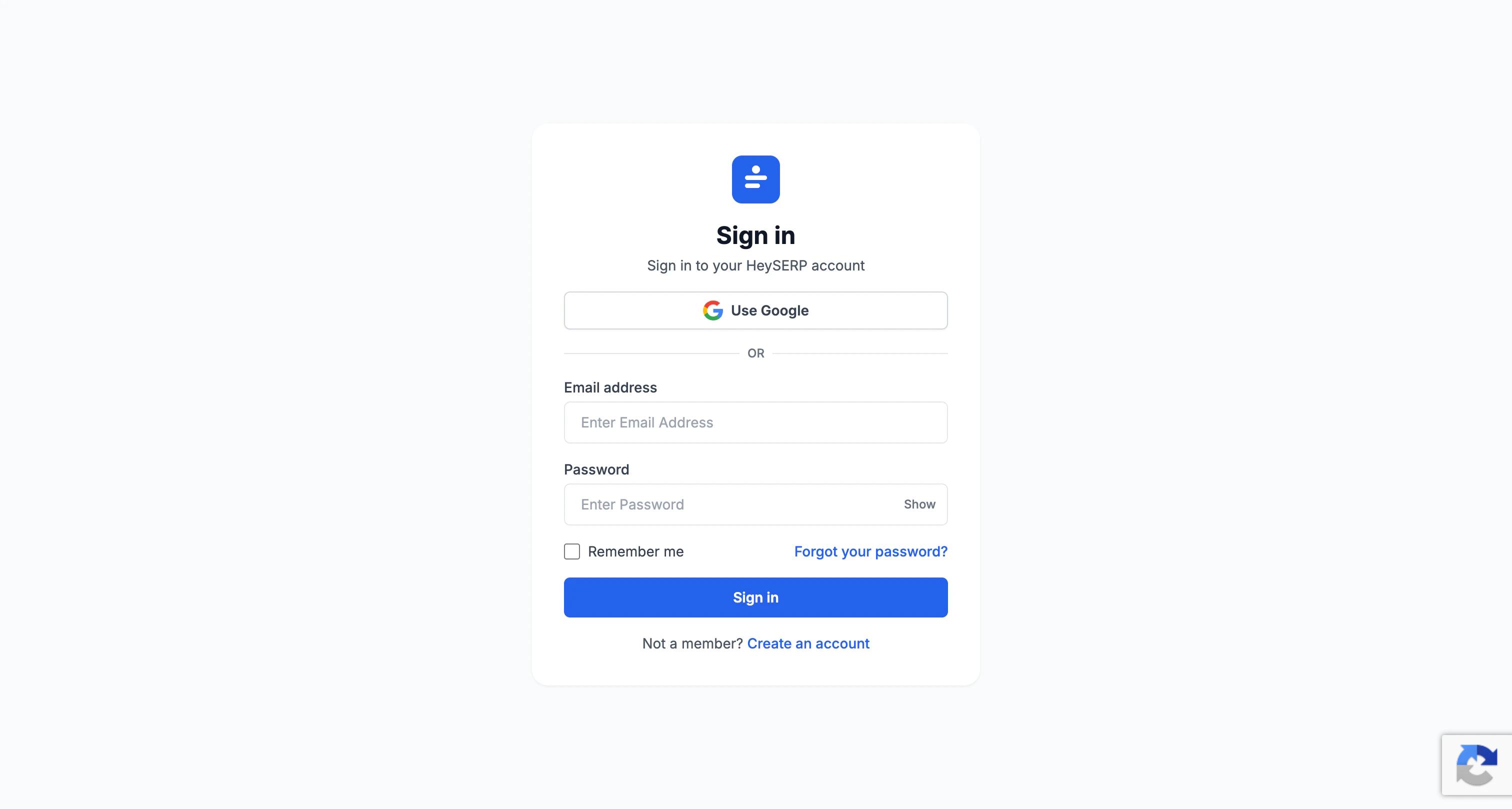
What’s next
Custom domain
Serve the branded app from a domain you own.
SMTP
Send transactional emails from your own mail server.
Whitelabel overview
How branding fits with the rest of the whitelabel setup.
Manage clients
Run client workspaces inside your branded setup.