

Link tracking is available on Business and Enterprise plans. See Plans and pricing.
How it works
- You publish a LinkedIn post with one or more links.
- Carousify replaces each link with a tracked short link automatically.
- Every click is recorded with location, device, and browser.
- You review performance on the Link Tracking dashboard.
Turn it on
Open Manage Workspace › General and find the Link Tracking section.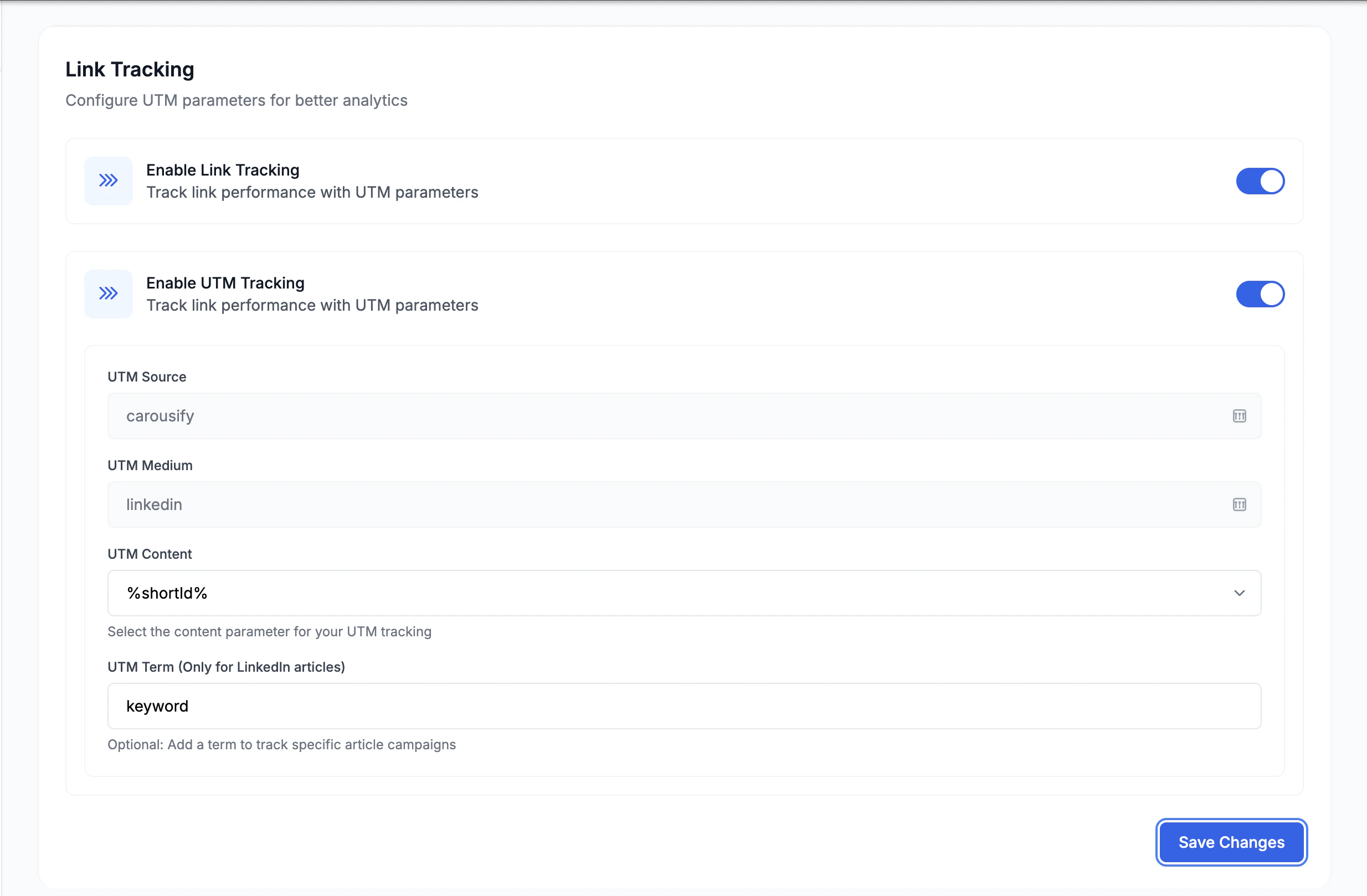
Enable Link Tracking
The master toggle. Turns on tracked short links for every link you post from this workspace.
Enable UTM Tracking (optional)
Appends UTM parameters to each link so clicks also show up in your own analytics (Google Analytics, etc.):
| Field | Default | What it is |
|---|---|---|
| UTM Source | carousify | The traffic source label. |
| UTM Medium | linkedin | The channel label. |
| UTM Content | %shortId% | A unique ID per link, so each link is distinguishable. |
| UTM Term | keyword | Optional. Only applies to LinkedIn articles. |
Read the analytics
Open Link Tracking in the left sidebar.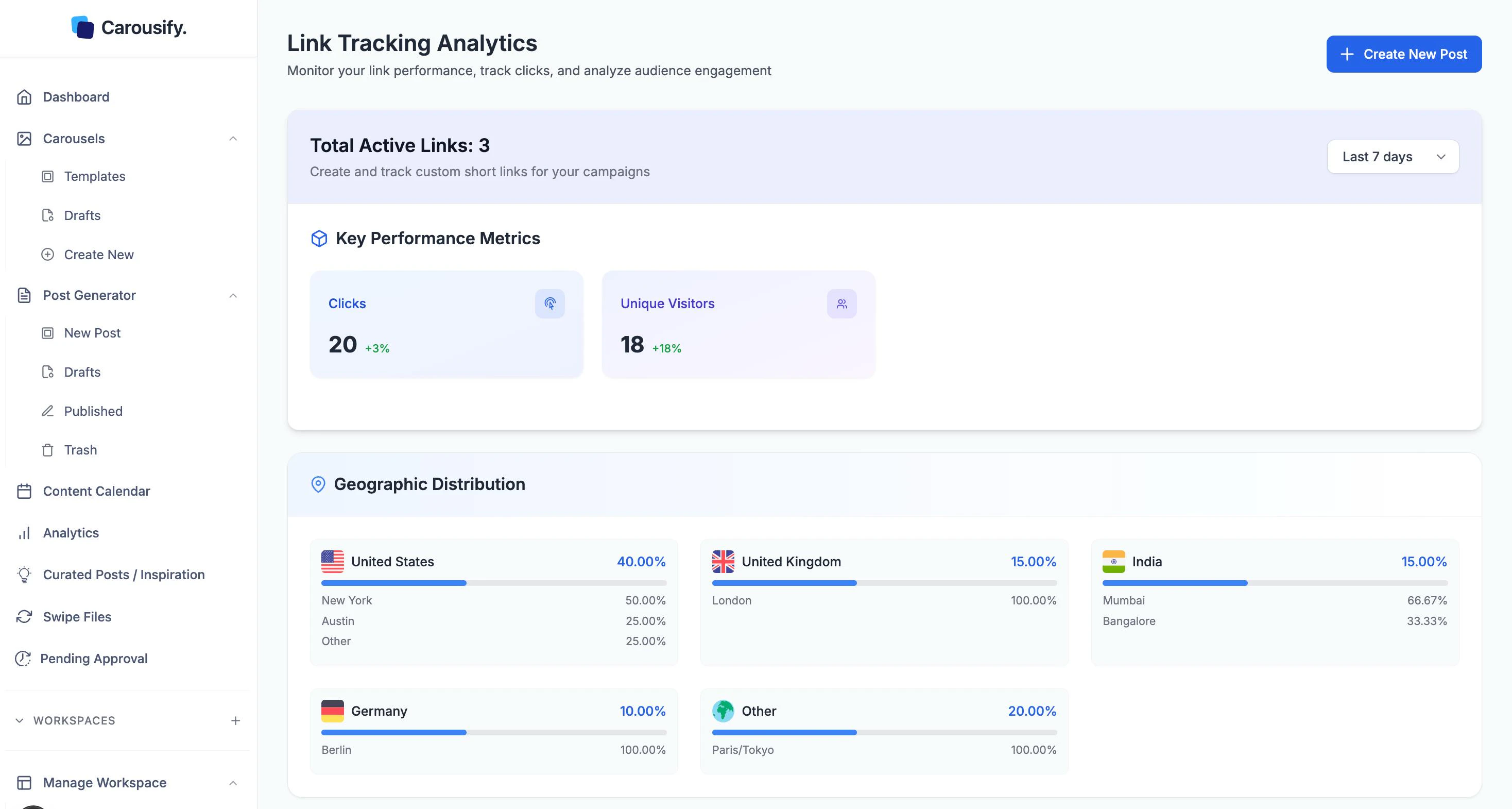
- Total Active Links — how many tracked links are currently live.
- Key Performance Metrics — Clicks and Unique Visitors, each with the change versus the previous period.
- Geographic Distribution — clicks by country, broken down to city.
- Browser & Device Analysis — share of clicks by browser, and by device (mobile / desktop / tablet).
- Link History — every tracked link with its destination, total clicks, unique clicks, created date, and actions to copy, view, or edit it.
What’s next
LinkedIn Analytics
Connection growth and per-post performance for each account.
Schedule a post
Queue posts with links and watch the clicks come in.
Write a new post
Draft a post with a link to track.
Manage clients
Turn link tracking on per client workspace.