The AI Assistant section under Manage Workspace › General sets the writing defaults every AI generation in this workspace inherits — Post Generator, AI carousels, and the in-editor assistant.
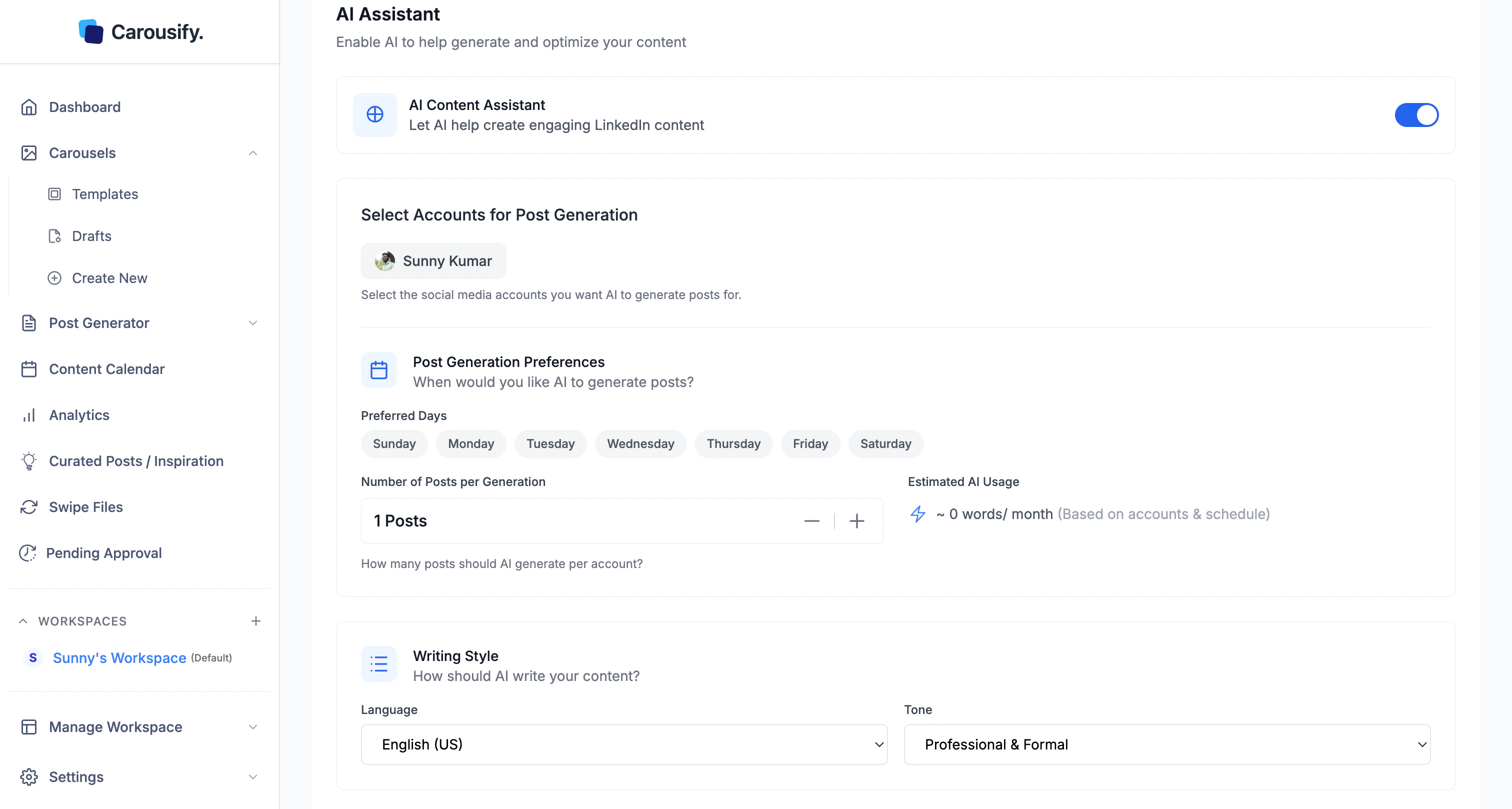
Writing defaults
Pick a Language
English (US/UK) plus 90+ other languages.
Pick a Tone
Professional & Formal, Conversational & Friendly, Technical & Detailed, or Inspirational & Motivating.
Save Changes
Hit Save Changes at the bottom of the section.
A few post templates let you override language or tone for a single run. Everywhere else, these workspace defaults are what AI uses.
Bring Your Own AI Key (BYOK)
Below the AI Assistant section, BYOK lets you swap Carousify’s default AI for your own OpenRouter key — per workspace.
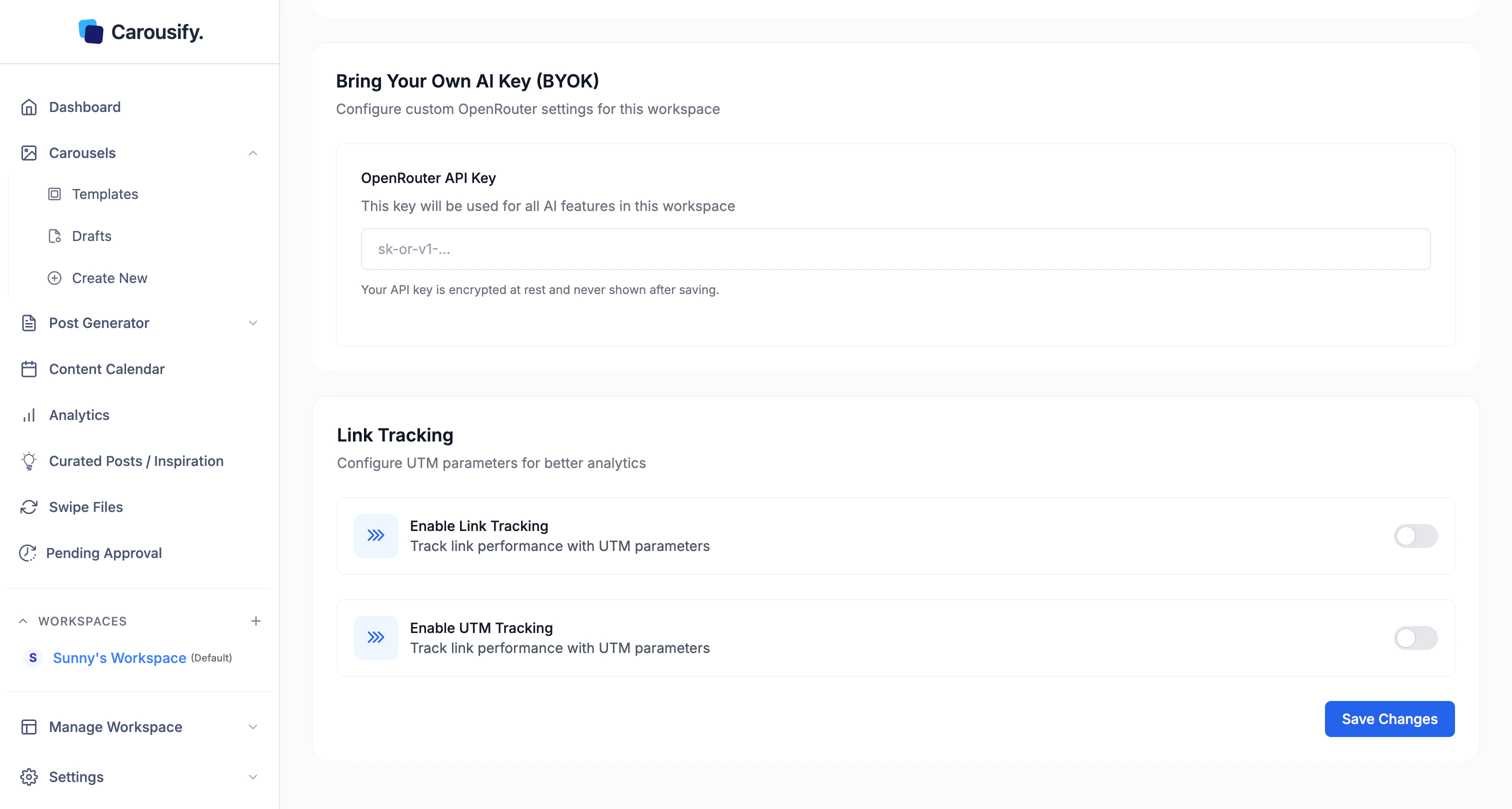
Get an OpenRouter key
Sign up at openrouter.ai, top up your account, and create a key (sk-or-v1-...). Paste it into the BYOK field and save
Every AI request in this workspace now runs through your key — billed to your OpenRouter account, not Carousify’s. Rotate by pasting a new key; clear the field to fall back to Carousify’s default AI.
Why use BYOK
- No AI word limits — usage is capped by your OpenRouter credit, not your Carousify plan
- Pick the model — OpenRouter exposes Claude, GPT, Gemini, Llama, and dozens more
- Compliance / billing — useful when a client wants AI requests routed through their own provider
Security
Your API key is encrypted at rest and never shown back in the UI after saving. Editing the field always replaces the stored key — Carousify never decrypts it.
BYOK is per workspace. Mix Carousify-billed AI in one workspace with your own key in another — handy if some clients pay for their own AI usage and others don’t.

