

Before you start
You’ll need:- MCP enabled on the workspace — see MCP overview for the one-click flow
- An MCP key from Manage Workspace › MCP (only shown once, right after creating it)
- A Claude account, or Claude Code installed and signed in
Step 1 — Copy your Carousify MCP URL
In Carousify, open Manage Workspace › MCP. Use the auto-provisioned MCP System Key or click Create API Key to mint a fresh one (e.g.claude-laptop).
Your MCP URL has this shape:
Step 2 — Add Carousify as a custom connector
Open Settings › Connectors
Go to claude.ai/settings/connectors (or Settings › Connectors from inside Claude). Scroll past the built-in connectors to the bottom of the page.
Click Add custom connector
Claude opens a small dialog with two fields.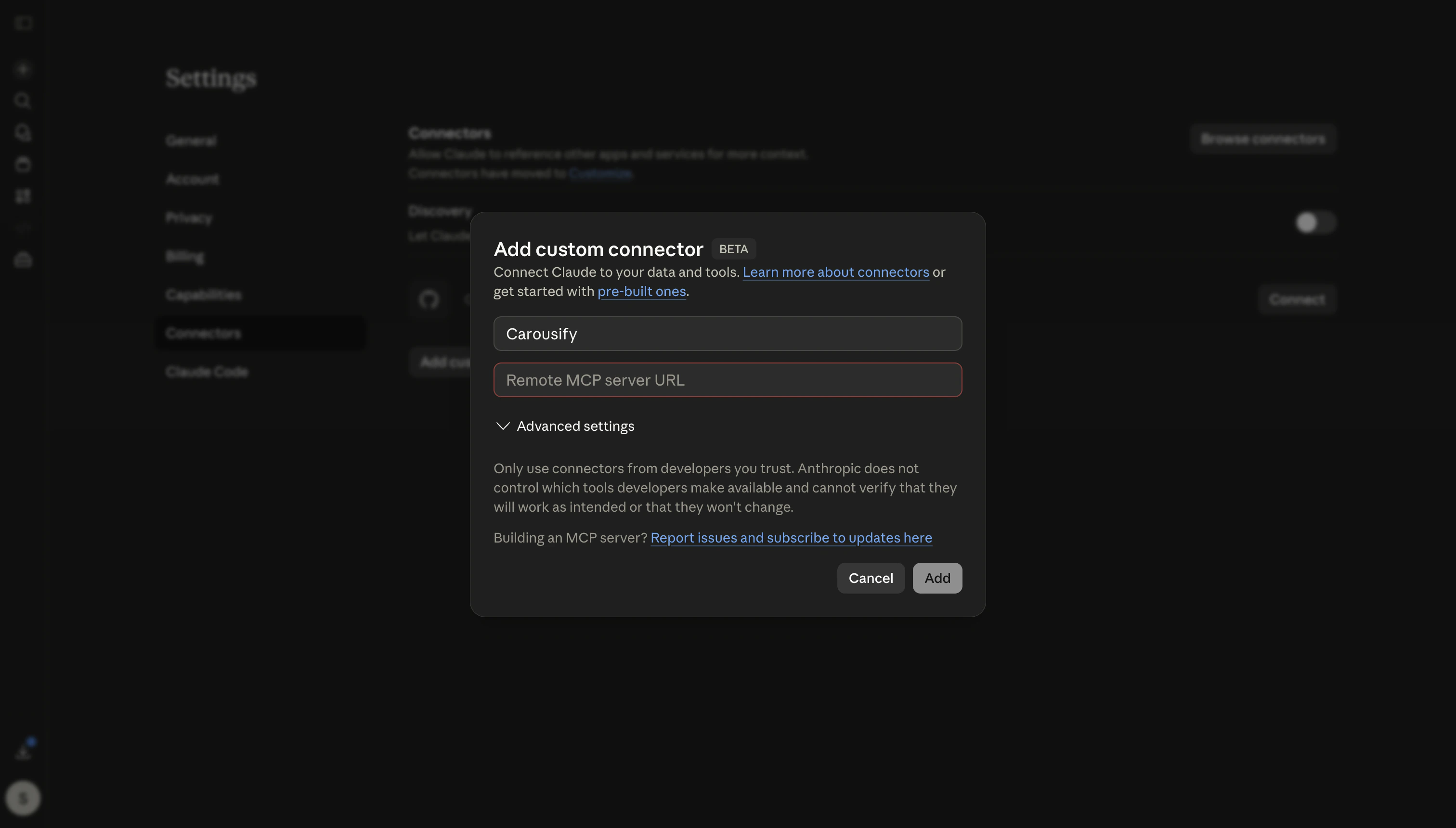
| Field | What to enter |
|---|---|
| Name | Carousify |
| Remote MCP server URL | The URL you copied in Step 1. |
Step 3 — Use it in a chat
Start a new conversation. Click the + tools icon (or the/ slash menu) in the composer and tick Carousify so it’s enabled for this chat. Then try:
- “Draft a LinkedIn post about why agencies use Collaboration Links to onboard clients without sharing logins, then schedule it for Tuesday 9 AM IST.”
- “Show me my top three posts from the last 14 days.”
- “Did the post I scheduled this morning go live?”
Prefer the terminal? Use Claude Code
If you spend most of your time in Claude Code, skip the web UI entirely and add Carousify in one command:| Scope | Flag | Where it’s stored |
|---|---|---|
| Local (default) | — | This project, your machine only. |
| User | -s user | Every project on this machine. |
| Project | -s project | Committed to .mcp.json in the current repo, shared with the team. |
.mcp.json by referencing an env var instead of hard-coding it:
claude mcp list — you should see carousify with the discovered tool count and a green status. From the next claude session, the agent can call Carousify tools directly.
Disconnect or rotate
- Disconnect (web/desktop) — open Settings › Connectors, click ⋯ on the Carousify entry, then Remove. Claude stops calling the URL immediately.
- Disconnect (Claude Code) — run
claude mcp remove carousify(add-s useror-s projectif that’s where you registered it). - Rotate the key — in Carousify, delete the row in MCP Keys, then click Create API Key to mint a new one. Update the URL in Claude (or rerun
claude mcp add) with the new token.
Troubleshooting
- “Failed to connect to server” — the token is wrong or has been revoked. Confirm the key shows Active in Manage Workspace › MCP and that the URL ends with the full token, not the masked
XXXX...version. claude mcp listshows the server as failed — most often a stale token. Generate a fresh key in Carousify and re-add the server.
What’s next
MCP overview
How MCP keys, tools, and workspace scoping fit together.
Use it from VS Code
Same MCP URL, inside VS Code’s chat agent.
Use it from Codex
Add Carousify to the Codex CLI’s
config.toml.Schedule a post
Quick refresher on how scheduling works inside Carousify.