

app.carousify.com, the app runs at your address — your root domain (yourbrand.com) or a subdomain (app.yourbrand.com). Together with your branding and SMTP, the product is yours right down to the address bar.
This lives in the Custom Domains section of the Whitelabel page.
Custom domains are an Enterprise feature and need whitelabel switched Active (see Whitelabel overview). On other plans, contact Support to enable them at an additional charge.
Before you start
You’ll need:- A domain or subdomain you control — your root domain (
yourbrand.com) or a subdomain (app.yourbrand.com) - Access to that domain’s DNS provider (Cloudflare, Route 53, GoDaddy, Namecheap, etc.) so you can add records
- Whitelabel turned on in Settings › Whitelabeling
Step 1 — Add your domain
In the left sidebar, open Settings › Whitelabeling and scroll to the Custom Domains section.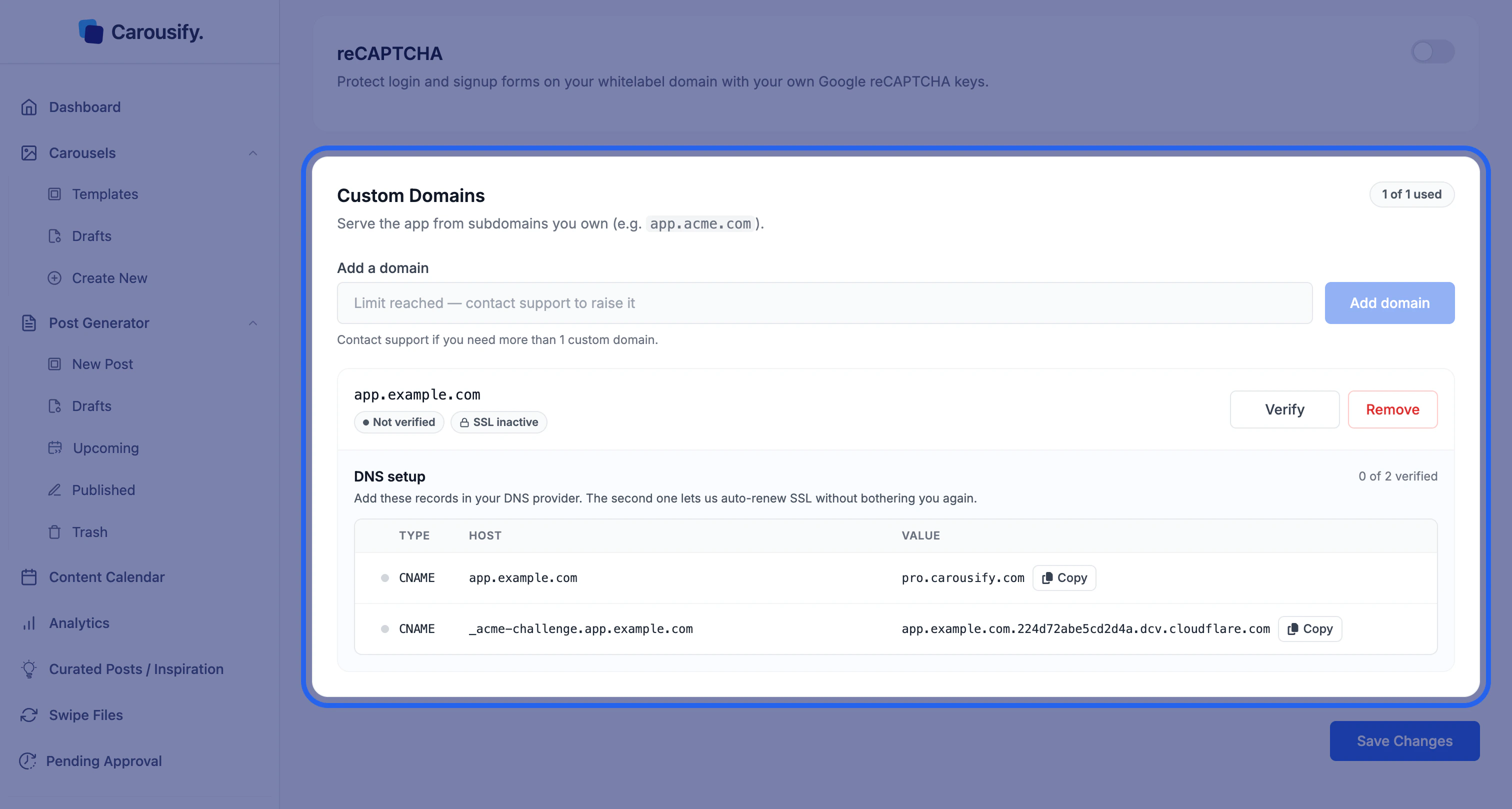
yourbrand.com) or a subdomain (app.yourbrand.com) — and click Add domain.
The domain appears immediately with two status pills — Not verified and SSL inactive — plus Verify and Remove buttons. Nothing is live yet; you need to add the DNS records next.
Step 2 — Add the DNS records
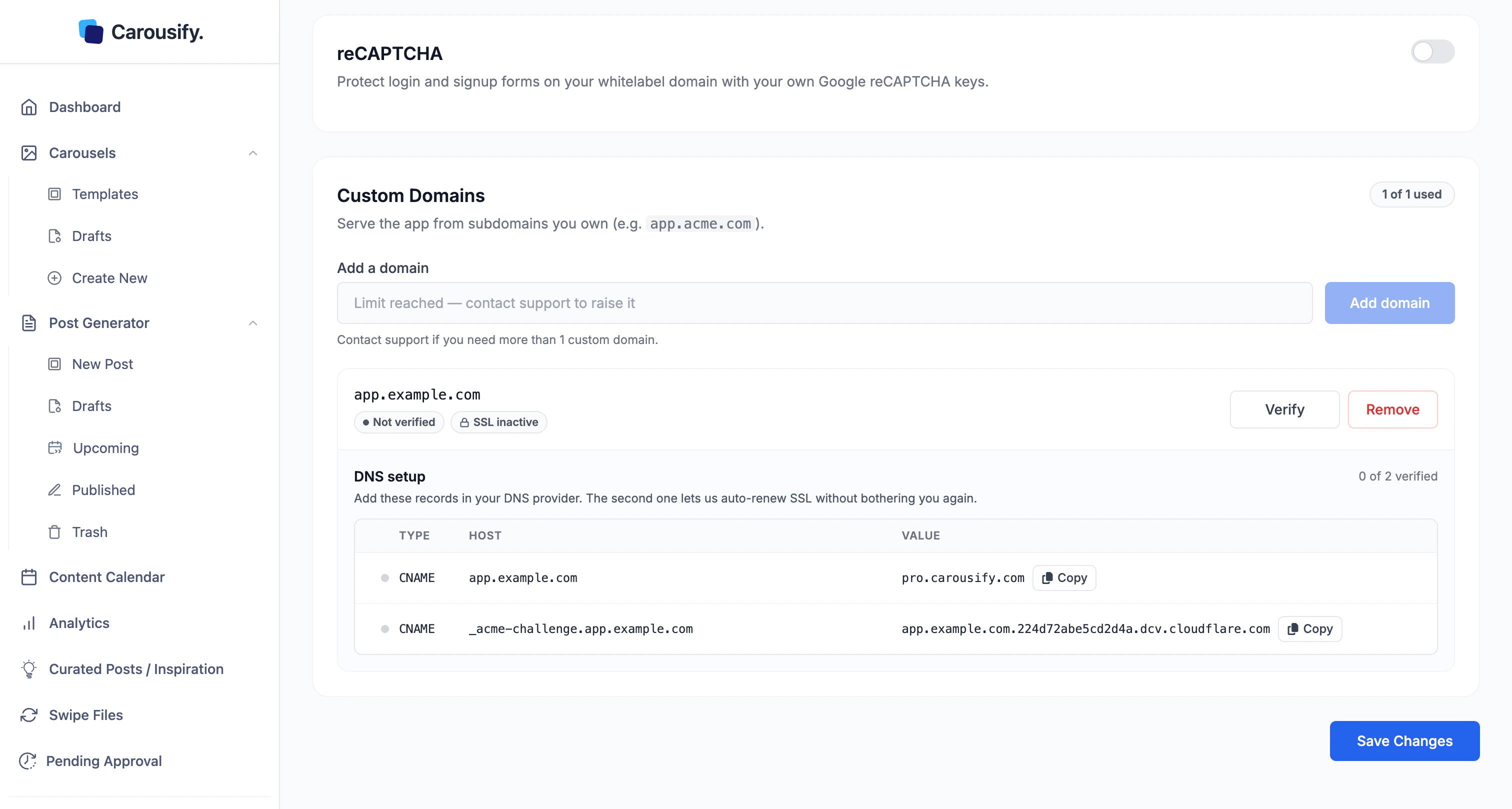
Adding the domain reveals a DNS setup block with twoCNAME records and a 0 of 2 verified counter. Add both records at your DNS provider.
| # | Type | Host | Value |
|---|---|---|---|
| 1 — routing | CNAME | your domain, e.g. app.yourbrand.com | pro.carousify.com |
| 2 — SSL | CNAME | _acme-challenge.app.yourbrand.com | the dcv_delegation value shown for your domain |
- Record 1 points your domain at Carousify’s infrastructure. The value is always
pro.carousify.com. - Record 2 is the SSL record. Its value is unique to your domain (it looks like
your-domain.<id>.dcv.cloudflare.com) — and as the app puts it, this one “lets us auto-renew SSL without bothering you again.” Without it, your certificate won’t renew automatically.
Step 3 — Verify
Each record shows Record not detected yet until your DNS change propagates. Once you’ve added both at your provider, come back and click Verify.Click Verify
Carousify checks DNS for both records. The counter moves toward
2 of 2 verified as each one is detected.Wait for propagation if it's not detected yet
DNS changes can take anywhere from a few minutes to a few hours depending on your provider and TTL. If Verify doesn’t pick the records up, give it time and click Verify again — you don’t need to re-enter anything.
After it’s live
Your clients and team open the app atapp.yourbrand.com. Pair it with the rest of whitelabel so nothing points back to Carousify:
- Branding — logo, favicon, name, and accent color
- SMTP — transactional emails from your own mail server, so links in those emails match your domain
Remove or replace a domain
Click Remove on the domain to delete it. The slot frees up immediately (0 of 1 used) and you can add a different domain. Because there’s one slot per account, removing the current domain is how you switch to a new one.
Removing a domain stops the app from serving on it right away. Don’t remove a domain your clients are actively using until you’ve pointed them at the replacement.
What’s next
Branding
Logo, favicon, name, support email, and accent color.
SMTP
Send transactional emails from your own mail server.
Whitelabel overview
How the domain fits with the rest of the whitelabel setup.
Manage clients
Run client workspaces inside your fully branded setup.