

Open the gallery
In the left sidebar, go to Carousels › Templates.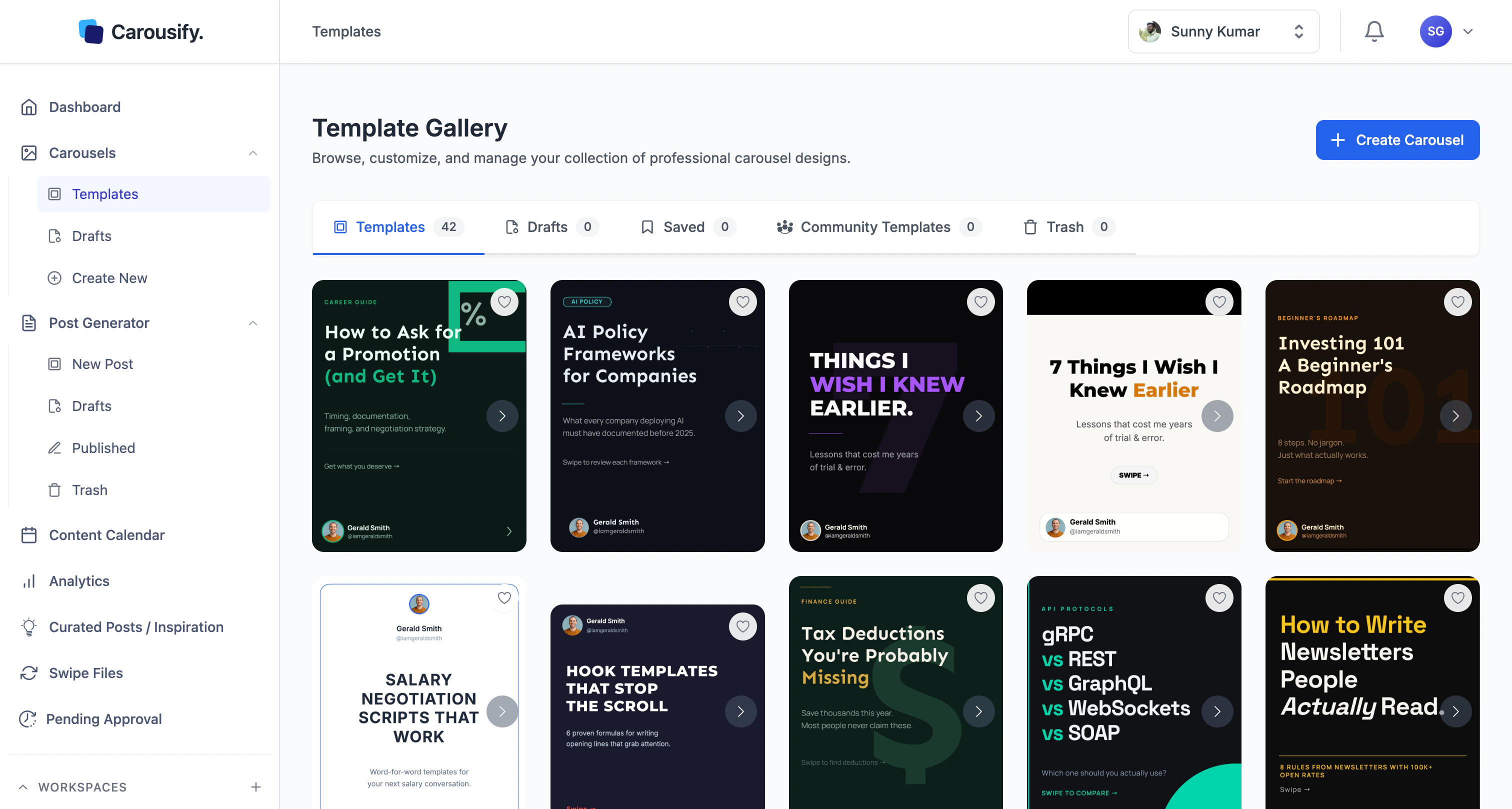
Templates
The Carousify-designed library. Your default starting point.
Drafts
Carousels you have started but not yet published. Same list as Carousels › Drafts.
Saved
Decks you have kept around for re-use — your own templates.
Community Templates
Decks shared by other Carousify users. Useful when the in-house library does not cover the style you need.
Use a template
Pick one from the gallery
Click any thumbnail. Carousify opens the deck inside the Carousel Maker with every slide editable.
Replace the copy
Click any text element — heading, subheading, body, footer — and type your version. Layout, spacing, and effects stay intact.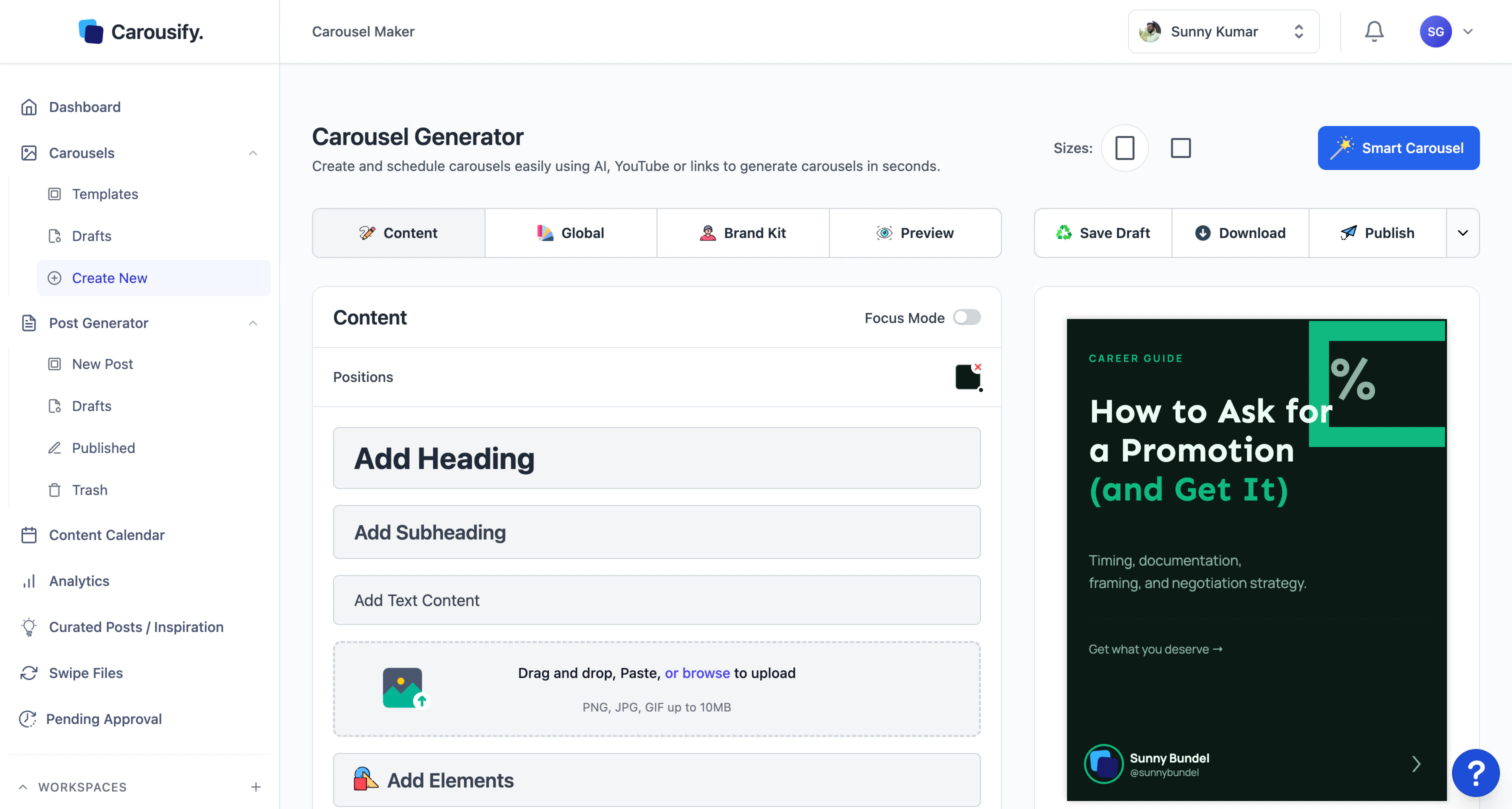
Apply your Brand Kit
Open the Brand Kit tab and pick the kit for this workspace. Colors, fonts, and logos update across every slide at once — no slide-by-slide rework.
Adjust slides as needed
Drag-and-drop in the slide tray to reorder. Duplicate or delete slides to match the length you want. Reset Slide undoes changes on the current slide if an edit goes wrong.
Build your own template library
- Favorite from the gallery — bookmark any deck from Templates or Community Templates and it lands in Saved for quick re-use.
- Save your own as templates — save any carousel you build (from scratch or modified from another template) as a template. It appears at the top of the Templates tab, above the Carousify-designed library.
Templates and Brand Kits are workspace-scoped. If you manage multiple clients in separate workspaces, save the templates inside each workspace where you will use them.
What’s next
Create from scratch
Build on a blank canvas, or use Smart Carousel to generate the first draft.
Brand Kit
Save the colors, fonts, and logos that should match every deck.
Export and download
Get LinkedIn-ready PDFs and image sets out of the editor.
Schedule a post
Hand the finished deck to the post composer and pick a publish time.