

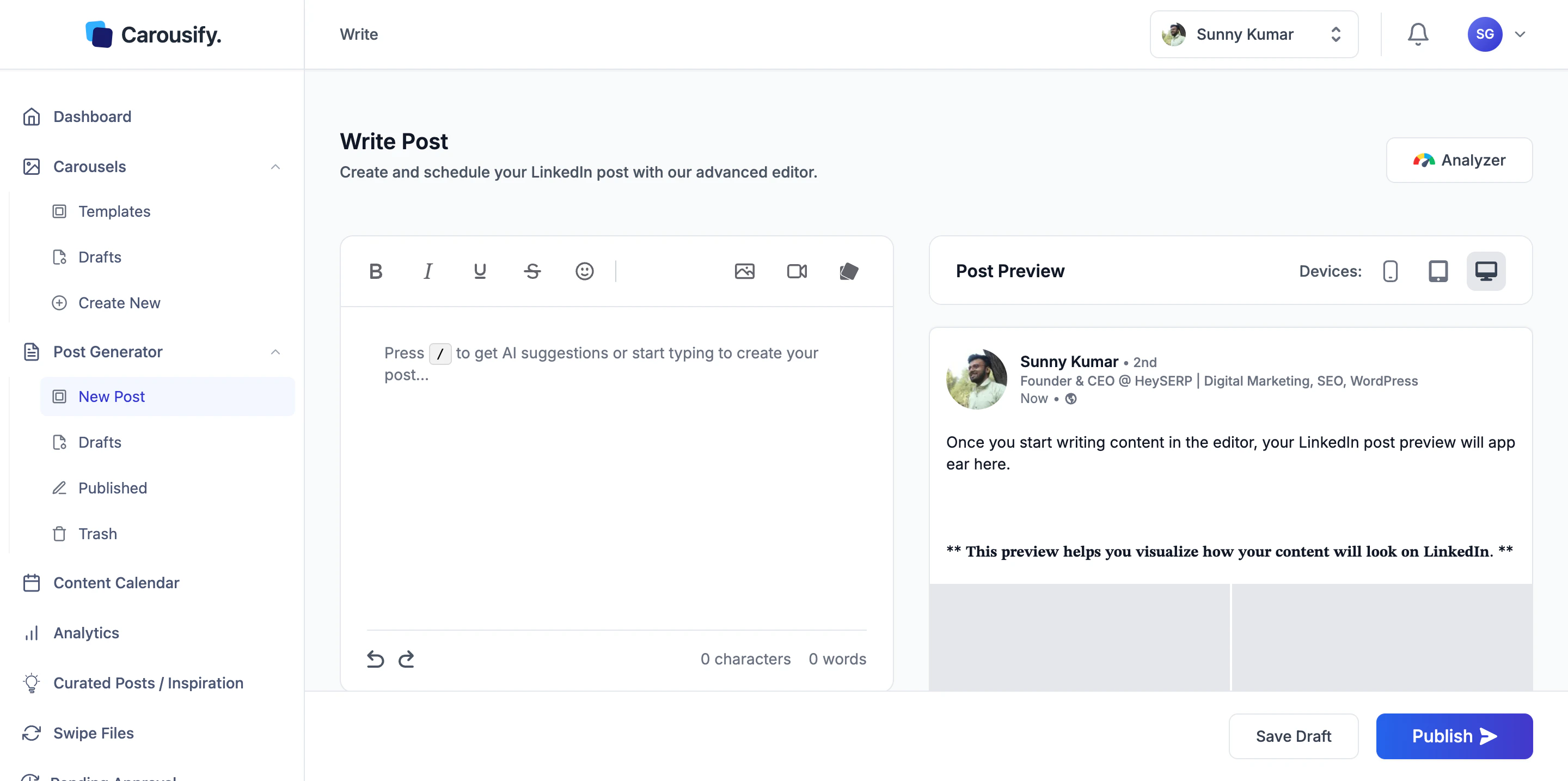
Formatting toolbar
| Control | What it does |
|---|---|
| Bold | Bold the selection |
| Italic | Italicize the selection |
| Underline | Underline the selection |
| Strikethrough | Strike through the selection |
| Insert Emoji | Open the emoji picker |
| Add Image | Attach a single image |
| Add Video | Attach a video |
| Add Carousel | Attach a deck built in the Carousel Maker |
LinkedIn doesn’t support real bold or italic in posts. Carousify converts your selections to Unicode lookalike characters that render the same way on every LinkedIn surface — but screen readers won’t pronounce them as styled text. Use sparingly for emphasis, not for whole paragraphs.
Live preview
The right pane is a pixel-accurate render of the post. The Devices toggle switches between three layouts:- Mobile — what most LinkedIn users will see
- Tablet
- Desktop
What’s next
Write a new post
Full walkthrough of the writer, including the AI Assistant panel.
Schedule a post
Queue the finished post at a peak time for your timezone.