

Where to find it
The generator is the AI tab inside the image picker. You can open that picker from two places:| Surface | How to open it |
|---|---|
| Carousel Maker | In the editor’s Content tab, click the image upload zone (Drag and drop, Paste, or browse to upload). The Add Image to Carousel modal opens — click the AI tab. |
| Post Generator | In the Write Post editor toolbar, click Add Image. The same picker opens — click the AI tab. |
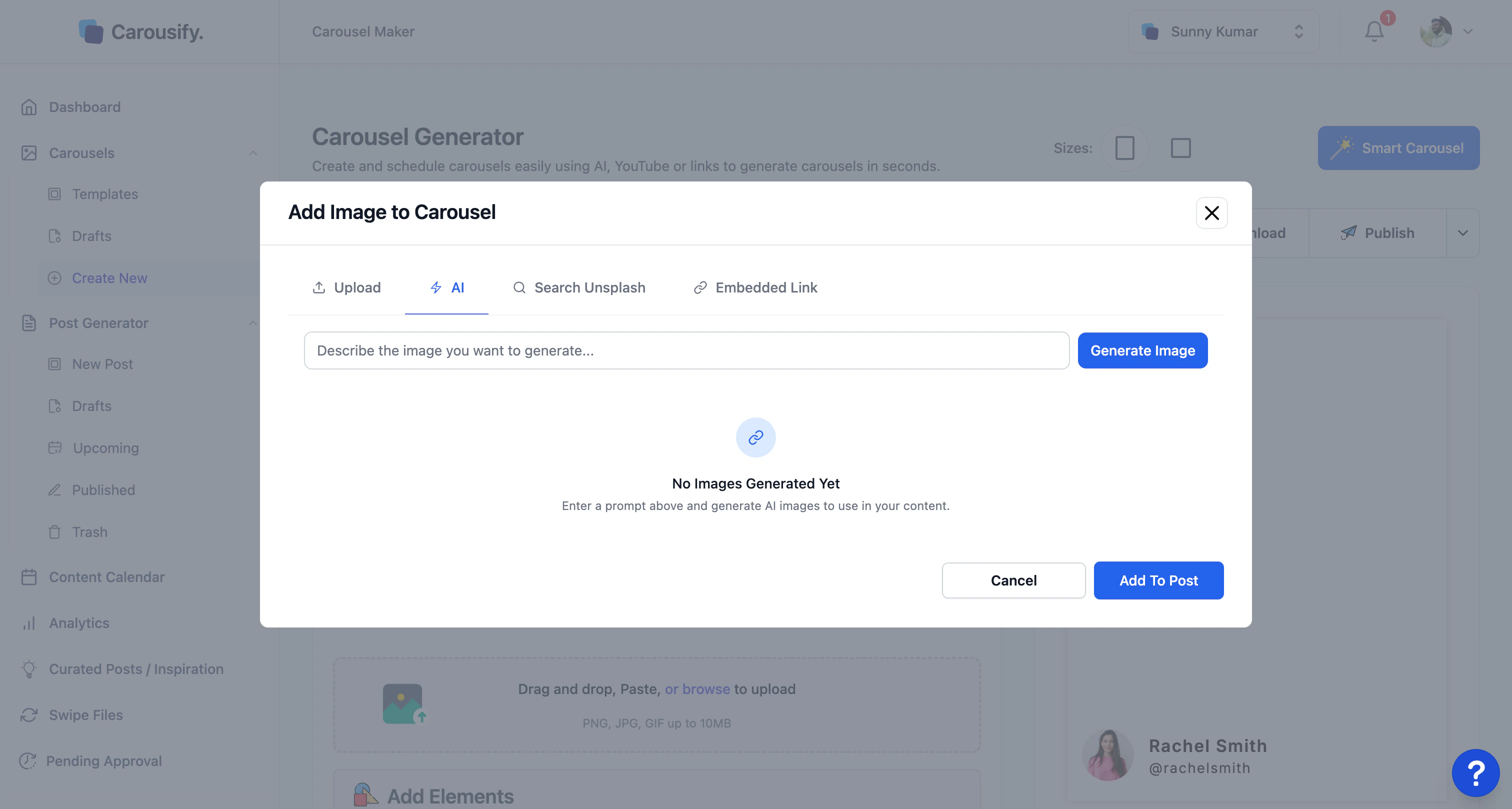
Generate an image
Open the AI tab
From the Carousel Maker image zone or the Post Generator Add Image button, switch to the AI tab in the picker.
Describe the image
Type what you want in the Describe the image you want to generate… box. Be specific about subject, style, and colour — minimalist flat illustration of a person climbing a staircase of books, soft blue and white lands closer than a success image.
Generate
Click Generate Image. The result appears in the panel below the prompt. Not right? Adjust the prompt and generate again — each run adds to the list so you can compare.
Like other AI features, image generation can count toward your plan’s usage. See Plans for what your plan includes.
What’s next
Create a carousel
Build the deck, then drop a generated image onto any slide.
Write a new post
Add a generated image to a single-image LinkedIn post.
Brand Kit
Keep colours and fonts consistent around the images you add.
Export and download
Get the finished deck out as a PDF or image set.