

The number of members you can invite per workspace is plan-dependent. Hobby includes 3 members per workspace, Startup 5, Business 10, and Enterprise up to 500. See Plans and pricing.
Open Team Members
In the left sidebar, click Manage Workspace › Team Members.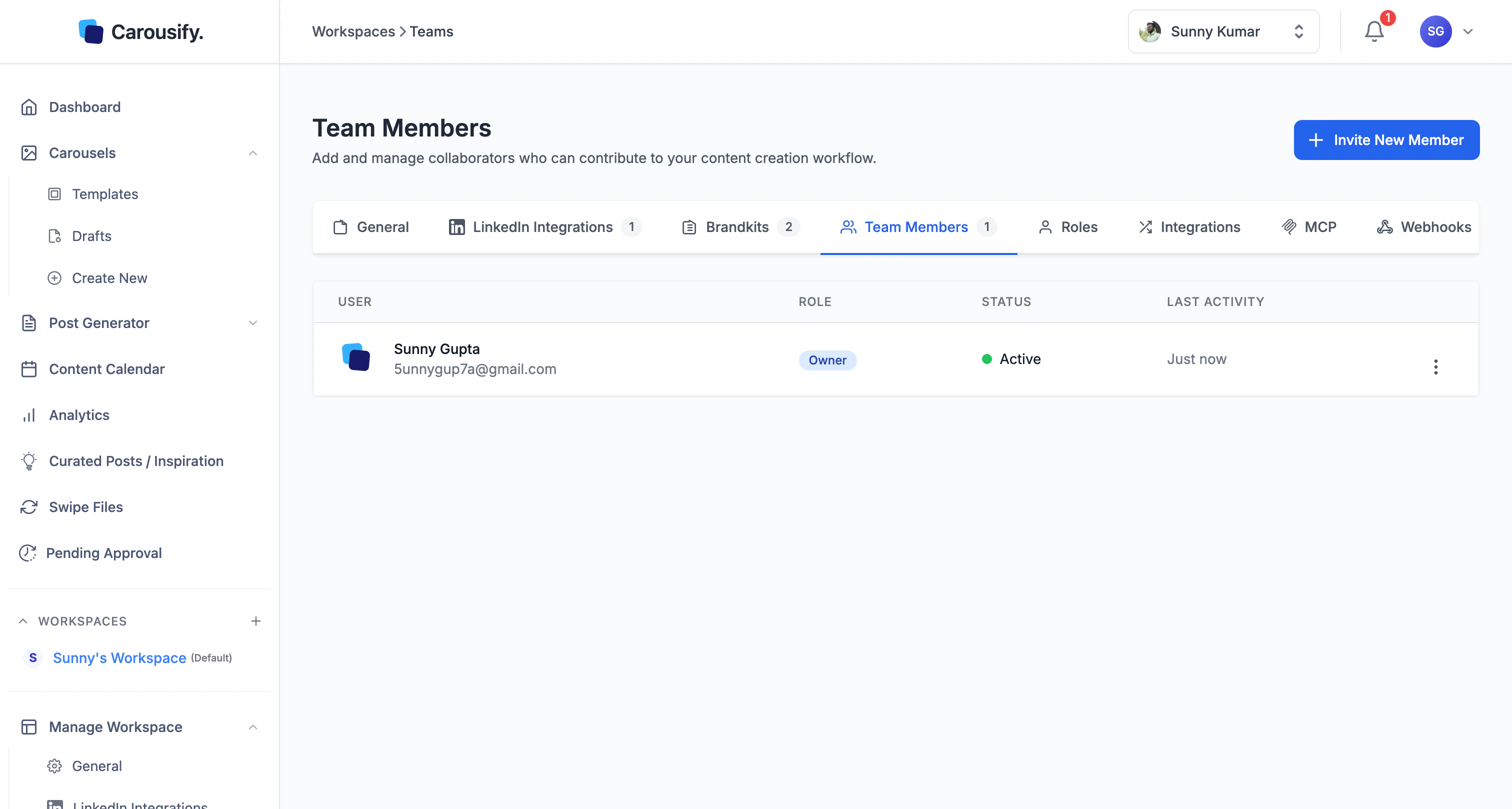
Send an invite
Click Invite New Member in the top right. The Invite Members dialog opens.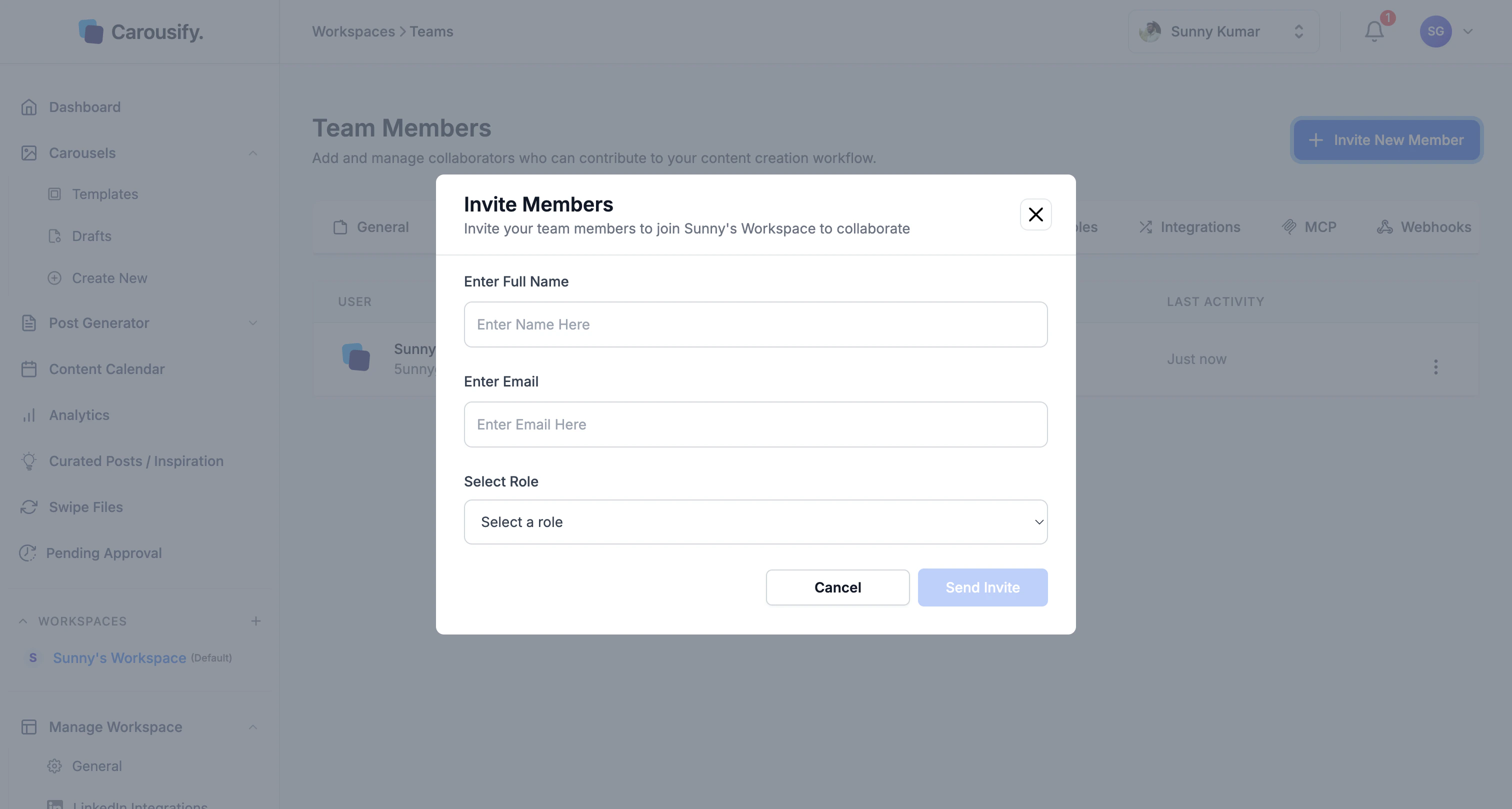
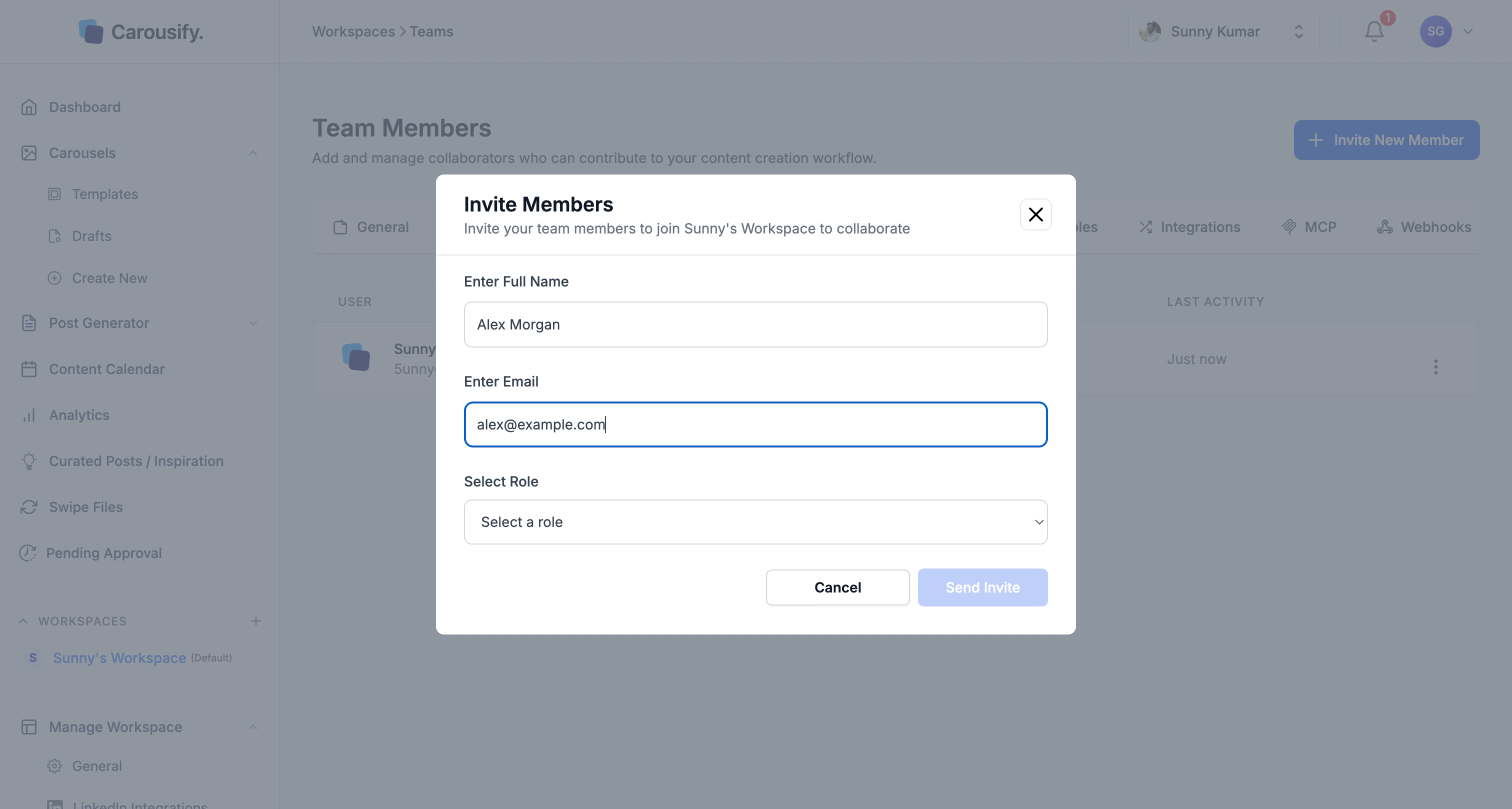
| Field | What to enter |
|---|---|
| Full Name | The teammate’s name as you want it shown across the workspace. |
| The address Carousify sends the invite to. They’ll sign up (or sign in) with this email. | |
| Select Role | Admin, Client, or Member — see Roles and permissions for what each can do. |
What happens after you send
- The invitee gets an email with a join link
- The member appears in the table immediately with a Pending status
- Once they accept and sign in, status flips to Active
- They land inside this workspace by default — they can switch to others they’ve been invited to from the sidebar’s WORKSPACES list
Manage existing members
From the actions button on each row you can:- Change role — promote a Member to Admin, or move someone to Client without re-inviting
- Resend invite — re-trigger the email if a Pending member never joined
- Remove — revoke access to this workspace. Their drafts and scheduled posts stay; they just can’t open them anymore
What’s next
Roles and permissions
The full matrix of what Owner, Admin, Member, and Client can each do.
Manage clients
Run a workspace for a client without sharing logins or LinkedIn credentials.
Approval workflow
Require an Admin or Owner to sign off before scheduled posts go live.
Workspace overview
How workspaces, brand kits, and integrations fit together.