

- During onboarding, at step 3
- Any time after, from Workspace › Integrations
Open the integrations page
Go to Workspace › Integrations in the left sidebar. If no LinkedIn account is connected yet, you’ll see this: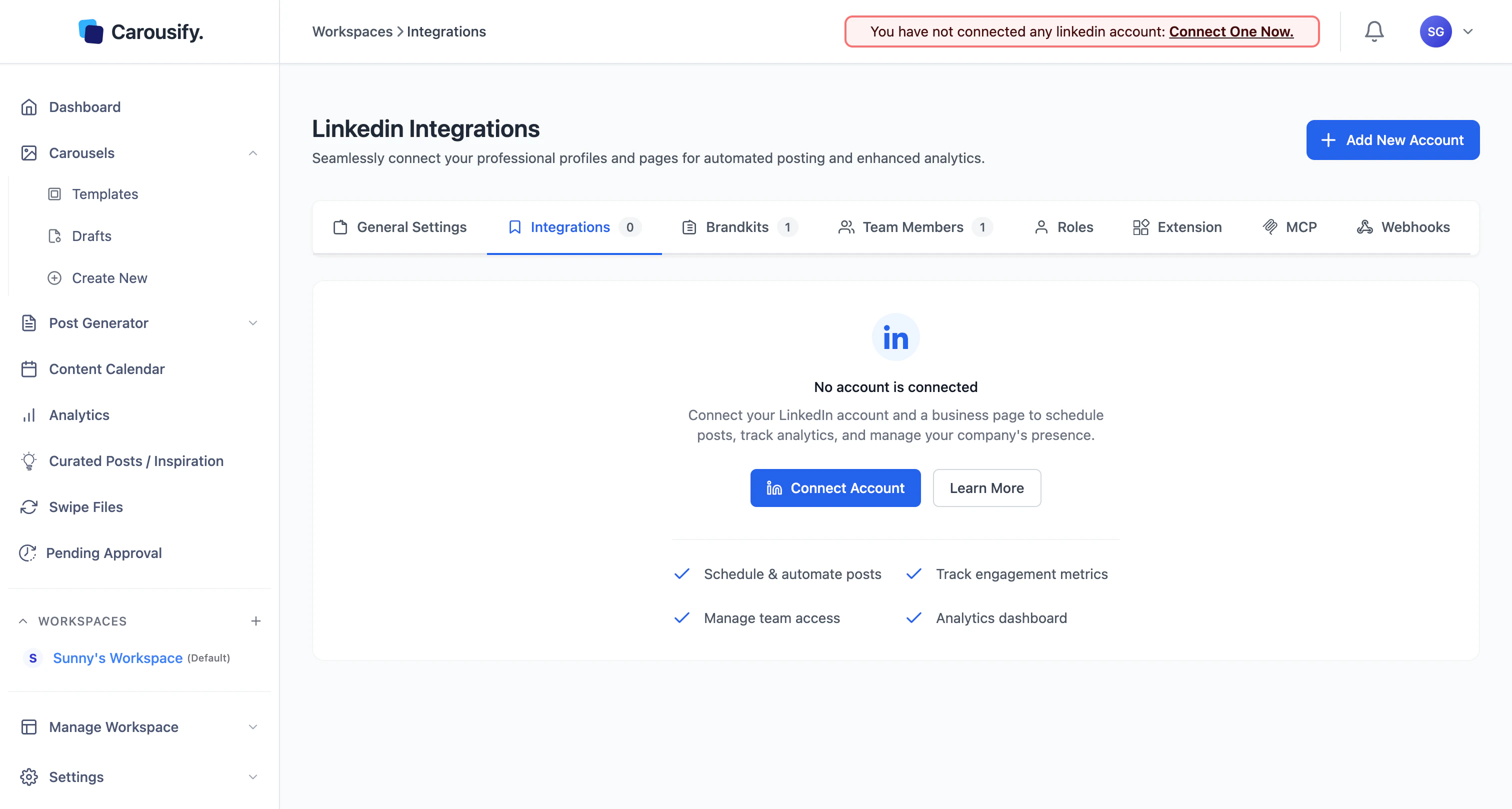
Pick what to connect
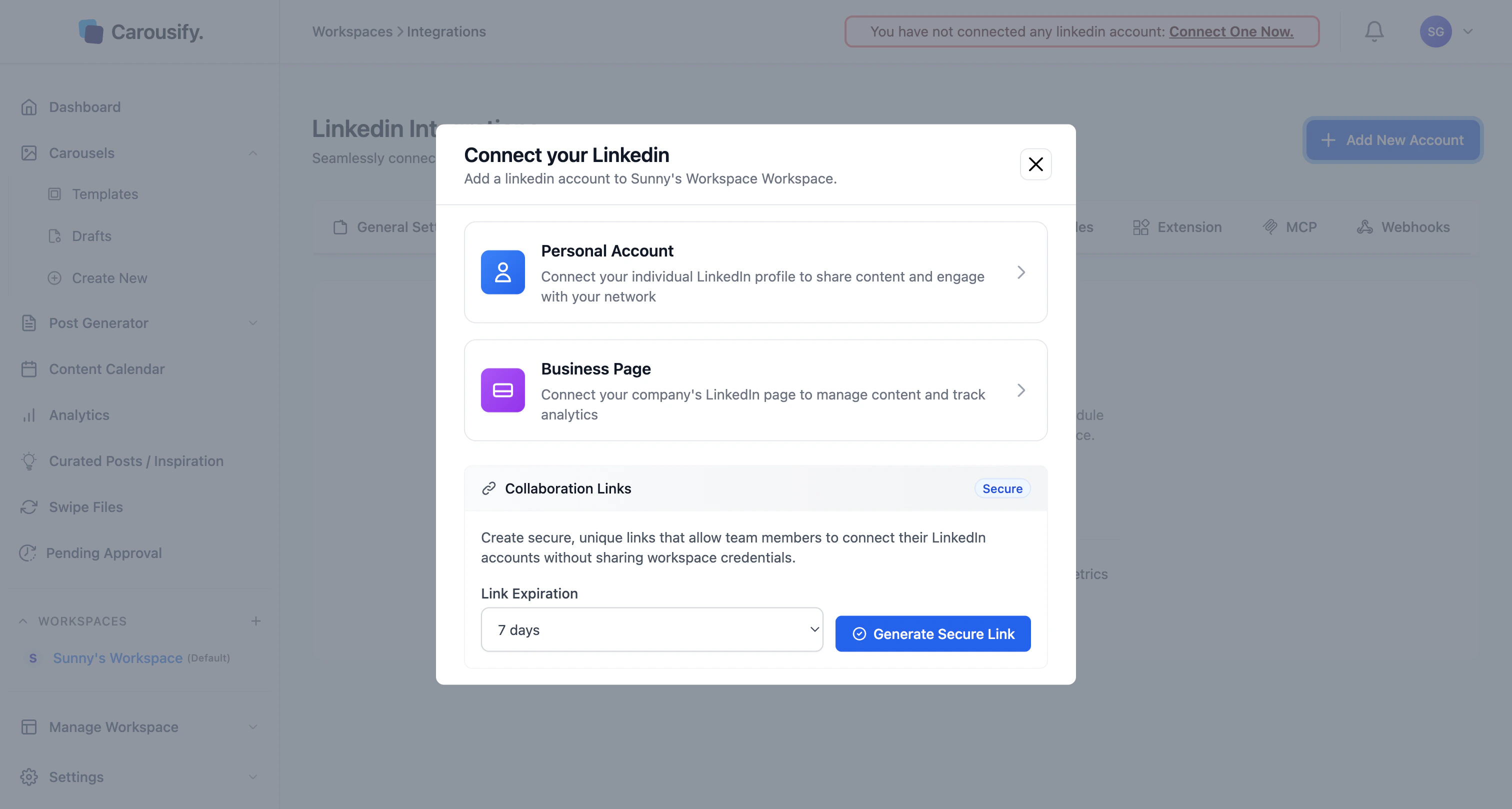
Personal Account
Your individual LinkedIn profile. Used to publish posts and carousels under your name.
Business Page
A LinkedIn company page you admin. Posts publish as the page, not as you.
Connecting LinkedIn Pages is a plan-specific feature. Personal accounts work on every paid plan; pages start on Startup and up. See carousify.com/pricing for the breakdown.
Connect a personal account
Sign in to LinkedIn
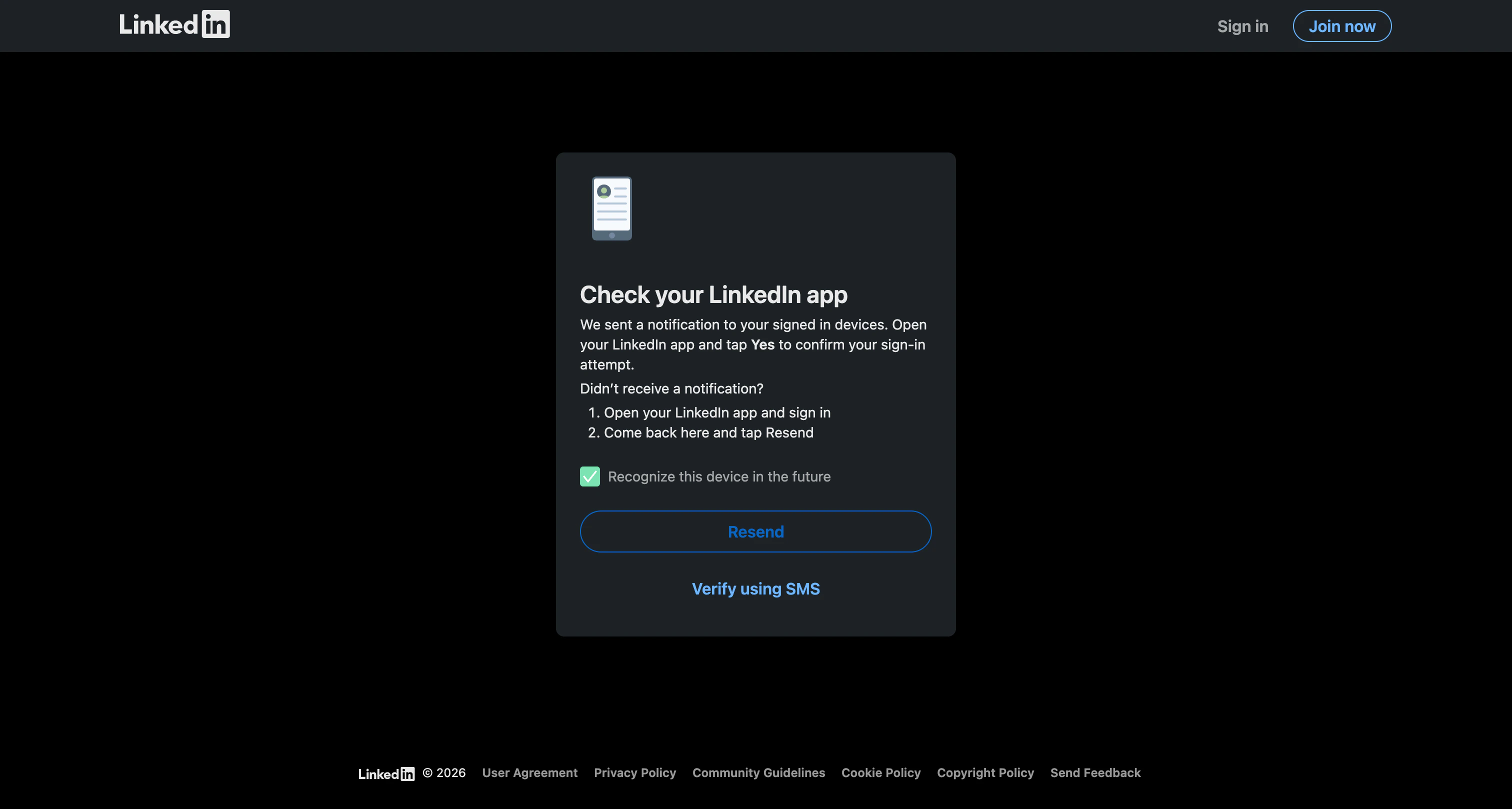
Approve permissions
LinkedIn shows the scopes Carousify is requesting (read profile, read connections size, post on your behalf, manage company pages you admin). Click Allow.
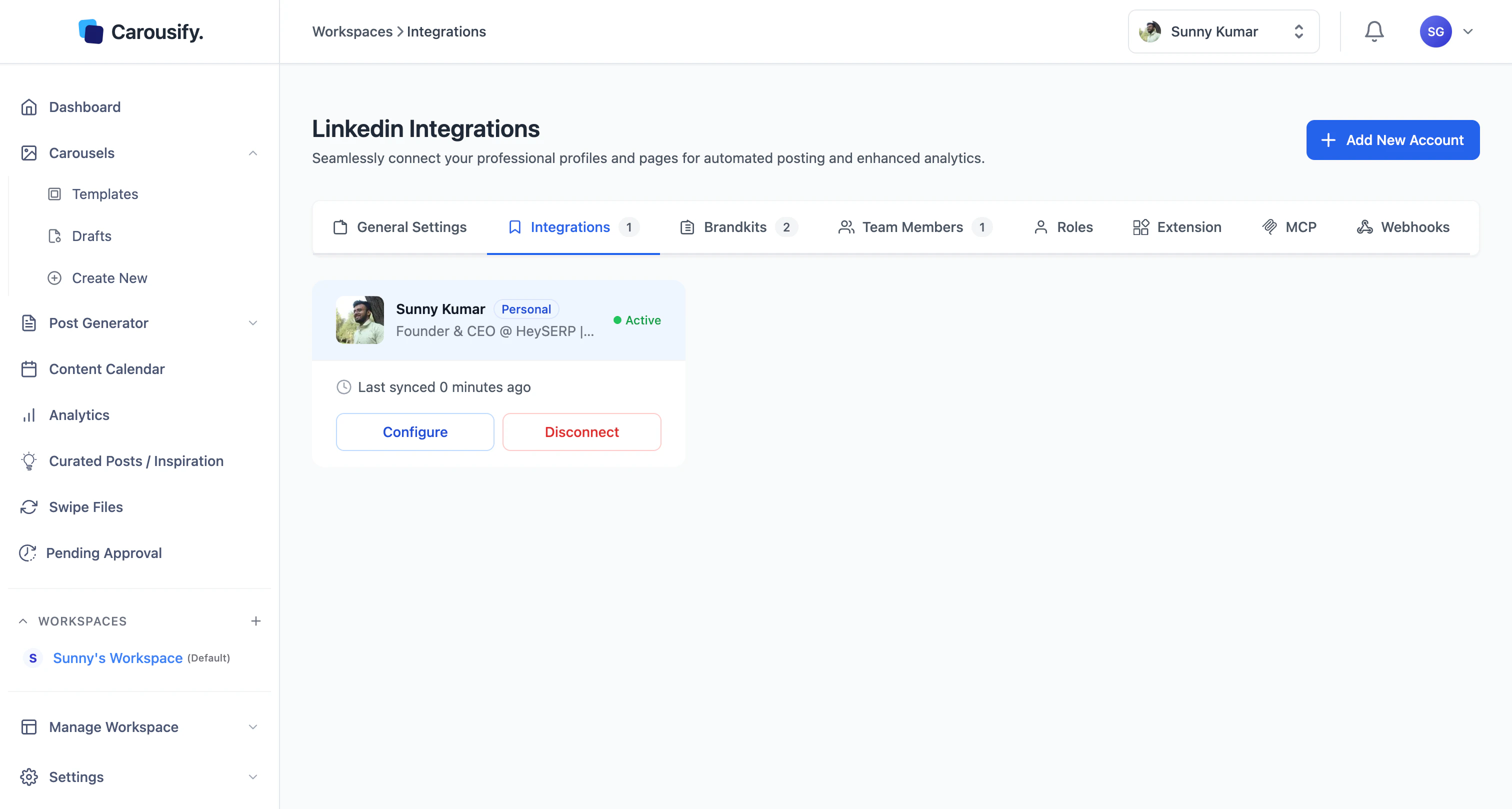
Edit account info
Click Configure on a connected account to set interests (used to tune AI-generated content) and tweak the description Carousify uses for context: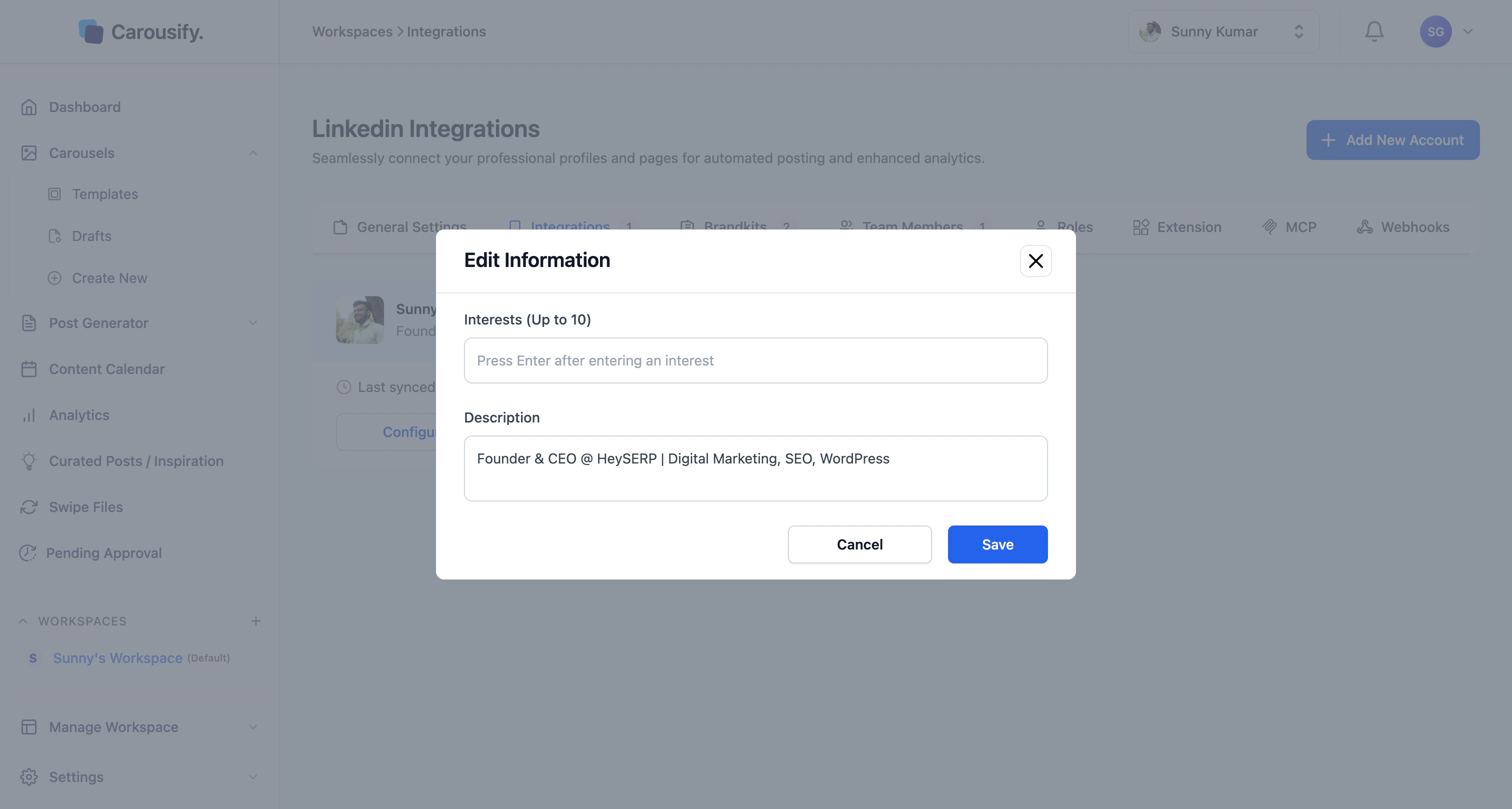
Let clients connect their LinkedIn — without sharing logins
This is the part that makes Carousify usable for agencies and ghostwriters.You never need your client’s LinkedIn email or password. Carousify generates a secure, one-time link your client opens themselves. They sign in on LinkedIn, approve the permissions, and the account lands in your workspace — fully managed by you, never touching your client’s credentials.
Generate a Collaboration Link
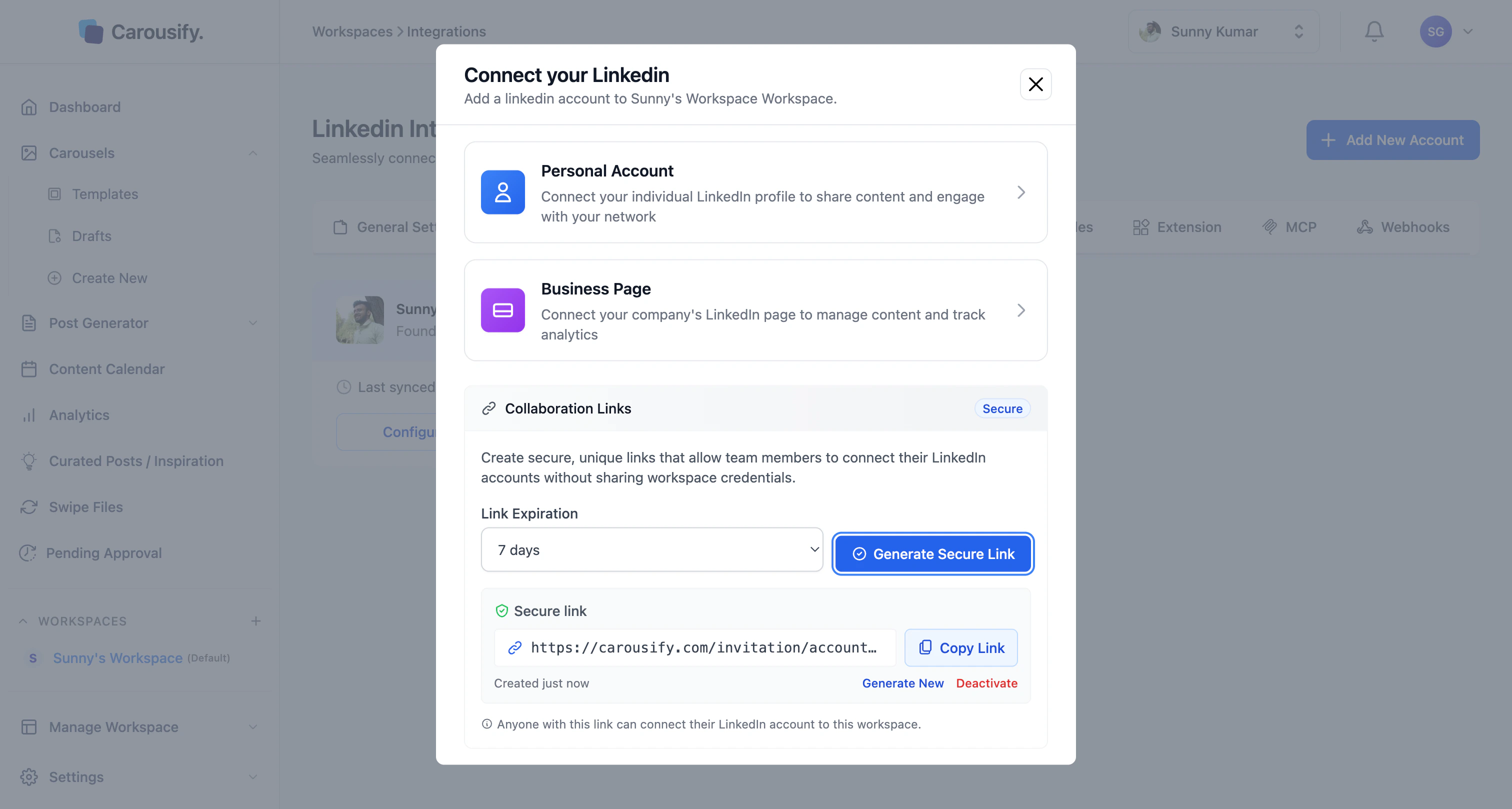
In the same Connect your LinkedIn modal, scroll to Collaboration Links:Pick an expiry
Choose 24 hours, 7 days, or 30 days. The link stops working after that — even if no one used it.
Send it to your client
Copy the link and share it however you like — email, Slack, WhatsApp. They don’t need a Carousify account.
What Carousify can do once connected
- Publish and schedule carousels, single-image posts, text posts, and videos
- Auto-plug a follow-up comment on your own post after a delay
- Pull analytics — impressions, engagement, clicks — into the Analytics dashboard
- Track outbound links with shortened, attributable URLs (Business plan and up)
Disconnect or reconnect
From Workspace › Integrations, click the menu on a connected account to disconnect it. LinkedIn permissions are revoked immediately. To reconnect later, just run the flow again.If LinkedIn ever invalidates the connection (password change, revoked third-party app, etc.), Carousify shows a banner asking you to reconnect. Scheduled posts pause until you do.