

Whitelabel is branding only. It controls how the platform looks — logo, name, colors, domain, and emails — so your clients experience it as yours. It doesn’t change billing or invoicing in any way.
Account-wide, not per workspace
Most Carousify settings — brand kits, integrations, members — are scoped to a single workspace. Whitelabel is the exception. It applies at the account level, across every workspace you own.Where to find it
In the left sidebar, open Settings › Whitelabeling.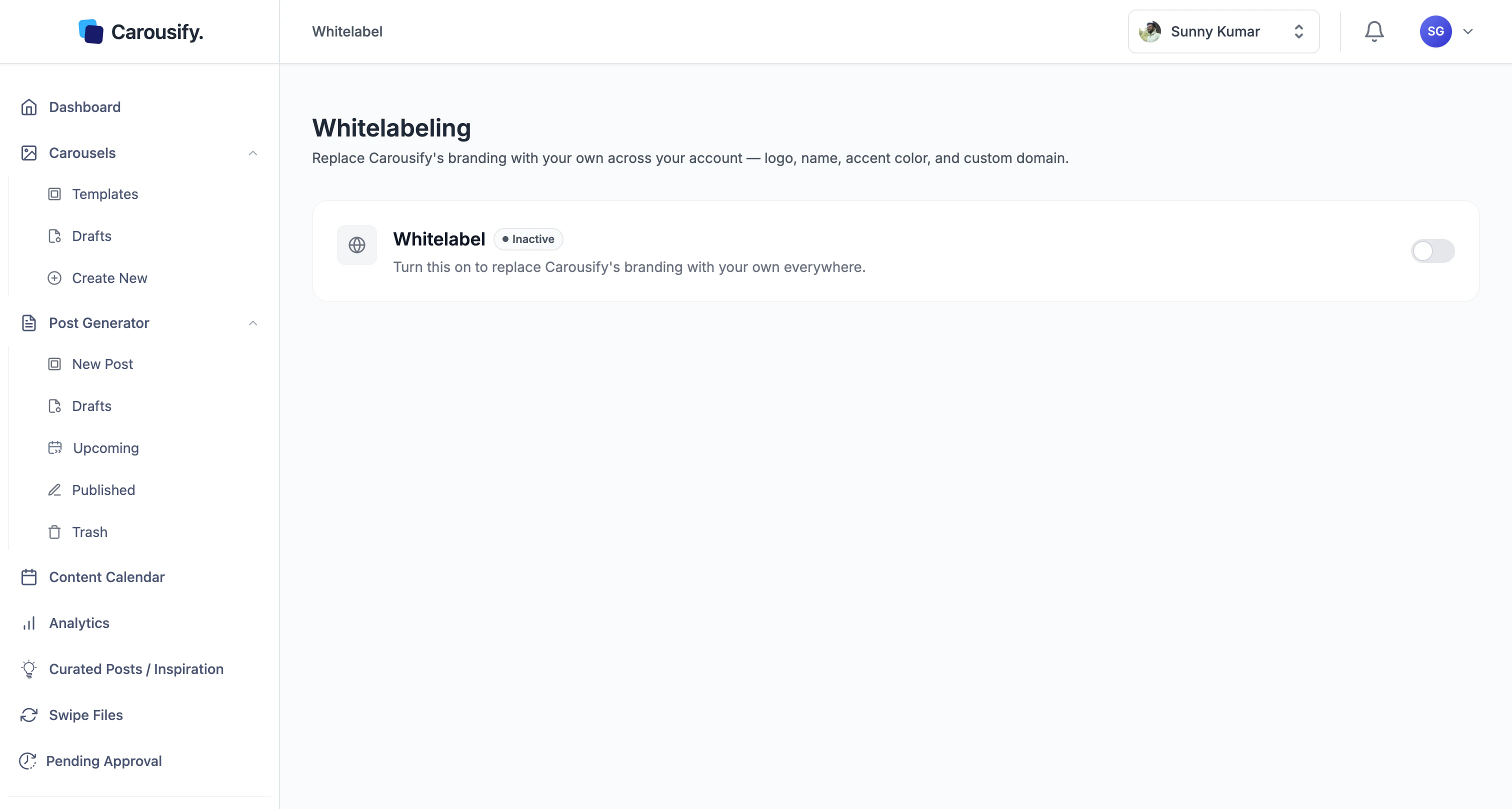
Turn whitelabeling on
Flip the Whitelabel switch to Active
The status pill changes from Inactive to Active and the configuration sections appear below.
Fill in the required fields
Every section marked with a
* needs a value before your branding renders cleanly — brand logo, favicon, name, support email, and accent color at minimum.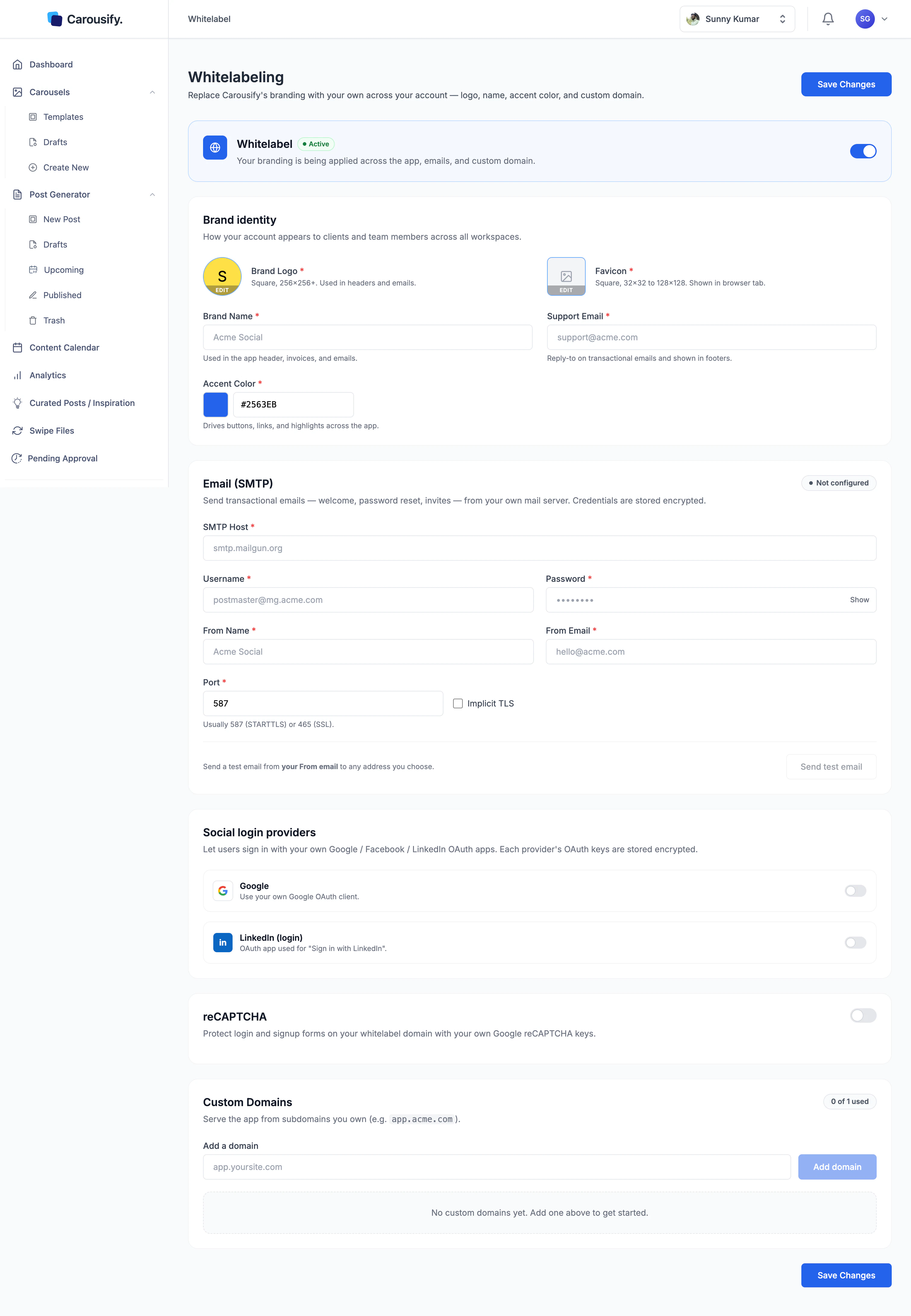
What you can configure
Whitelabel is grouped into five sections on this one page.Brand identity
Logo, favicon, brand name, support email, and accent color — what shows in headers, the browser tab, and emails.
Email (SMTP)
Send welcome, password-reset, and invite emails from your own mail server instead of Carousify’s.
Custom domains
Serve the whole app from a subdomain you own, like
app.yourbrand.com.Sign-in and security
Your own Google and LinkedIn OAuth apps for sign-in, plus your own reCAPTCHA keys.
Brand identity
The Brand identity section sets how your account looks to anyone who opens it:| Field | Where it shows |
|---|---|
| Brand Logo | App headers and emails. Square, 256×256 px or larger. |
| Favicon | The browser tab. Square, 32×32 to 128×128 px. |
| Brand Name | App header and emails. |
| Support Email | Reply-to address on transactional emails and shown in footers. |
| Accent Color | Buttons, links, and highlights across the app. |
Email and domain
Two sections turn Carousify into something that is your product rather than something that emails and links back to ours:- Email (SMTP) — point Carousify at your own mail server so transactional emails come from your domain, not Carousify’s. Credentials are stored encrypted. See SMTP.
- Custom Domains — add one subdomain you own (e.g.
app.acme.com) and the entire app loads from it. See Custom domain for the DNS steps.
Social sign-in and reCAPTCHA
Two more sections live on the same page and don’t have separate guides — configure them here:- Social login providers — by default, “Sign in with Google” and “Sign in with LinkedIn” run through Carousify’s OAuth apps, which means the consent screen says Carousify. Add your own Google and LinkedIn OAuth client credentials and the consent screen shows your brand instead. Each provider’s keys are stored encrypted.
- reCAPTCHA — protect the login and signup forms on your whitelabel domain with your own Google reCAPTCHA keys, so bot protection runs under your account, not Carousify’s.
Saving and applying changes
Save Changes persists everything on the page in one go. Branding, colors, and email take effect immediately after saving. A custom domain only goes live once its DNS records resolve and the certificate is issued — that part is covered in Custom domain.Turning the master switch back to Inactive and saving reverts the account to Carousify’s default branding and domain. Your configured values are kept, so you can switch whitelabel back on later without re-entering everything.
What’s next
Custom domain
Point a subdomain you own at Carousify and serve the app from it.
Branding
Logo, favicon, name, support email, and accent color, step by step.
SMTP
Send transactional emails from your own mail server.
Manage clients
Combine whitelabel with client workspaces for a fully branded agency setup.