

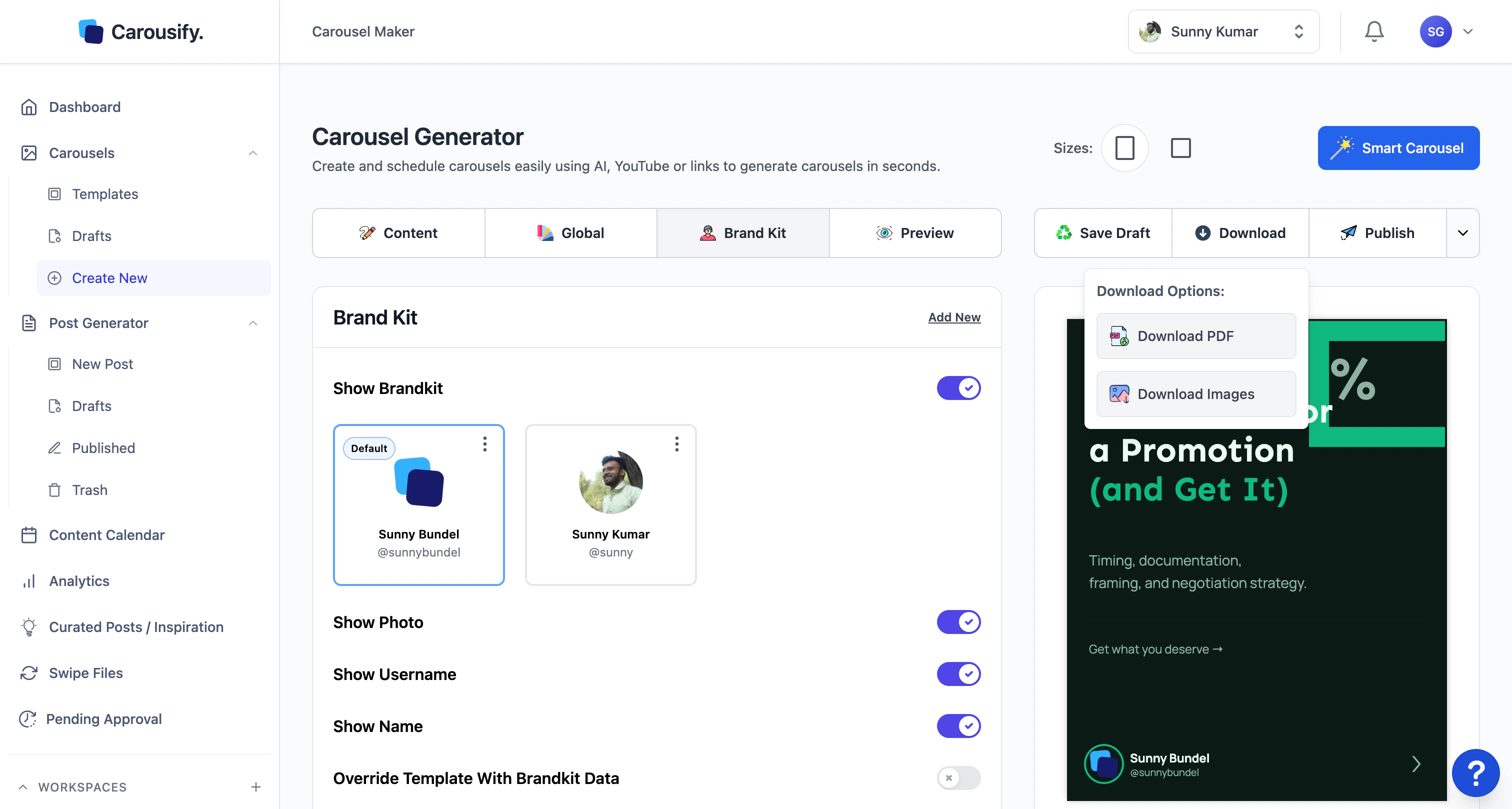
Which option to use
| You want to… | Use |
|---|---|
| Post the carousel on LinkedIn now or schedule it | Publish |
| Upload to LinkedIn yourself, or save the file for later | Download › Download PDF |
| Post on Instagram, X, a newsletter, or a blog | Download › Download Images |
| Re-use this deck as a starting point next time | ⋯ menu › Save as Template |
Download PDF
A single PDF with every slide in order — this is the format LinkedIn uses for native carousel posts. Click Download › Download PDF and the file drops into your browser’s downloads folder.Download Images
A zip with one image per slide. Use this for any platform that takes individual images instead of a PDF — Instagram carousels, X threads, newsletters, blog embeds. Slide order is preserved in the filenames.Publish to LinkedIn
Click Publish and Carousify hands the deck to the Post Generator — the same composer you’d use for any LinkedIn post. From there you write the caption, pick the LinkedIn account, and either post now or schedule for later.Schedule a post
Walk through the post composer — caption, account, and scheduling.
Save as Template
If this deck is one you’ll want to start from again, open the ⋯ menu next to Publish and pick Save as Template.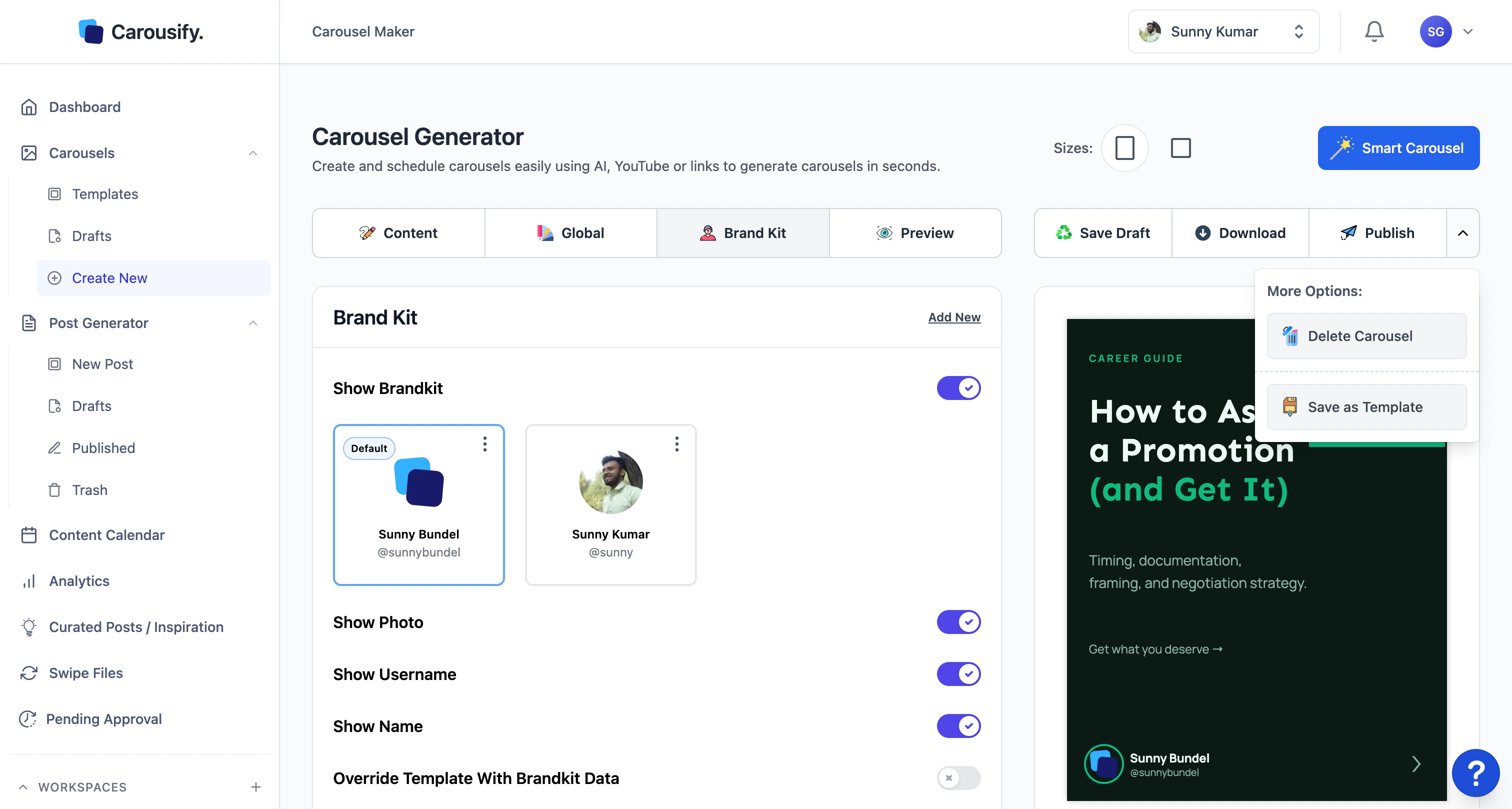
Templates and drafts are workspace-scoped. Saving a template in one workspace doesn’t make it available in another — save it again in each workspace where you’d use it.
What’s next
Schedule a post
Pick the LinkedIn account and time when the deck should go live.
Approval workflow
Route the post through manager review before it publishes.
Templates
Re-use the deck (or your saved templates) for the next post.
Analytics
Track how the published carousel performs once it’s live.