

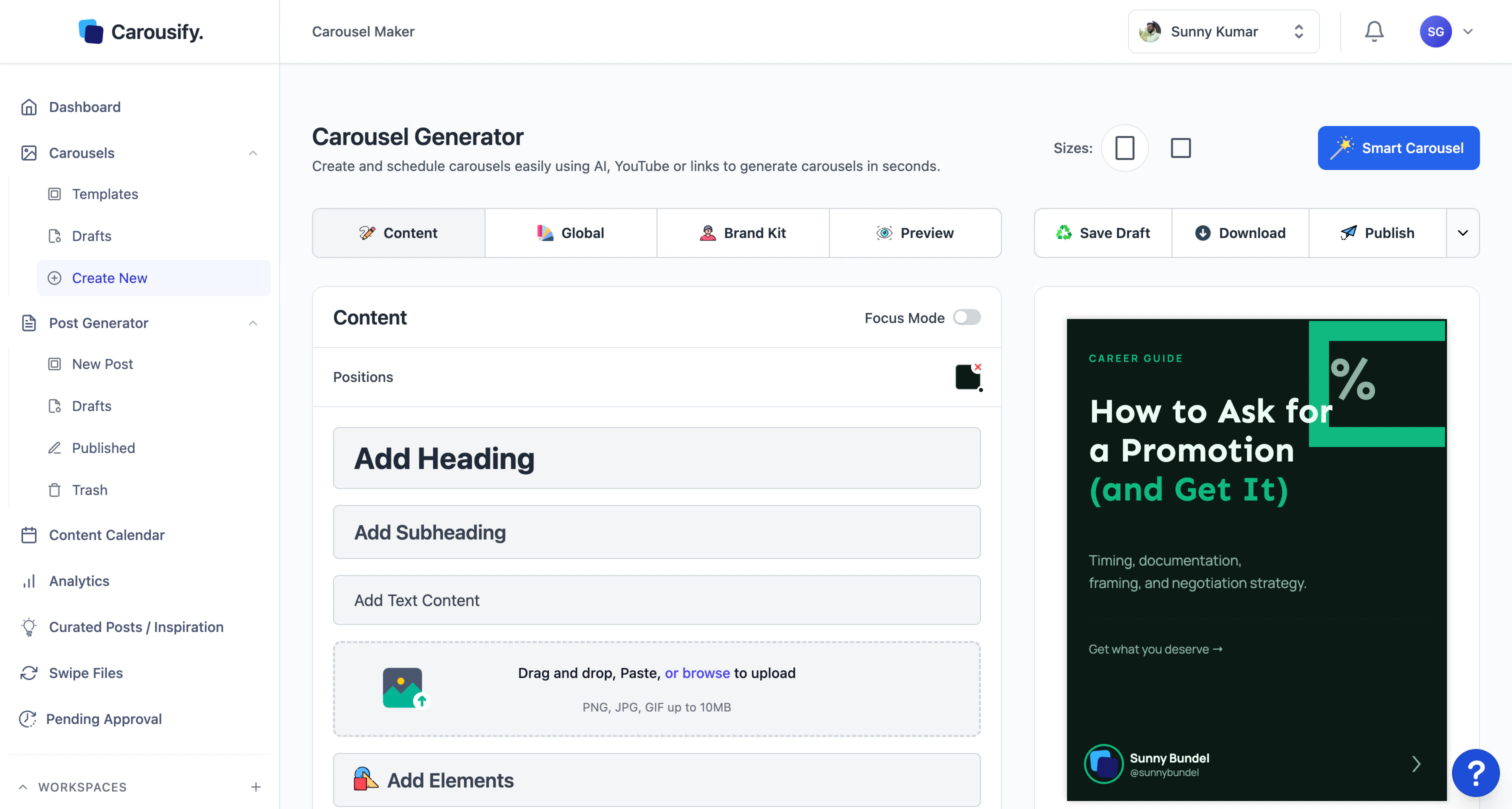
Where to find it
In the left sidebar, open Carousels › Create New to start fresh, or Carousels › Templates to browse the gallery first. Existing work-in-progress lives under Carousels › Drafts.Three ways to start
From scratch
Open a blank deck and add headings, text, images, and shapes slide by slide.
From a template
Pick a pre-designed deck and swap in your own copy and colors.
With Smart Carousel
Hand AI a topic, link, or YouTube URL and get a full draft to refine.
What the editor gives you
- Sizes — switch between Portrait (4:5) and Square (1:1) at any time. The whole deck reflows to the new ratio.
- Slide tools — drag-and-drop to reorder, Reset Slide to revert one back to its starting state, and slide-by-slide navigation at the bottom.
- Elements — headings, subheadings, body text, images (PNG/JPG/GIF up to 10MB), plus shapes, icons, and decorative elements via Add Elements.
- Tabs — the editor groups its panels into:
- Content — type and design the current slide.
- Global — settings that apply across every slide (background, default fonts, footer).
- Brand Kit — colors, fonts, and logos saved at the workspace level.
- Preview — see how the deck will look on LinkedIn before exporting.
- Focus Mode — strips the chrome away when you want to design without distractions.
- Save Draft / Download / Publish — top-right at all times. Drafts auto-save as you work, Download exports as PDF or PNG set, and Publish hands the deck off to the post composer.
Brand Kit
Every workspace has a Brand Kit — saved colors, fonts, and logos that apply across every carousel you build. Pick the Brand Kit tab in the editor to switch between kits or pull the current one’s palette into the slide you’re working on.Configure your Brand Kit
Save the colors, fonts, and logos that should match every deck you build.
Keyboard shortcuts
The editor is built around shortcuts — press ? anywhere in the canvas to open the cheat sheet. The ones you’ll use most:| Action | Shortcut |
|---|---|
| Save draft | ⌘ S |
| Undo / Redo | ⌘ Z / ⌘ Shift Z |
| Copy / Paste an element | ⌘ C / ⌘ V |
| Group / Ungroup | ⌘ G / ⌘ Shift G |
| Lock / Unlock | ⌘ L |
| Zoom in / out | ⌘ + / ⌘ - |
| Fit to viewport | ⌘ 0 |
| Select multiple | Shift + click |
What’s next
Create a carousel
Walk through a full build — blank canvas, Smart Carousel, and editing each slide.
Templates
Browse the gallery and customize a template in minutes.
Brand Kit
Save reusable colors, fonts, and logos.
Export and download
Get LinkedIn-ready PDFs and image sets out of the editor.