

Carousify uses Notion’s official OAuth and only accesses the pages you explicitly select. We never read pages outside the database you connect.
What Carousify can access
When you authorize the integration, Notion shows the exact permissions Carousify is requesting:- View pages you select — read the database rows and post body text
- Edit pages you select — update the status column when a post moves to scheduled or published
- Create new content within pages you select — currently unused; reserved for future drafts-from-Carousify
- View workspace users and their emails — used to attribute who scheduled what
Before you start
You’ll need:- A Notion workspace where you have permission to add pages
- A connected LinkedIn account in Carousify — see Connect your LinkedIn account
- 5 minutes
Step 1 — Open the Connect Notion modal
In Carousify, go to Manage Workspace › Integrations in the left sidebar and click Connect on the Notion card.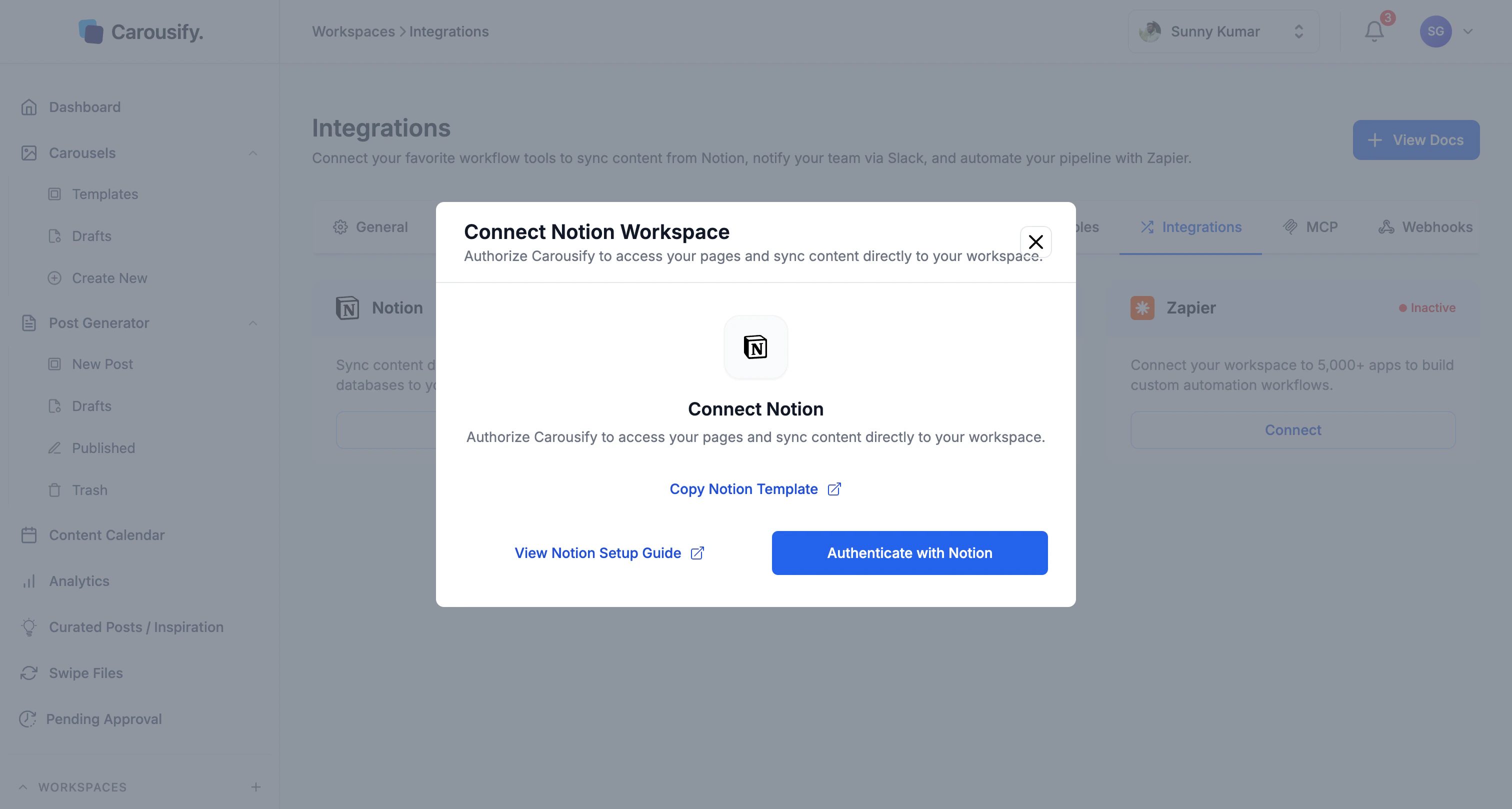
| Button | What it does |
|---|---|
| Copy Notion Template | Opens the Carousify-ready Notion template so you can duplicate it into your workspace. |
| View Notion Setup Guide | Opens this page. |
| Authenticate with Notion | Starts the Notion OAuth flow. |
Step 2 — Copy the Notion template
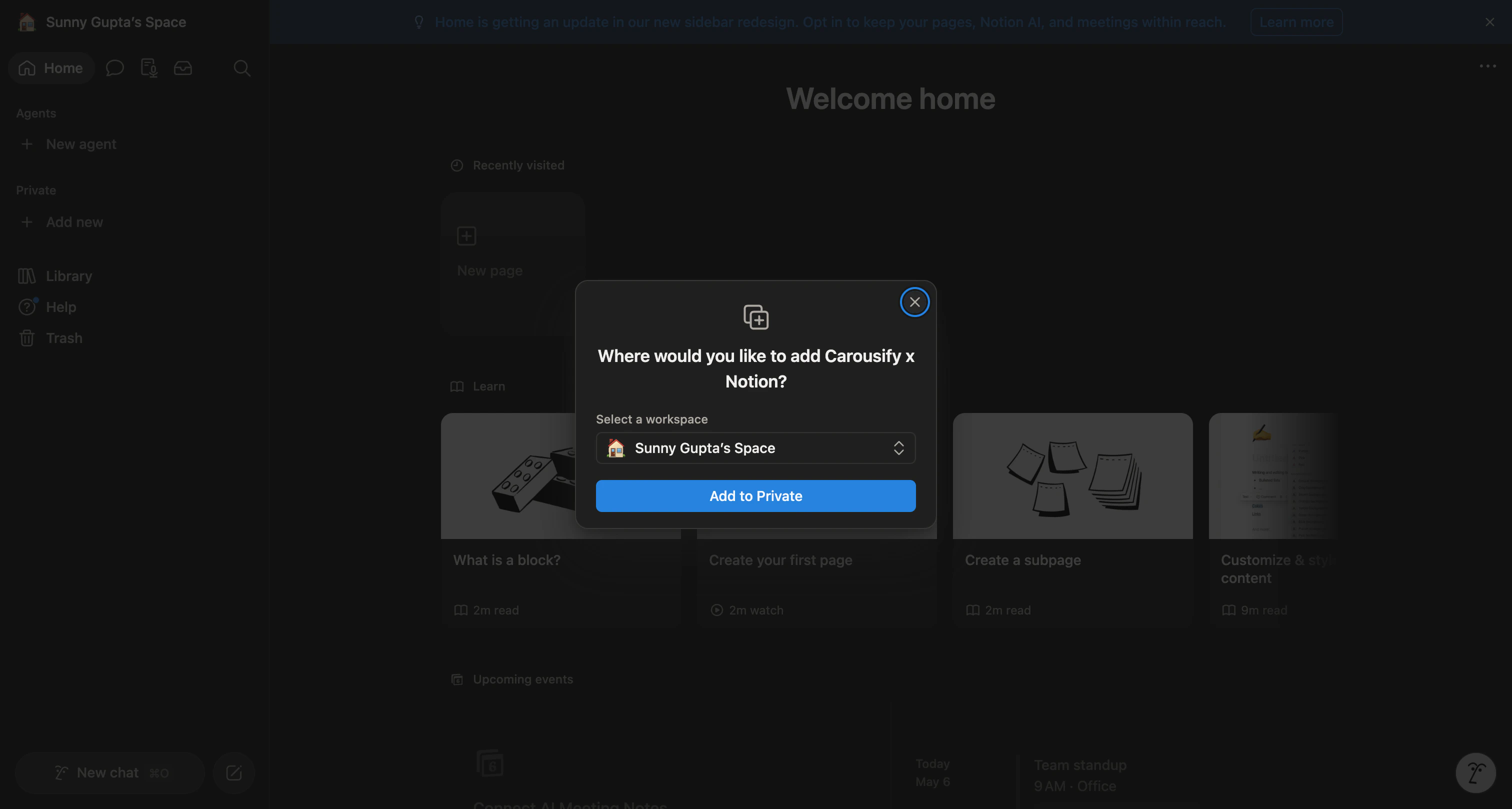
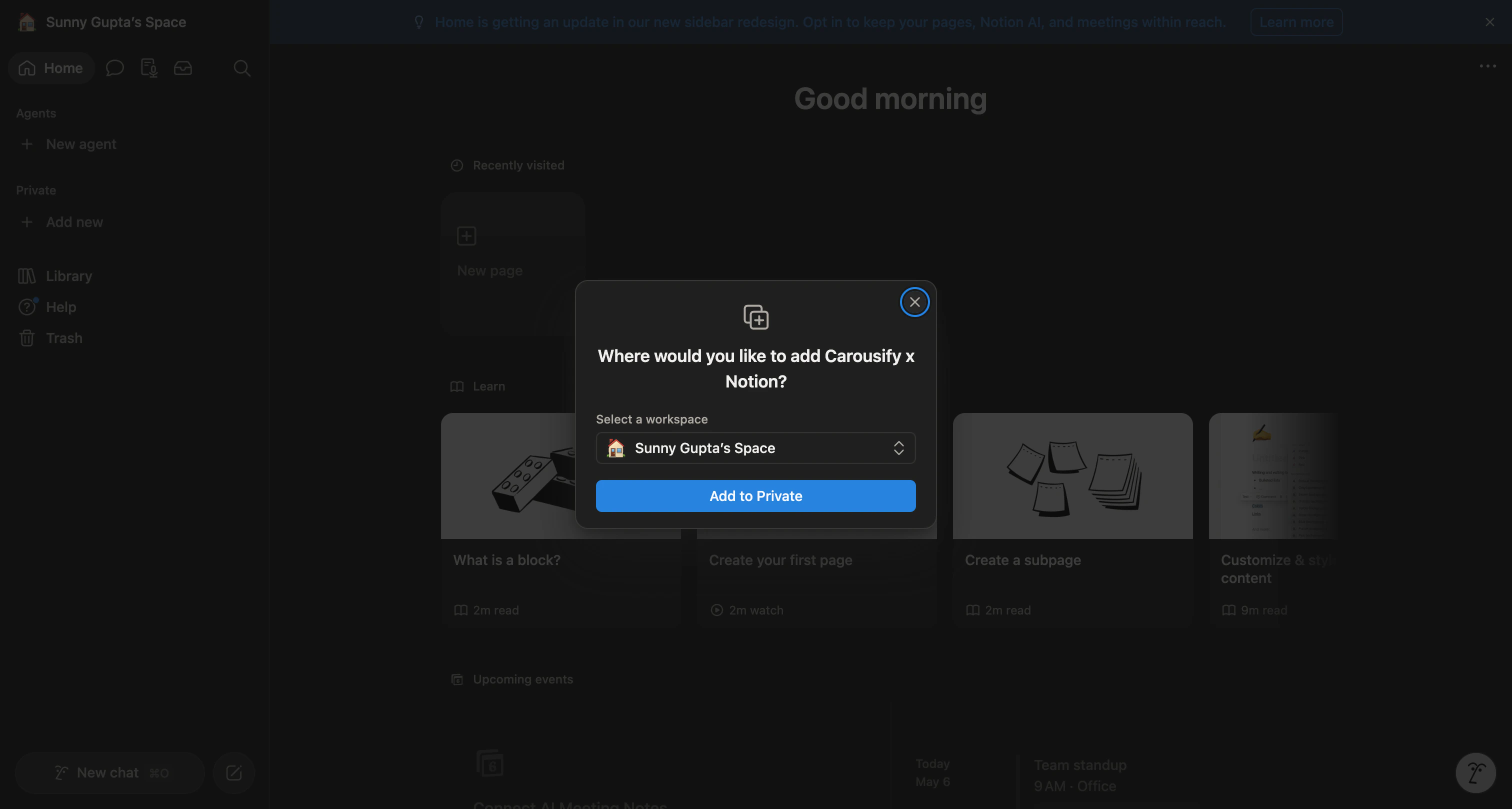
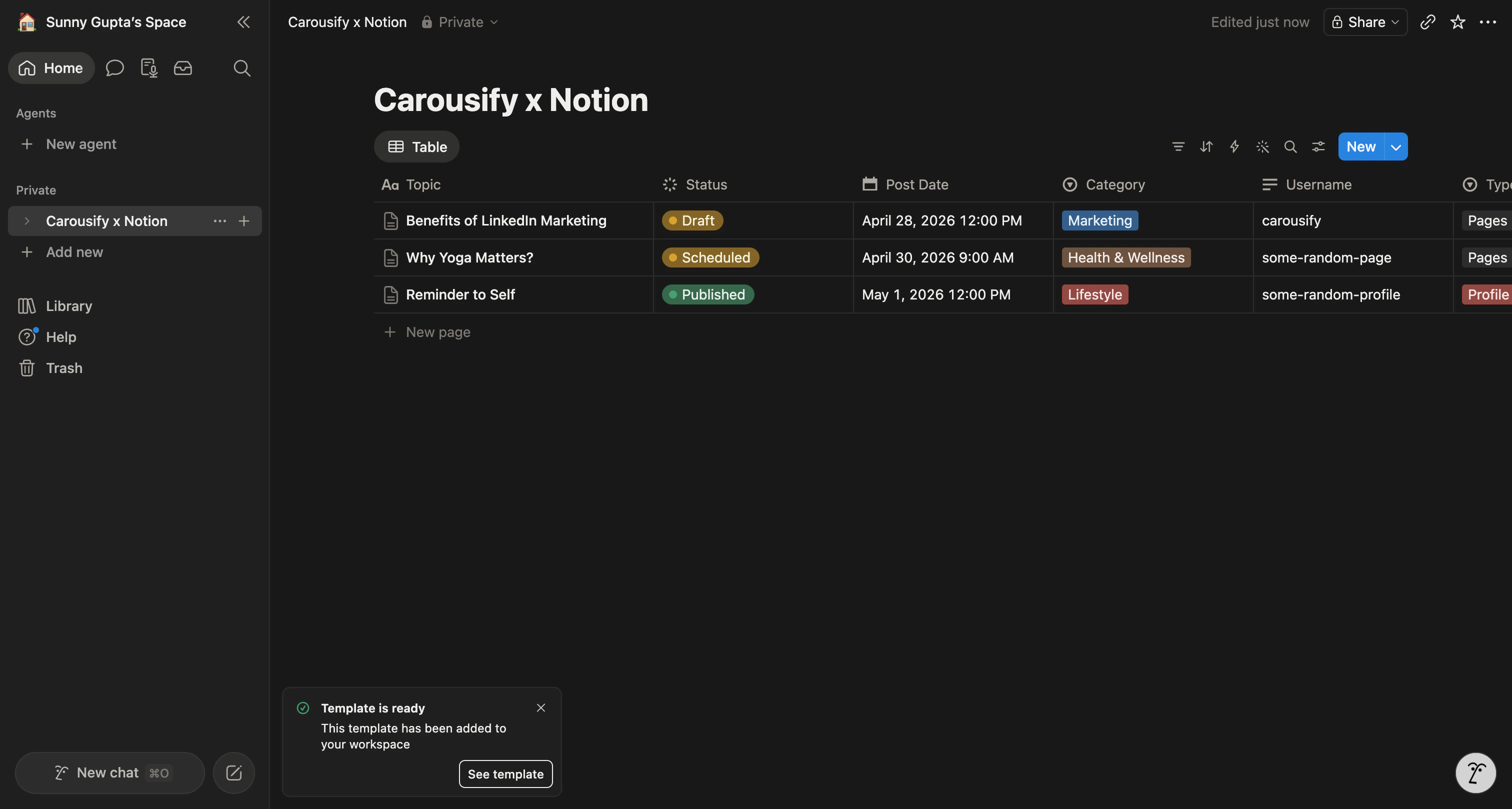
Click Copy Notion Template in the Carousify modal — it opens the Carousify x Notion template in a new tab. The template is a public, read-only Notion page with a database called Carousify x Notion that has every column Carousify needs.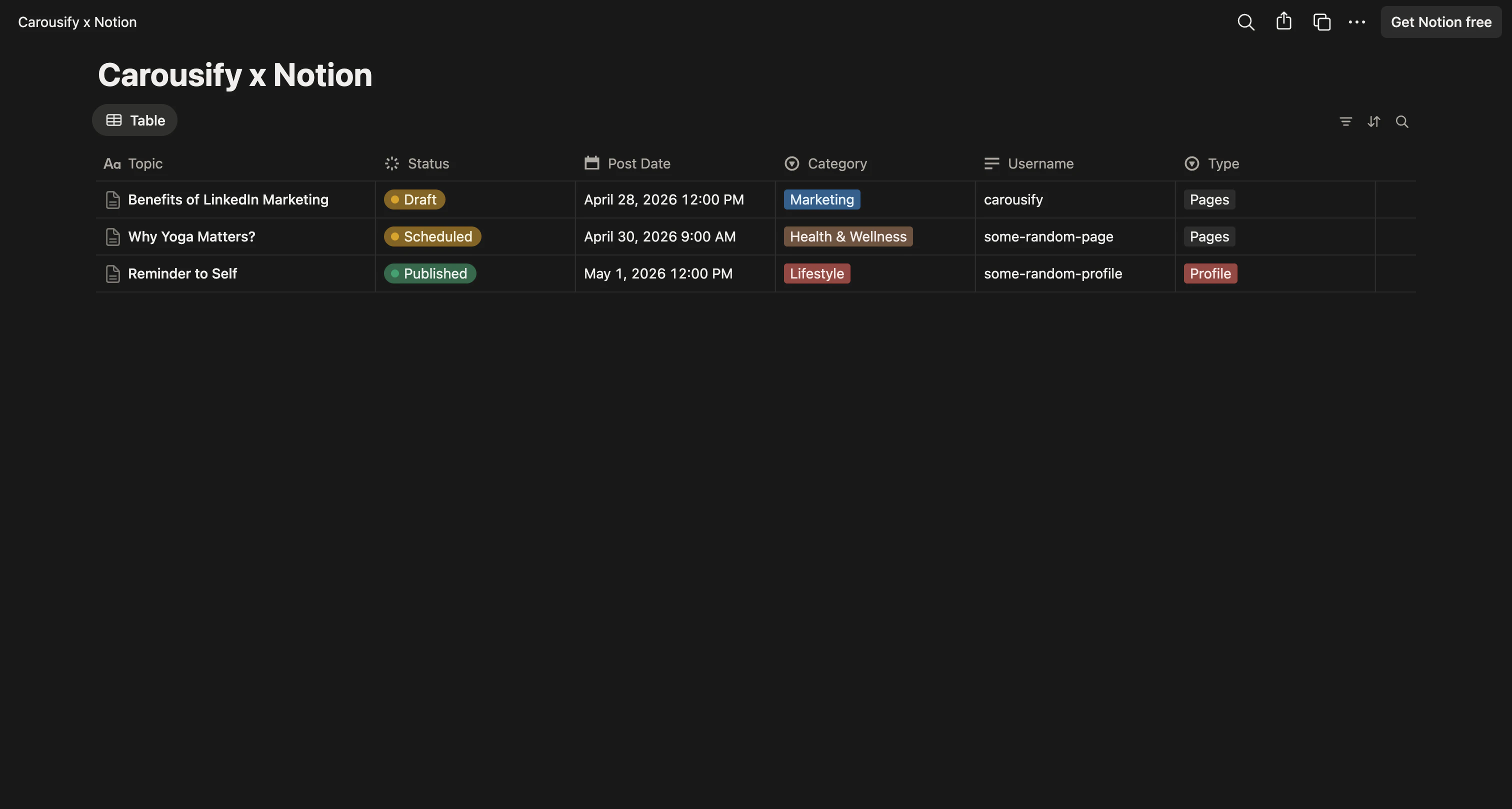
Step 3 — Or use your own database
Don’t want our template? Any Notion database works as long as it has these column types:| Carousify field | Notion column type | What goes in it |
|---|---|---|
| Posting Date/Time | Date (with time enabled) | When the post should publish, in your workspace timezone. |
| Status | Select | Drives the workflow — see Status labels below. |
| Username | Text | The LinkedIn vanity name (e.g. carousify) of the account or page to publish from. |
| Type | Select or Text | Either profile or pages — tells Carousify whether to post to a personal profile or a company page. |
Step 4 — Authenticate with Notion
Back in Carousify, click Authenticate with Notion in the same modal. Notion opens its official Connect with Carousify screen showing the requested permissions.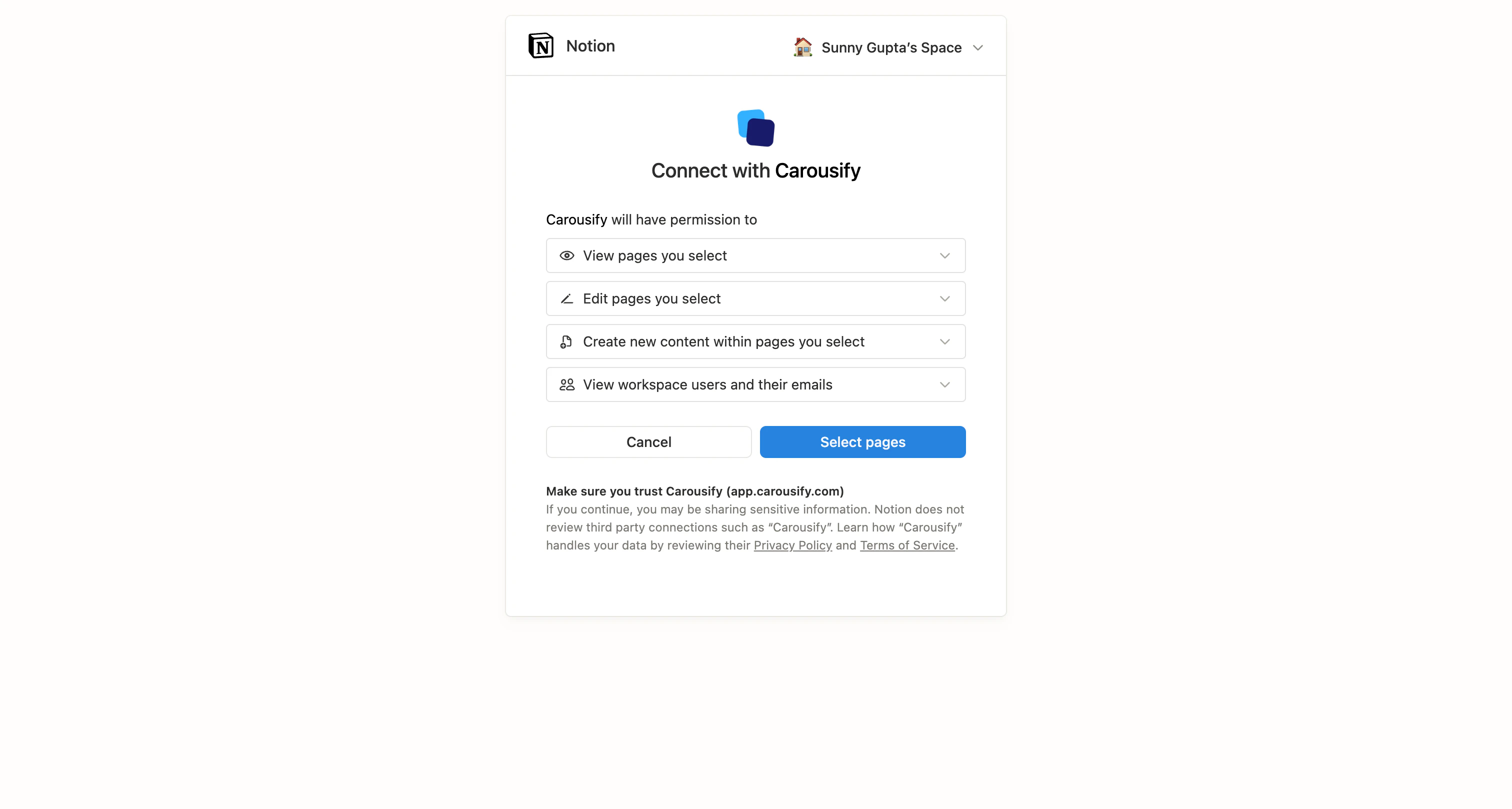
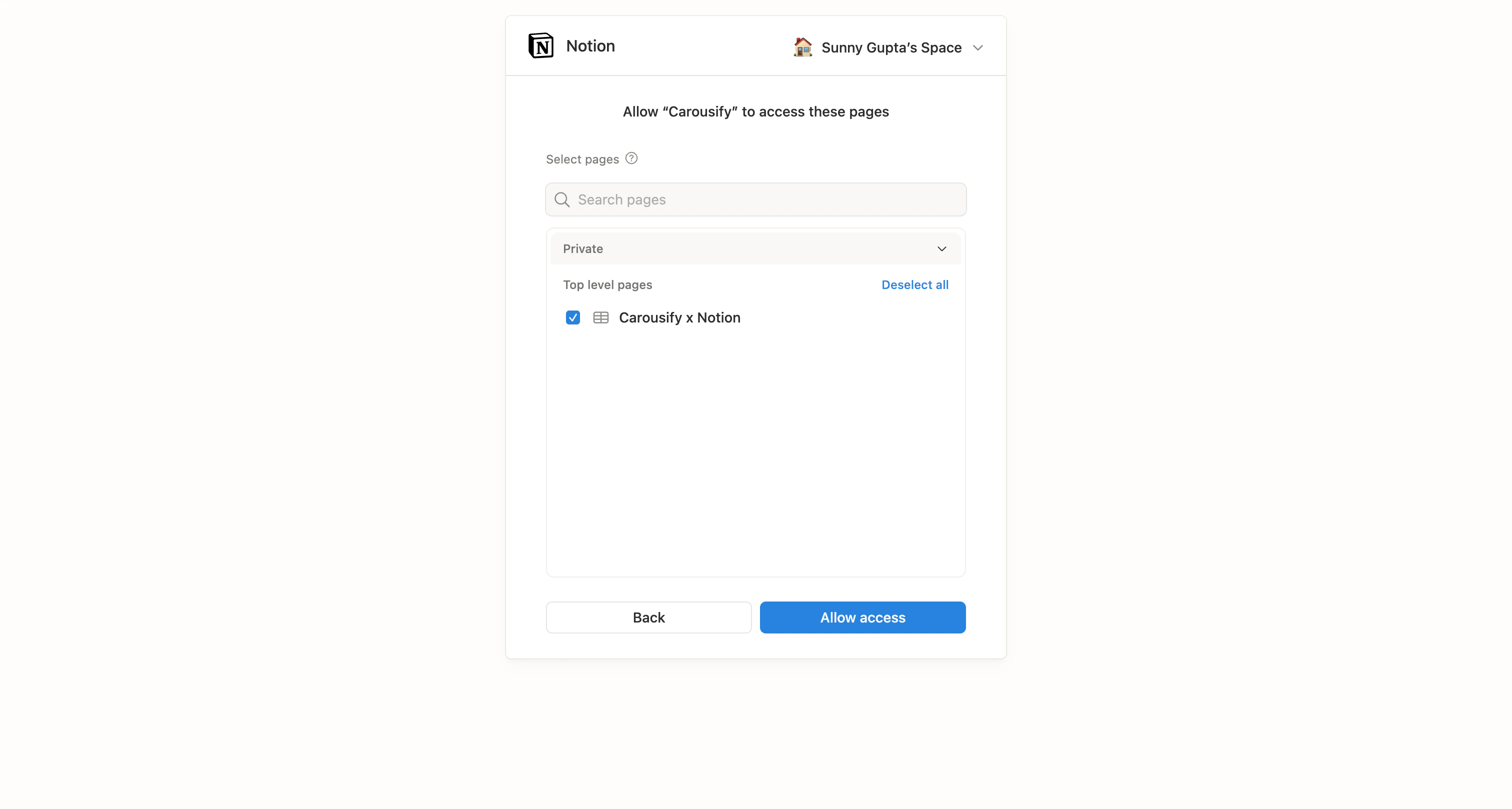
Step 5 — Pick the database
Carousify lands on the Select Notion Database screen with every database you authorized listed. Click the one you want to use — its tile shows a Selected badge.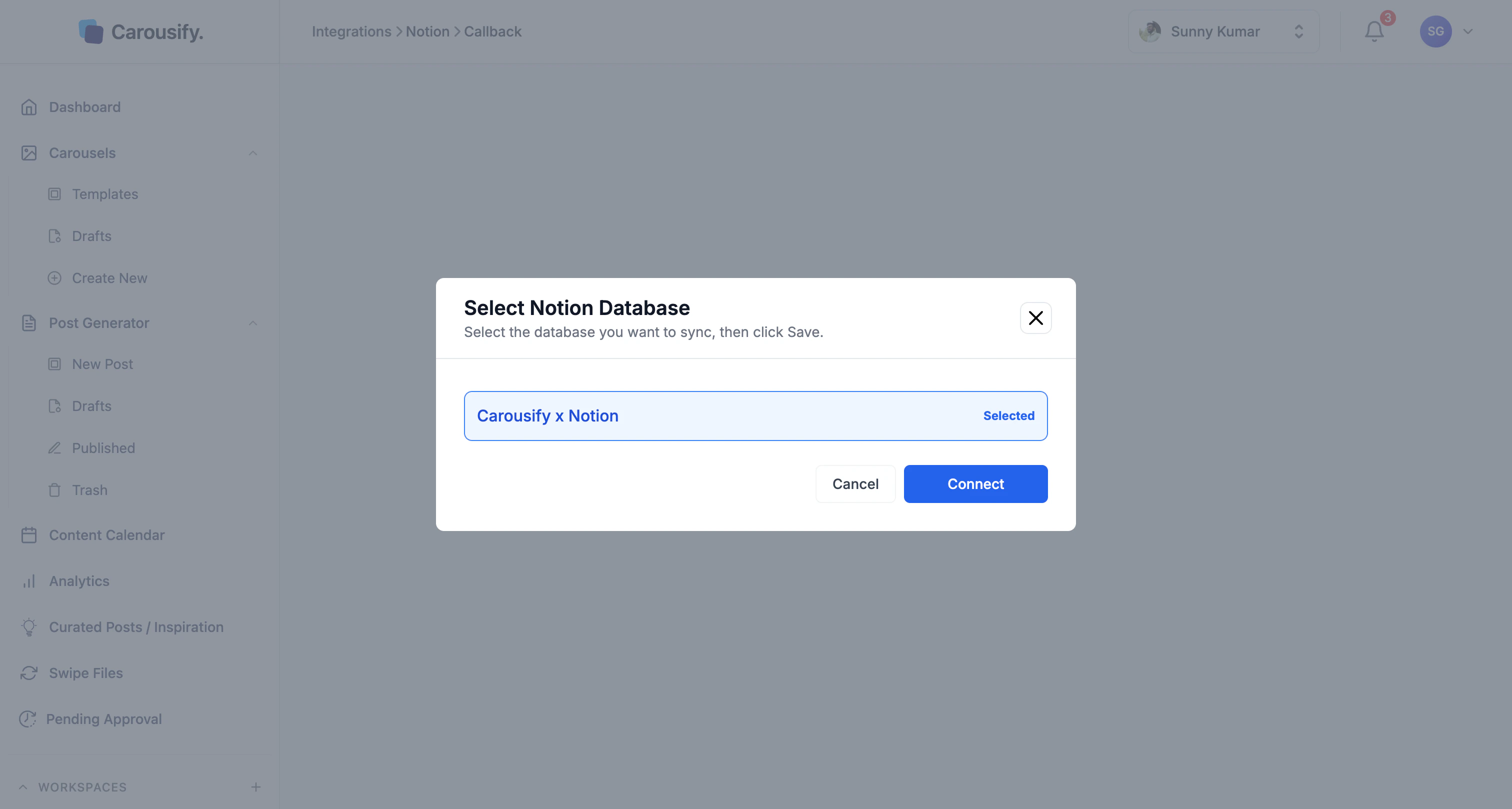
Step 6 — Map columns and define statuses
The Finalize Sync Logic screen is where you tell Carousify which Notion column means what. If you’re using our template, the values in the Column Mapping dropdowns line up 1-to-1 with the column names.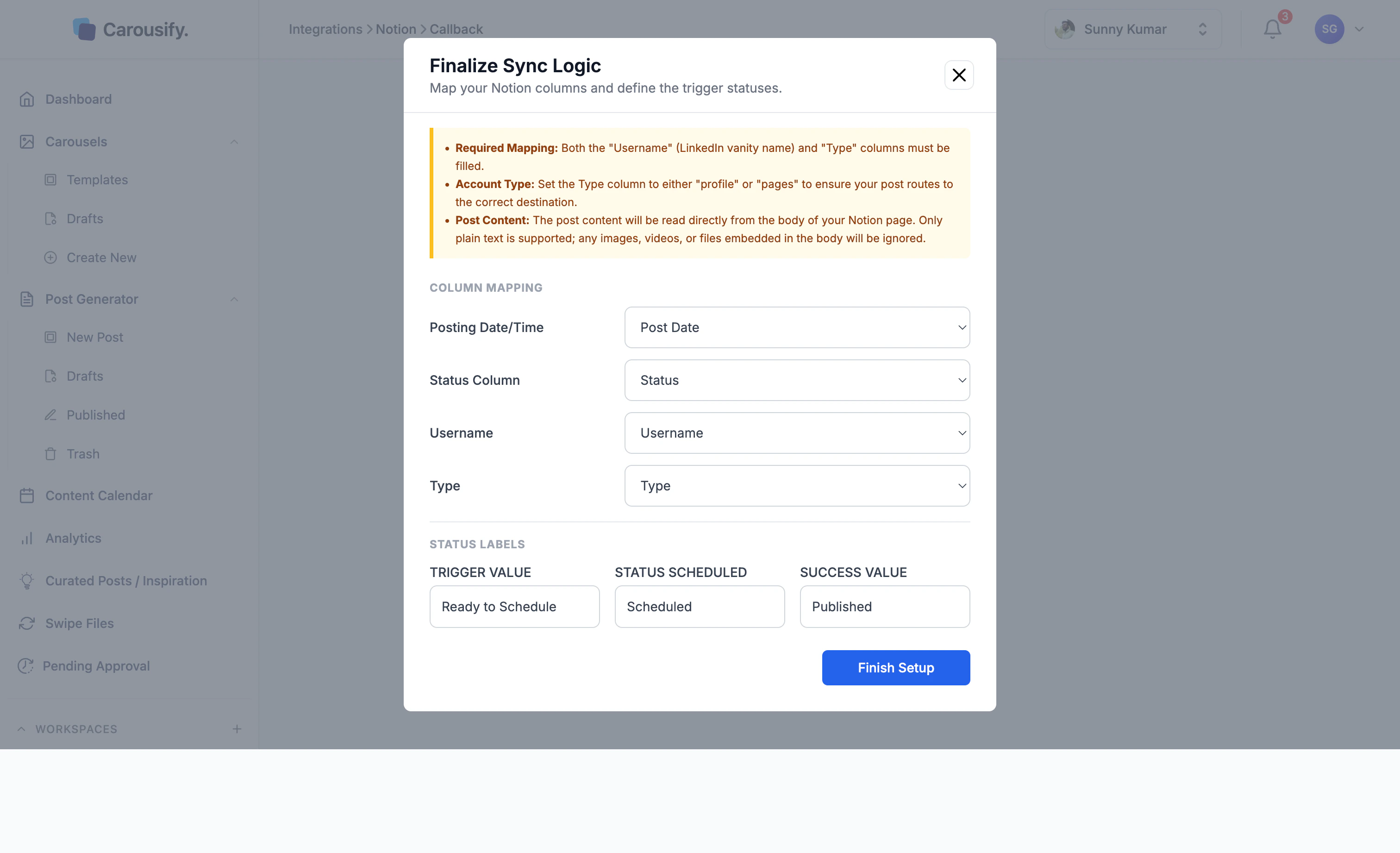
Column mapping
| Carousify field | Map to (template default) |
|---|---|
| Posting Date/Time | Post Date |
| Status Column | Status |
| Username | Username |
| Type | Type |
Status labels
This is the workflow contract — three string values that tell Carousify what your status column should say at each stage.| Field | What it means | Suggested value |
|---|---|---|
| Trigger value | Carousify picks up the row only when Status equals this. | Ready to Schedule |
| Status scheduled | Carousify writes this back to the row once it’s queued. | Scheduled |
| Success value | Carousify writes this back after the post publishes successfully. | Published |
Required: the Username and Type columns on every row you want to publish must be filled. Username is the LinkedIn vanity name — the bit after
linkedin.com/in/ for profiles or linkedin.com/company/ for pages. Type must be exactly profile or pages (lowercase).Post content: Carousify reads the post body straight from the body of the Notion page (open the row to edit it). Only plain text is supported — images, videos, and files embedded in the body are ignored.
How posts actually publish
Once the integration is live, here’s the loop on every row:You set the status to your trigger value
Pick a row, fill in Username, Type, Post Date, write the body of the page, and change Status to the trigger value (e.g.
Ready to Schedule).Carousify reads the row
Within a couple of minutes, Carousify pulls the row, parses the post body, and queues a scheduled post for the date and time in Post Date.
Carousify writes Scheduled back
The Status column updates to your Status scheduled value (e.g.
Scheduled). The row also appears in the Carousify Content Calendar.LinkedIn publishes at the scheduled time
At Post Date, Carousify publishes via LinkedIn’s official API.
Carousify writes Success back
The Status column flips to your Success value (e.g.
Published). The post also shows up under Published in Carousify.Disconnect or reconnect
To disconnect Notion, go to Manage Workspace › Integrations and click the menu on the Notion card. Carousify revokes the Notion access token immediately and stops reading the database. The Notion data itself is untouched — your rows, statuses, and history stay where they are. To reconnect later — or to point Carousify at a different database — run through the flow again. You’ll go back through Notion’s OAuth consent and the database picker.Troubleshooting
- A row never picks up. Check that Status matches your Trigger value exactly (case-sensitive), Username and Type are both filled, and Post Date is a Date column with time enabled.
- Post won’t schedule. Username and Type have to match — a personal profile vanity name needs Type set to
profile, and a company page vanity needs Type set topages. Mixing them (e.g. a personal vanity withpages) means Carousify can’t find a matching connected account and the post silently won’t get scheduled. - My images aren’t posting. Carousify reads only plain text from the Notion page body today. To attach media, schedule from inside Carousify instead — see Schedule a post.
- The integration shows as Active but nothing syncs. Open Notion, click the database name, and make sure the Carousify integration is still in the Connections list (top-right
…menu › Connections). If it’s gone, reconnect from Carousify.
What’s next
Schedule a post
Schedule directly inside Carousify when you don’t need Notion in the loop.
Content Calendar
See every Notion-scheduled post alongside posts queued from Carousify itself.
Slack notifications
Get pinged when a Notion-scheduled post publishes or fails.
MCP server
Drive Carousify from Claude or VS Code when Notion isn’t enough.